Most Core Data plus CloudKit failures come from configuration drift, not from advanced app logic.
The point of this article is preventative. If you enable CloudKit early, create real test records, keep one sane persistence stack, and deploy your schema deliberately, you avoid a surprising number of sync problems before the app ever reaches TestFlight.
The author frames the post as nine tips, but the underlying message is simpler: treat CloudKit as an environment you must inspect and manage directly, not as an invisible sync layer that always sorts itself out.
NSPersistentCloudKitContainer, not a plain NSPersistentContainer.
Start with the right container identifier and background capability before you chase sync bugs in code.
The first recommendation is basic but important. Your iCloud container should follow the normal
iCloud.<bundle identifier> style, and the app should also have
Remote notifications enabled under Background Modes. If those pieces are wrong, the rest of the stack can look
broken even when your model code is fine.
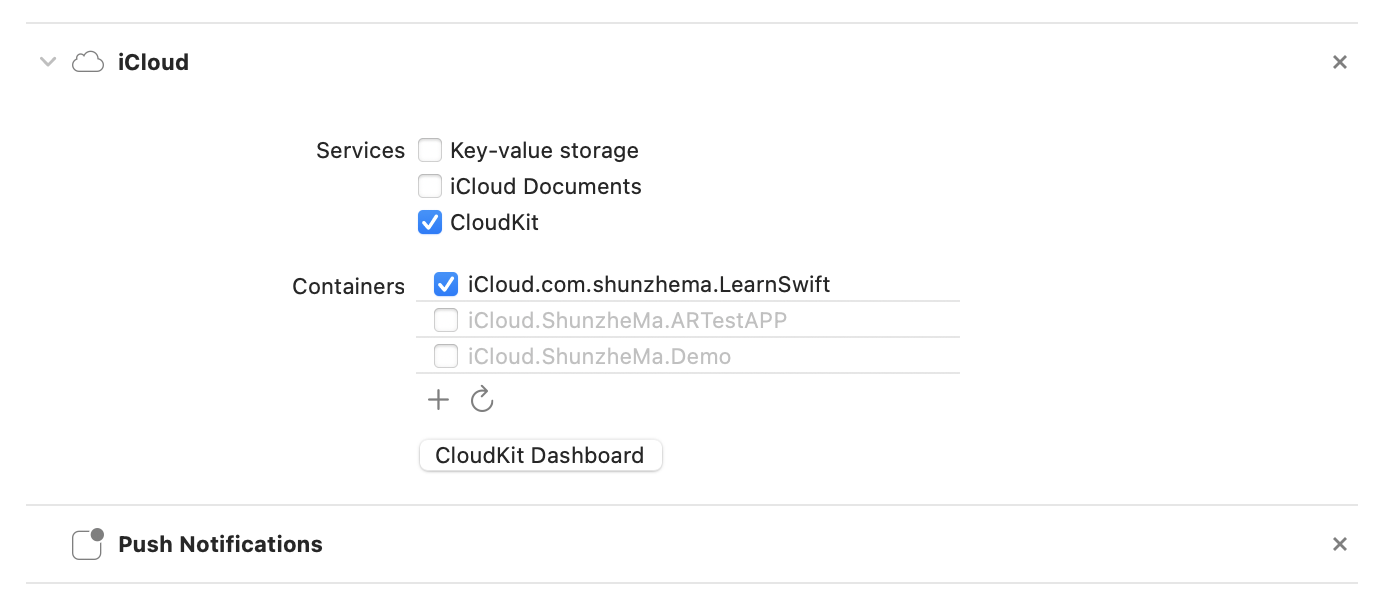
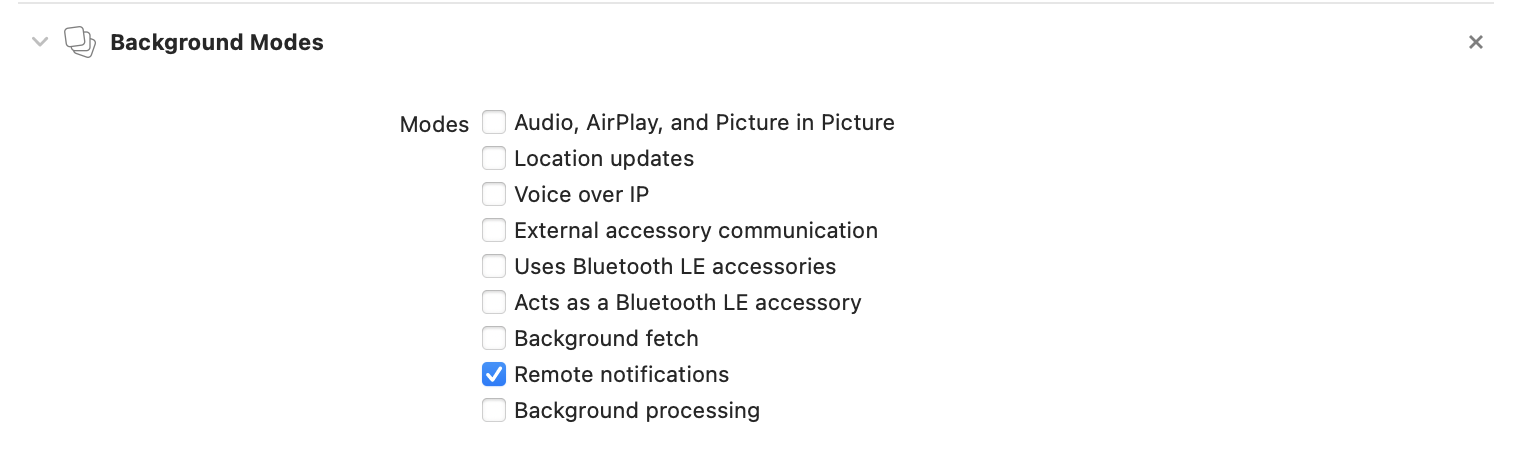
NSPersistentContainer, switch to NSPersistentCloudKitContainer before expecting CloudKit mirroring.
CloudKit development and production are separate worlds, and schemas do not become complete until you create real data.
One of the most useful parts of the article is the reminder that CloudKit does not magically infer every field in your Core Data model up front. The schema is shaped by the records that actually get created. If you only test half your entities or leave many properties empty, your dashboard schema can stay incomplete.
That matters because TestFlight and App Store builds use the production environment, while most development happens against the development environment. The data is separate, and the schema lifecycle is separate too.
<key>com.apple.developer.icloud-container-environment</key>
<string>Production</string>
The entitlement above is one way to make the production environment explicit. Even if you do not rely on this exact setup, the larger rule still holds: development data and production data are not the same database, so do not assume a development-only test proves the release environment is ready.
Choose a merge policy, merge remote changes automatically, and keep the persistence stack simple.
The article recommends configuring the main context with an explicit merge policy instead of accepting whatever default behavior the stack happens to use. The sample prefers object-trump semantics at the property level:
viewContext.mergePolicy = NSMergePolicy(
    merge: .mergeByPropertyObjectTrumpMergePolicyType
)
It also recommends enabling automatic merging from parent contexts so CloudKit-backed updates flow back into the visible context without extra manual refresh logic:
viewContext.automaticallyMergesChangesFromParent = true
From there, the guidance gets architectural. Avoid creating logically duplicate objects with identical values, especially if the
app can sync across devices. Give entities a stable unique identifier. Also avoid multiplying
NSManagedObjectContext instances unless you genuinely need them. A shared persistence controller is easier to reason about
and easier to debug.
import CoreData

final class PersistenceController {
    static let shared = PersistenceController()

    let container: NSPersistentCloudKitContainer
    let localStorageContext: NSManagedObjectContext

    init(inMemory: Bool = false) {
        container = NSPersistentCloudKitContainer(name: "Model")

        if inMemory {
            container.persistentStoreDescriptions.first?.url = URL(fileURLWithPath: "/dev/null")
        }

        container.loadPersistentStores { _, error in
            if let error = error as NSError? {
                fatalError("Unresolved error \\(error), \\(error.userInfo)")
            }
        }

        localStorageContext = container.viewContext
        localStorageContext.automaticallyMergesChangesFromParent = true
        localStorageContext.mergePolicy = NSMergePolicy(
            merge: .mergeByPropertyObjectTrumpMergePolicyType
        )
    }
}Do not trust sync blindly. Create records, open CloudKit Dashboard, and confirm they reached the expected private zone.
The article strongly recommends checking the dashboard after creating data in the app. For Core Data mirroring, the relevant records
usually appear in the private database, inside the zone named com.apple.coredata.cloudkit.zone, with record types that
look like CD_EntityName.
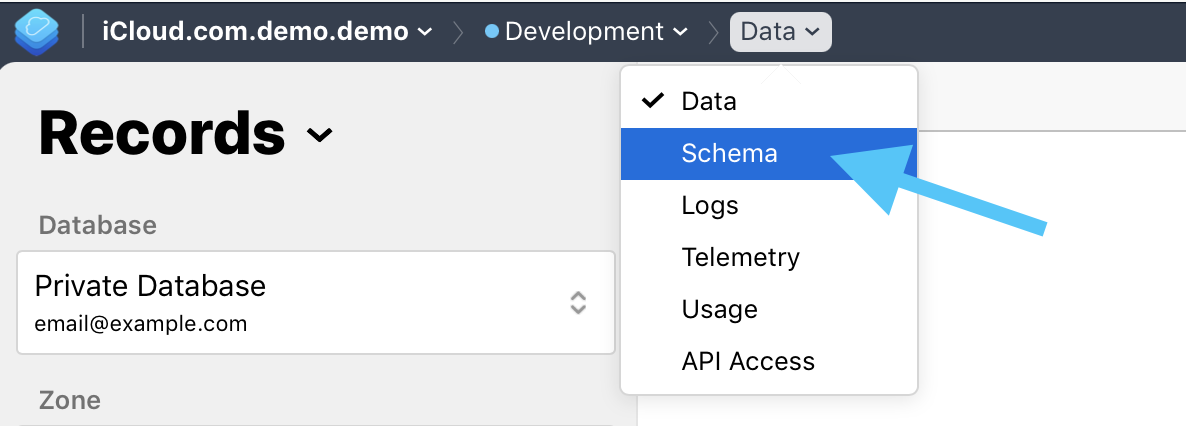
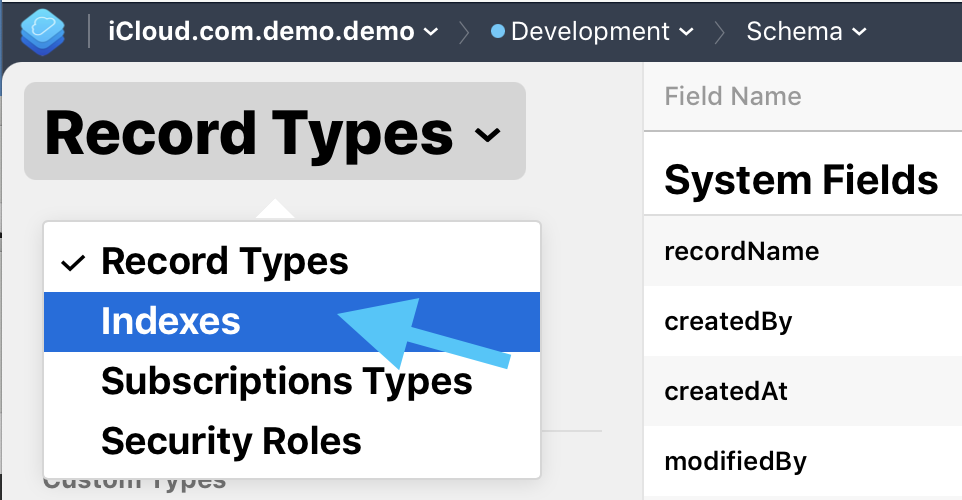
If query inspection is awkward, the post suggests temporarily allowing query operations through a recordName index.
That can make dashboard inspection easier during development, but it should not become permanent production clutter if you do not
need it.
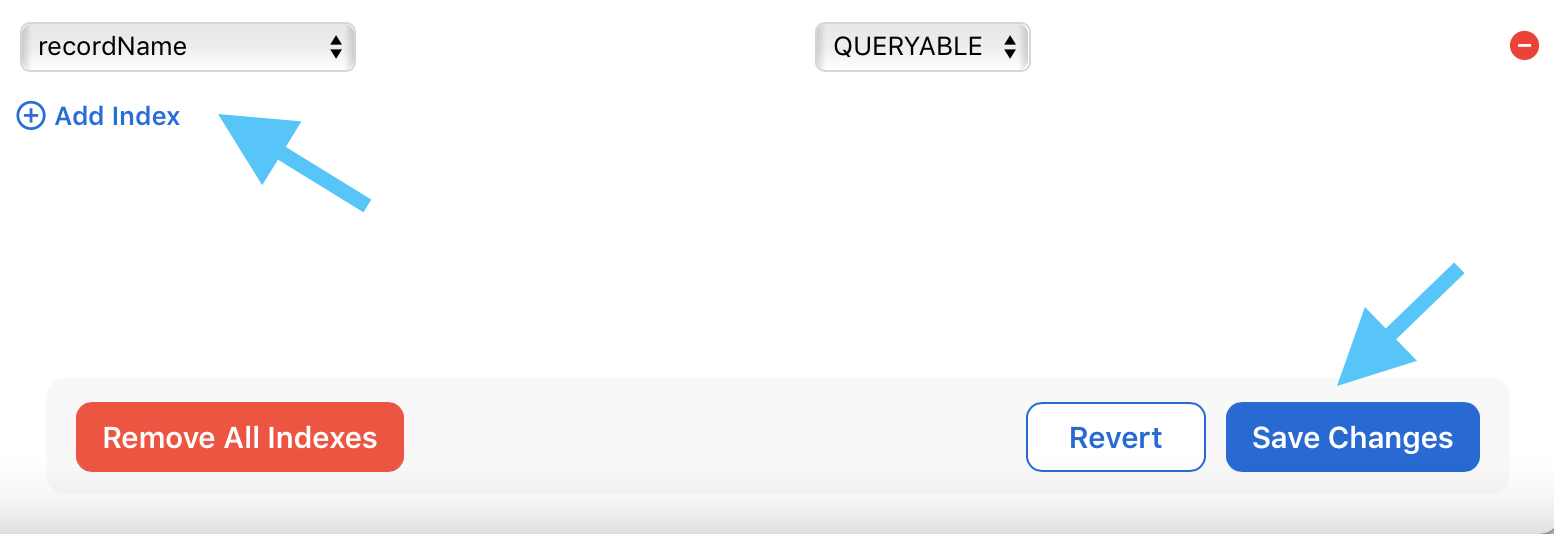
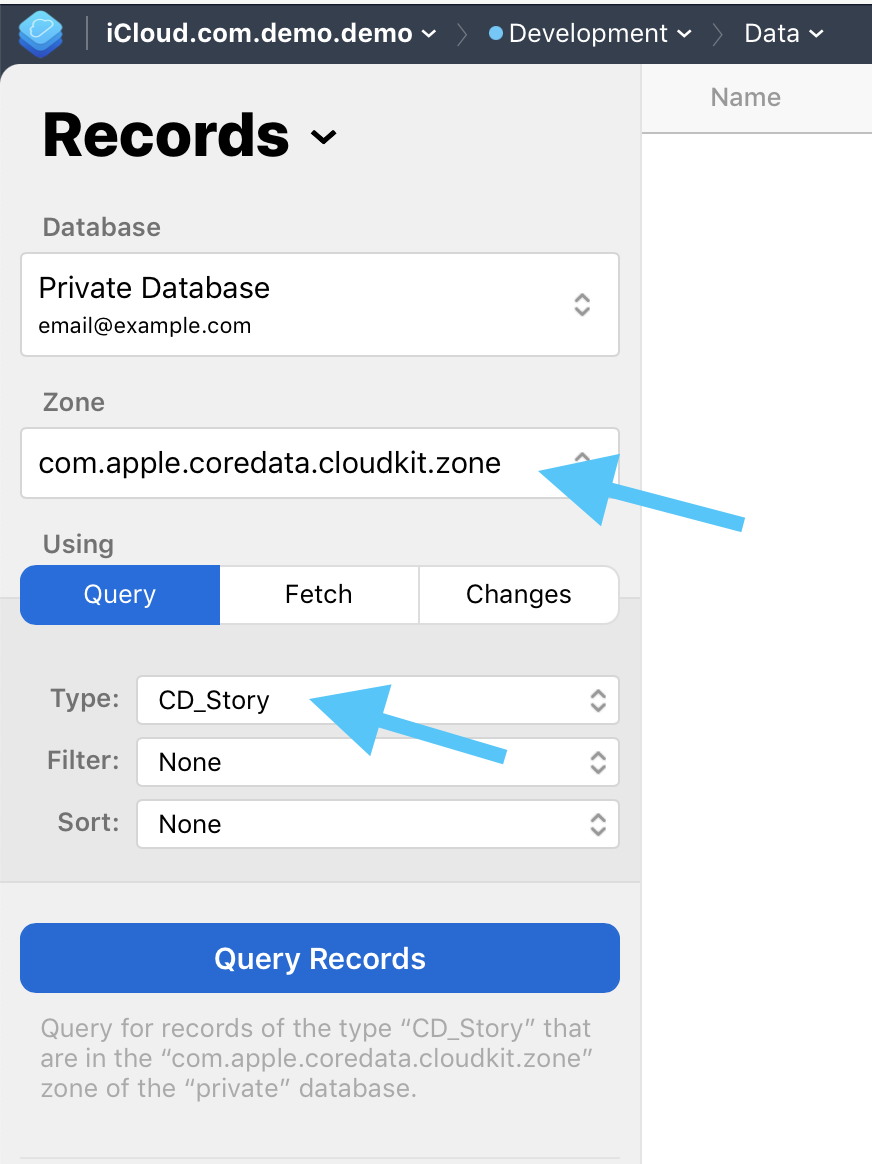
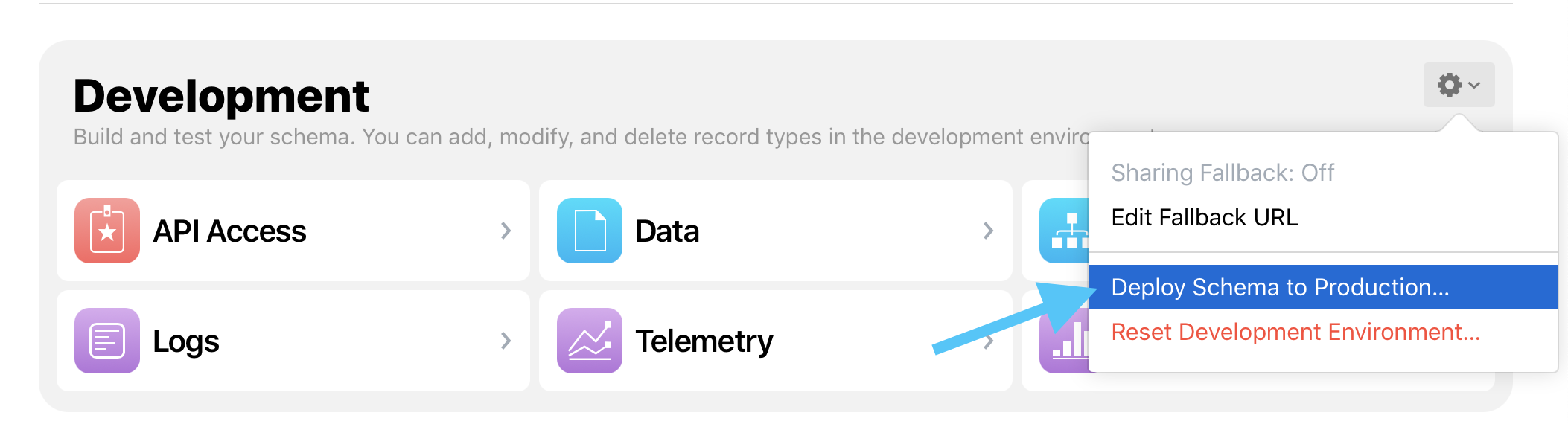
recordName query index can make dashboard inspection easier while you debug the schema.Before release, deploy the schema to production. When the model changes, create a new model version and set it current.
The production environment does not inherit everything automatically from development. Before shipping through TestFlight or the App Store, open CloudKit Dashboard and explicitly deploy the schema to production.
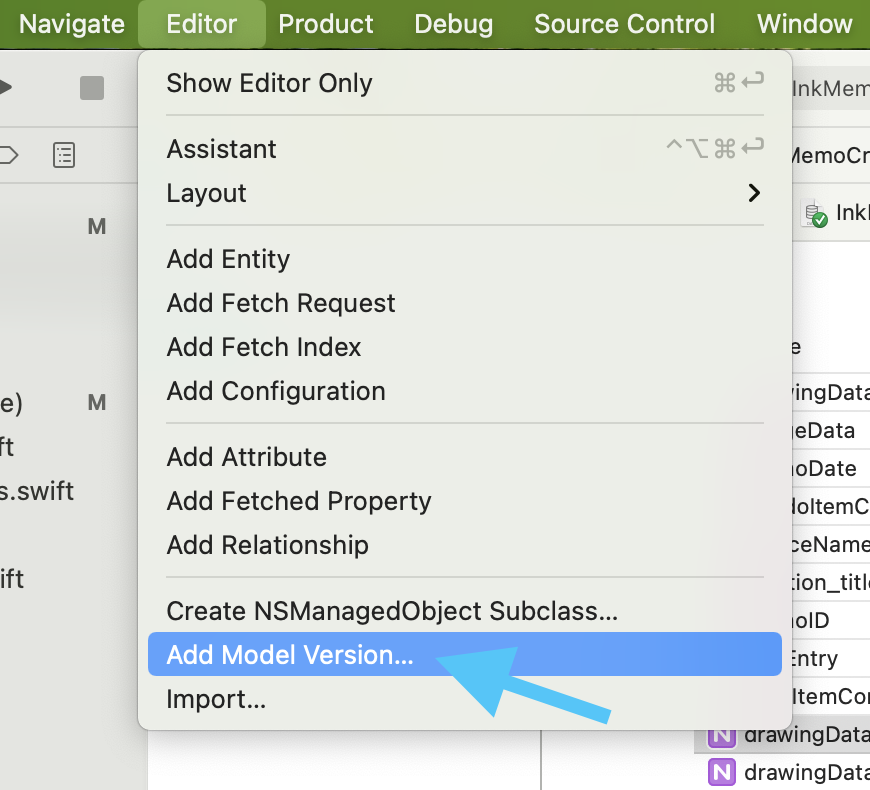
The second release-time discipline is model versioning. Whenever you change the database schema, create a new
.xcdatamodel version and then set that version as the current one. Otherwise the local model, generated code, and
CloudKit schema can drift apart.
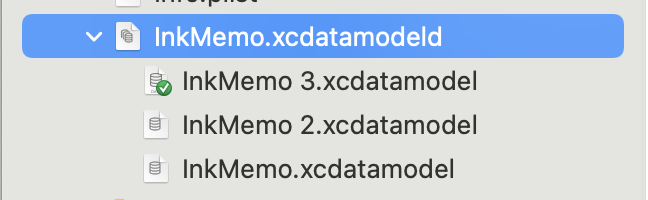
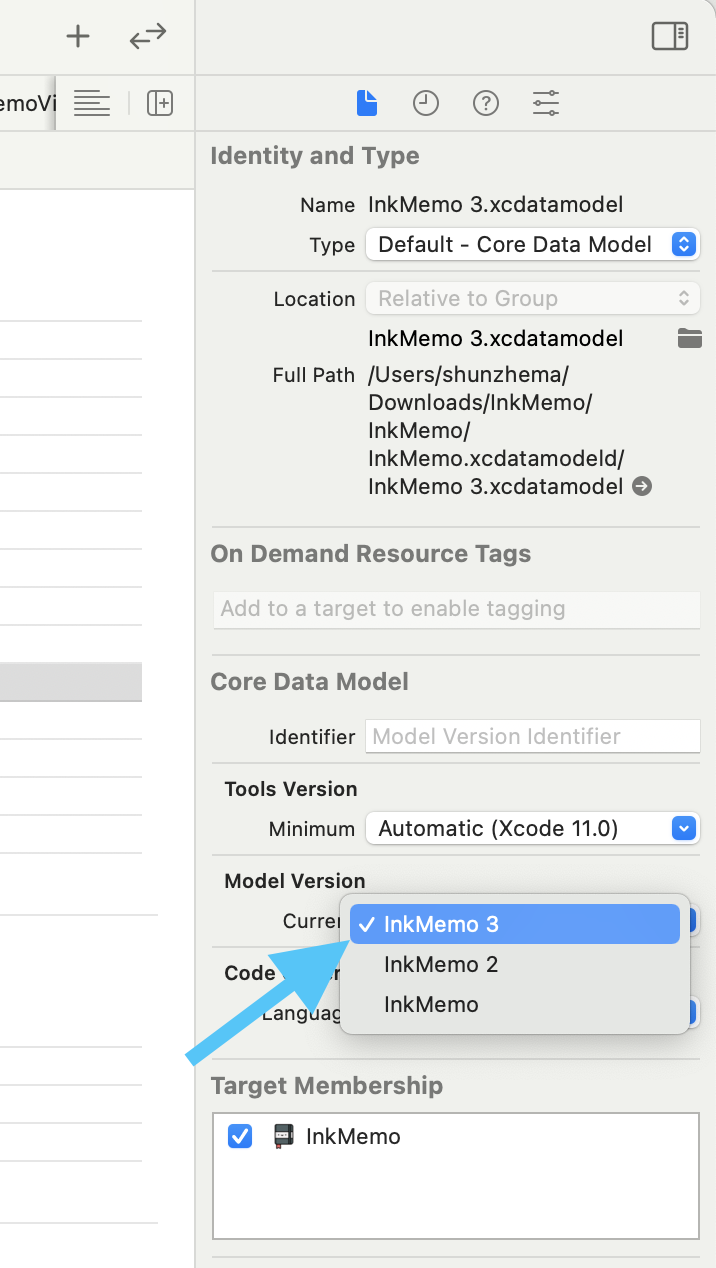
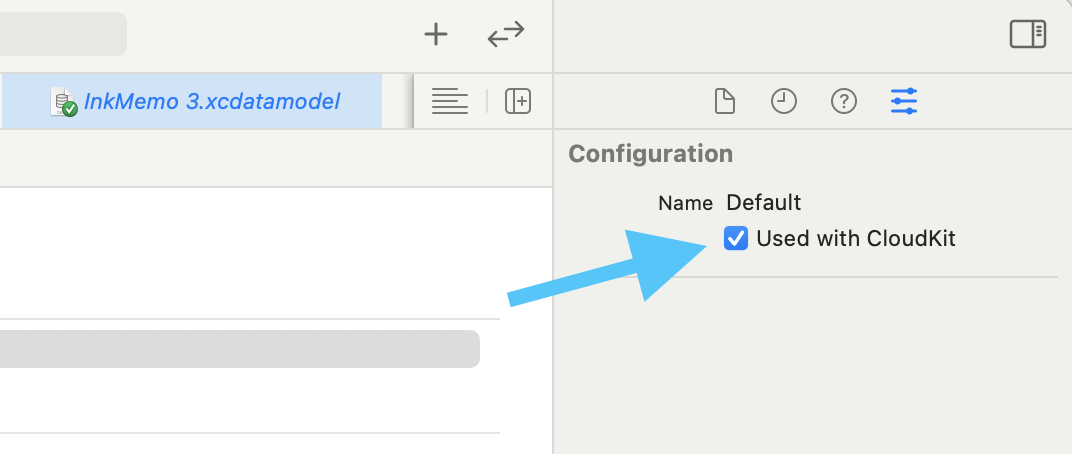
The Used with CloudKit model toggle is worth checking even if it is not always the root cause.
The article also points out the Used with CloudKit toggle inside the Core Data model configuration. The author notes that
sync may still appear to work even without it, but it is still a setting worth aligning with the actual architecture instead of
leaving ambiguous.
Read the console, verify the dashboard, and turn on the Core Data debug launch arguments when you need more signal.
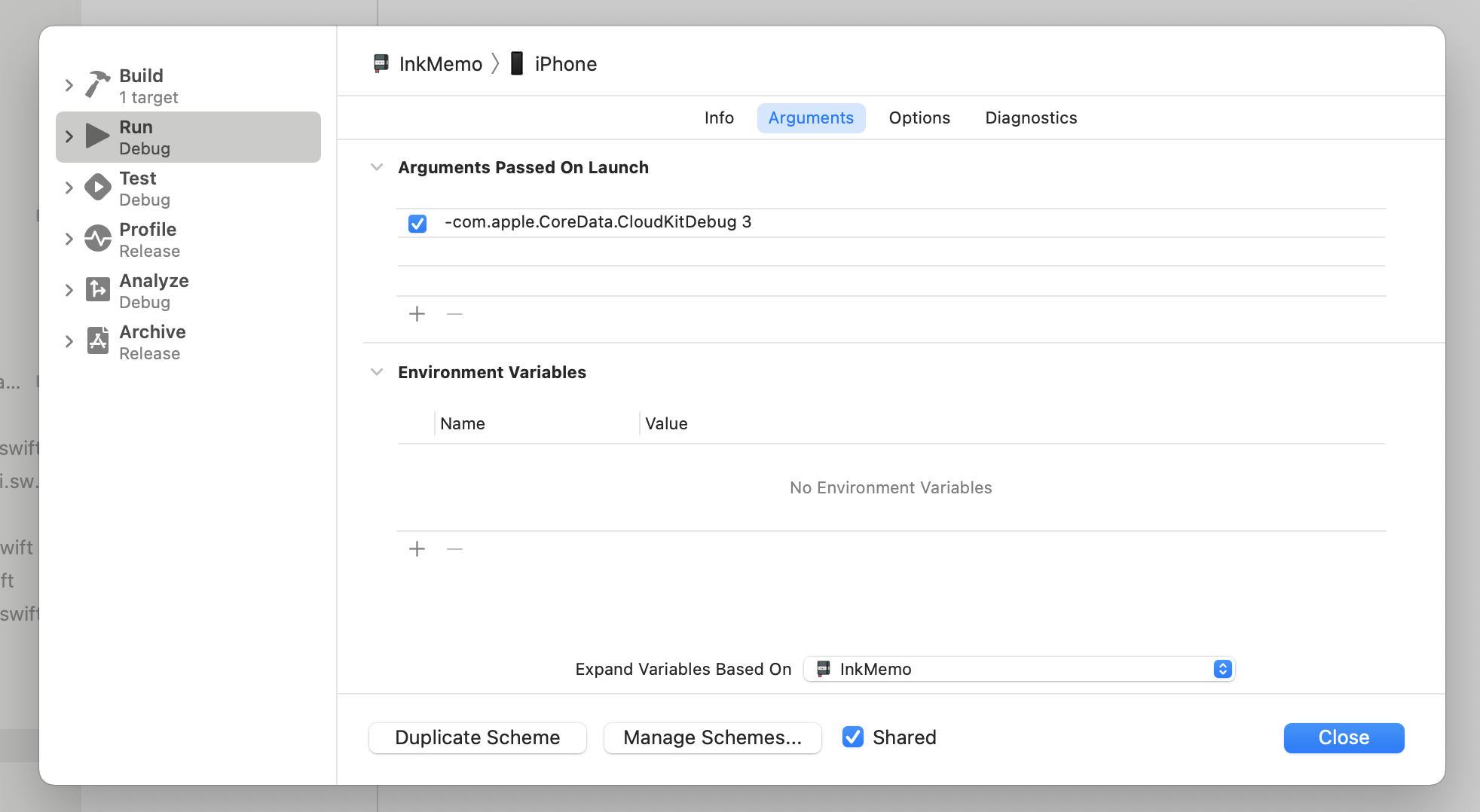
The debugging advice is straightforward and still useful. First, actually read the console logs during sync attempts. Second, confirm the schema exists in the dashboard and has been deployed to the right environment. Third, add verbose launch arguments when the normal output is not enough.
-com.apple.CoreData.SQLDebug 3
-com.apple.CoreData.Logging.stderr 3
-com.apple.CoreData.ConcurrencyDebug 3
-com.apple.CoreData.MigrationDebug 3
-com.apple.CoreData.CloudKitDebug 3
These can be added under Arguments Passed On Launch for the Run action in Xcode. Higher values generally produce more verbose
output, which helps when the failure is really a migration mismatch, a missing schema deployment, or a CloudKit-side issue rather than
a plain save failure.
Successful Core Data plus CloudKit apps come from disciplined setup and inspection, not from hoping the mirror is correct.
The most durable advice in this article is operational. Use the CloudKit-aware container, create a complete schema through real test data, keep merge rules explicit, avoid unnecessary contexts, inspect the dashboard regularly, deploy the schema to production before release, and version the model whenever the database changes.
If you do those things, most "CloudKit is broken" reports turn into smaller, concrete problems that can actually be fixed.