If your app runs on iPad with a hardware keyboard attached, keyboard shortcuts are one of the quickest ways to make the interface feel much more native.
This article is intentionally short. Its point is that this feature is not hard to add, and many iPad users already have a keyboard cover attached. That means shortcut support can deliver real value without requiring a large redesign.
It also covers both of the common implementation paths: keyboardShortcut for SwiftUI views and
UIKeyCommand for UIKit view controllers.
Users can discover the shortcuts your app offers by holding the Command key on the connected iPad keyboard.
That system overlay is one reason shortcut support is worth adding. Once the app defines commands, the OS already has a built-in way to surface them, so the feature is easier to learn than a hidden gesture or a custom tutorial screen.
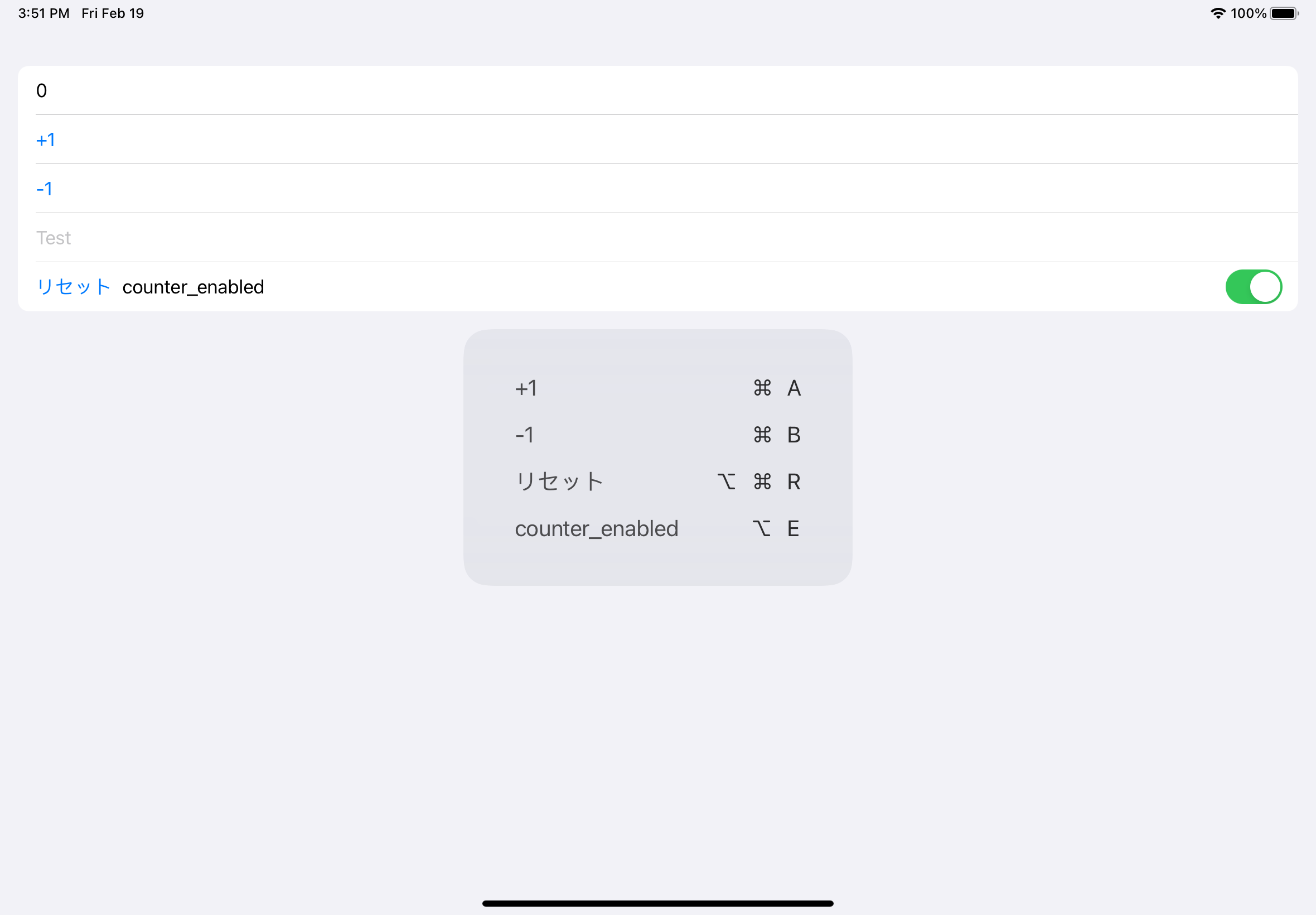
In SwiftUI, the direct path is to attach keyboardShortcut to an interactive control such as a button or toggle.
The article starts with the SwiftUI API signature:
public func keyboardShortcut(
    _ key: KeyEquivalent,
    modifiers: EventModifiers = .command
) -> some View
A simple example adds Command-A to a button:
Button(action: {
    counter += 1
}, label: {
    Text("+1")
})
.keyboardShortcut("a", modifiers: [.command])
This article keeps this section intentionally lightweight. The important takeaway is that SwiftUI already has a first-party modifier for this job, so you do not need a custom event-handling layer for basic shortcut support.
You can require one or more modifier keys, and the shortcut only triggers when the full combination is pressed.
The article lists the modifier options as capsLock, shift, control,
option, command, numericPad, and function.
So .keyboardShortcut("a", modifiers: [.command]) means the user presses Command and A together, while
.keyboardShortcut("r", modifiers: [.command, .option]) means the user presses Command, Option, and R together.
The post also notes that buttons and toggles are valid shortcut targets in SwiftUI, which covers many of the obvious UI actions apps want to expose.
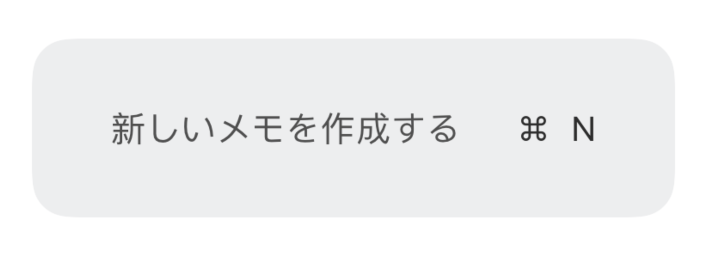
In UIKit, you define shortcuts by overriding keyCommands and returning one or more UIKeyCommand objects.
The example from this article adds a Command-N shortcut to a view controller:
class ViewController: UIViewController {

    override var keyCommands: [UIKeyCommand]? {
        return [
            .init(
                title: "Create a new note",
                action: #selector(self.actionCreate),
                input: "n",
                modifierFlags: [.command]
            )
        ]
    }

    @objc func actionCreate() {
        print("create")
    }
}
The article then points out that the initializer can carry more than just the input key and modifier flags. It can also include a title, image, alternates, discoverability title, attributes, and state:
public convenience init(
    title: String = "",
    image: UIImage? = nil,
    action: Selector,
    input: String,
    modifierFlags: UIKeyModifierFlags = [],
    propertyList: Any? = nil,
    alternates: [UICommandAlternate] = [],
    discoverabilityTitle: String? = nil,
    attributes: UIMenuElement.Attributes = [],
    state: UIMenuElement.State = .off
)
The useful part of this article is how little code the feature really needs.
In SwiftUI, it can be one modifier on an existing control. In UIKit, it can be one overridden property and one selector. If your app has obvious actions like create, save, move, confirm, or switch views, keyboard shortcuts are a low-cost way to make the iPad experience feel more deliberate for hardware-keyboard users.