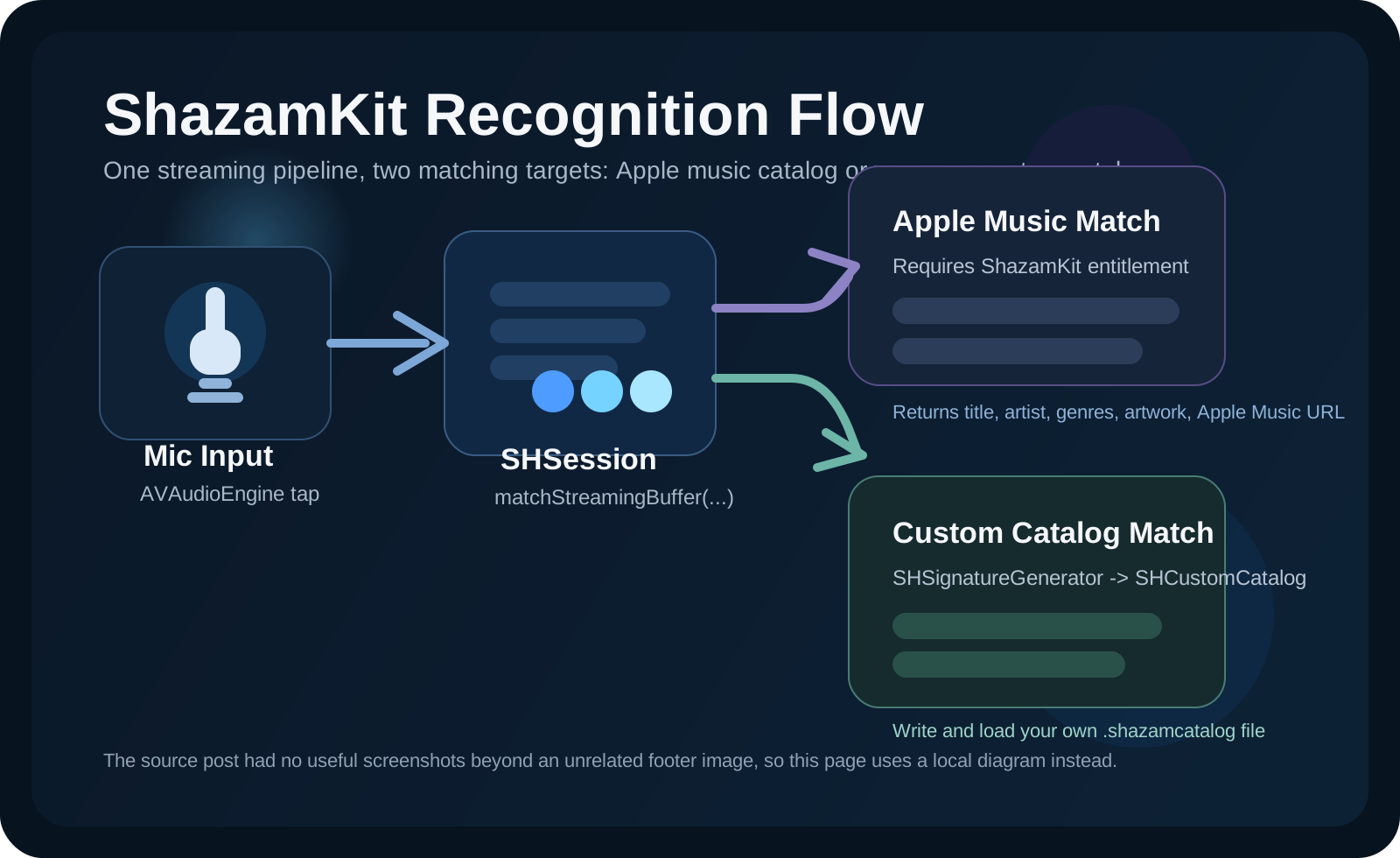
ShazamKit is not only an Apple Music matcher. The more useful mental model is that it can recognize against either Apple's catalog or a catalog you build yourself.
That is the real shape of this article. The first half covers the online recognition path:
microphone input goes into a standard SHSession, which reports matches through its delegate.
The second half shows how to collect signatures with SHSignatureGenerator, label them with
SHMediaItem metadata, write a .shazamcatalog, and later initialize a session from
that file instead of the online library.
Before any matching works, the app needs microphone permission, and the online music-recognition path also needs the ShazamKit capability enabled for the App ID.
The article explicitly calls out two prerequisites. First, add a value for
NSMicrophoneUsageDescription in Info.plist. Second, if you want to match against
Apple's online music library, enable the ShazamKit service for the app in the Apple developer
portal. Without that entitlement, the online path is incomplete even if your code compiles.
The core online-recognition setup is small: a recognition session and an audio engine.
This article starts the online flow with these two stored properties:
private var session = SHSession()
private let audioEngine = AVAudioEngine()
Once the view or controller is initialized, assign the session delegate:
session.delegate = self
Conceptually, SHSession is the matcher and AVAudioEngine is the audio source.
Recognition results are entirely delegate-driven, so the two callbacks define the success and failure shape of the feature.
The article highlights the delegate protocol itself:
public protocol SHSessionDelegate: NSObjectProtocol {
    optional func session(_ session: SHSession, didFind match: SHMatch)
    optional func session(
        _ session: SHSession,
        didNotFindMatchFor signature: SHSignature,
        error: Error?
    )
}
On success, the sample stops recording, loops through match.mediaItems, and reads properties
like title, artist, genres, artwork URL, and Apple Music URL:
func session(_ session: SHSession, didFind match: SHMatch) {
    audioEngine.stop()
    for mediaItem in match.mediaItems {
        print(
            "Title: \(mediaItem.title); Artist: \(mediaItem.artist)"
        )
        DispatchQueue.main.async {
            // Display the result on your UI
        }
    }
}
The failure path also stops the engine, logs any error, and flips the UI into a no-result state:
func session(
    _ session: SHSession,
    didNotFindMatchFor signature: SHSignature,
    error: Error?
) {
    print(error?.localizedDescription ?? "")
    audioEngine.stop()
    DispatchQueue.main.async {
        self.viewState = .noResult
    }
}The live-recognition path works by tapping the microphone input and feeding each buffer directly into ShazamKit.
The article wires the input node to matchStreamingBuffer:
let inputNode = audioEngine.inputNode
let recordingFormat = inputNode.outputFormat(forBus: .zero)

inputNode.removeTap(onBus: .zero)
inputNode.installTap(
    onBus: .zero,
    bufferSize: 1024,
    format: recordingFormat
) { [weak self] buffer, time in
    self?.session.matchStreamingBuffer(buffer, at: time)
}

audioEngine.prepare()

do {
    try audioEngine.start()
} catch {
    print(error.localizedDescription)
}
That is the whole online loop. Once the engine starts, ShazamKit continuously receives audio samples until a match arrives or the session gives up.
Building your own sound library starts by recording signatures instead of immediately sending buffers to a matching session.
This article introduces a signature generator:
private lazy var generator = SHSignatureGenerator()During recording, the audio tap appends each microphone buffer into that generator:
inputNode.installTap(
    onBus: .zero,
    bufferSize: 1024,
    format: recordingFormat
) { [weak self] buffer, time in
    try? self?.generator.append(buffer, at: time)
}
When recording stops, the app pulls out a signature, resets the generator, and pairs that signature with
metadata in an SHMediaItem:
self.audioEngine.stop()
let signature = self.generator.signature()
self.generator = SHSignatureGenerator()

let metaData = SHMediaItem(
    properties: [.title: "", .artist: ""]
)

let newAudioEntry = Entry(
    metaData: metaData,
    signature: signature
)
The article stores each entry in an array so the user can record multiple labeled sounds before exporting the catalog.
Once all entries are collected, the custom catalog file is written like this:
let catalog = SHCustomCatalog()
do {
    try viewModel.allSignatures.forEach { entry in
        try catalog.addReferenceSignature(
            entry.signature,
            representing: [entry.metaData]
        )
    }

    let documentURL = getDocumentsDirectory()
        .appendingPathComponent(UUID().uuidString)
        .appendingPathExtension("shazamcatalog")

    try catalog.write(to: documentURL)
} catch {
    print(error.localizedDescription)
}Recognition against your own sounds looks almost the same as the online path. The difference is just the catalog you inject into the session.
The article loads a bundled custom catalog file like this:
let catalog = SHCustomCatalog()
try catalog.add(
    from: Bundle.main.url(
        forResource: "CustomSoundLibrary",
        withExtension: "shazamcatalog"
    )!
)
Then it creates a session from that catalog instead of the default online matcher:
let session = SHSession(catalog: catalog)After that, the rest of the implementation can follow the same microphone streaming and delegate pattern from the first half of the article.
The useful takeaway is that ShazamKit has one recognition pipeline but two different sources of truth: Apple's catalog and your own.
The online version is mostly about entitlement setup plus a streaming SHSession. The custom
version adds a second phase where you create signatures, assign metadata, and export a
.shazamcatalog. Once that file exists, recognition becomes the same pattern again, just aimed at
your own reference sounds instead of the public music library.