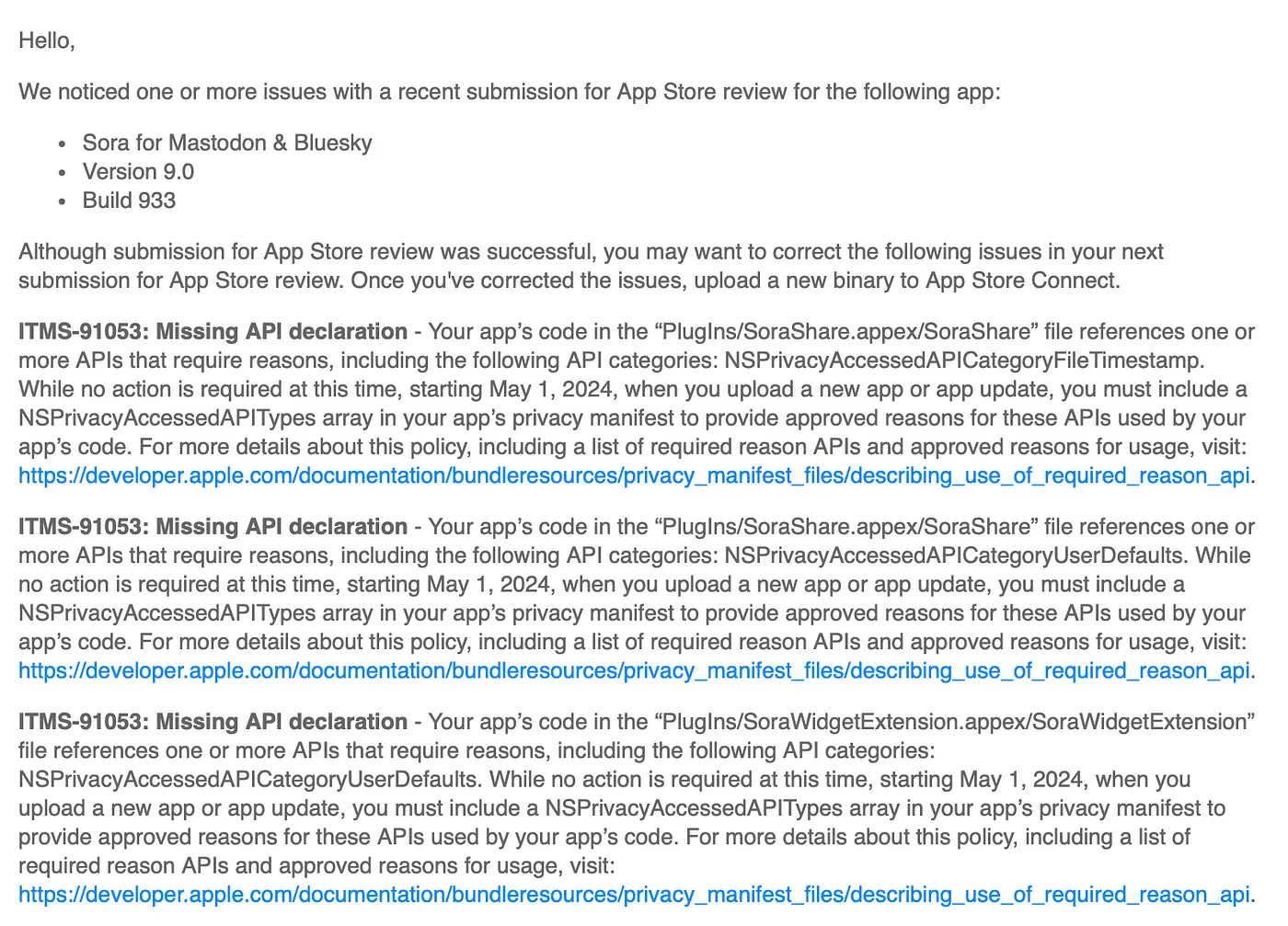
The warning is not about a crash. It is about shipping code that touches protected API categories without a declared reason.
The example in this article starts with the App Store review email many iOS developers saw around spring 2024:
the binary referenced APIs such as NSPrivacyAccessedAPICategoryFileTimestamp and
NSPrivacyAccessedAPICategoryUserDefaults, but the app bundle did not yet declare approved reasons in its privacy manifest.
The key date was May 1, 2024. From that point forward, new app uploads and updates needed a
NSPrivacyAccessedAPITypes array inside the privacy manifest whenever the app or one of its embedded targets used required-reason APIs.
Create an App Privacy file, name it PrivacyInfo.xcprivacy, and attach it to every target that needs it.
The setup path in Xcode is straightforward: create a new file, choose the App Privacy template,
then make sure the file is linked to the targets that actually use the protected APIs. If you use
UserDefaults in the main app and in a widget, both targets should be covered.
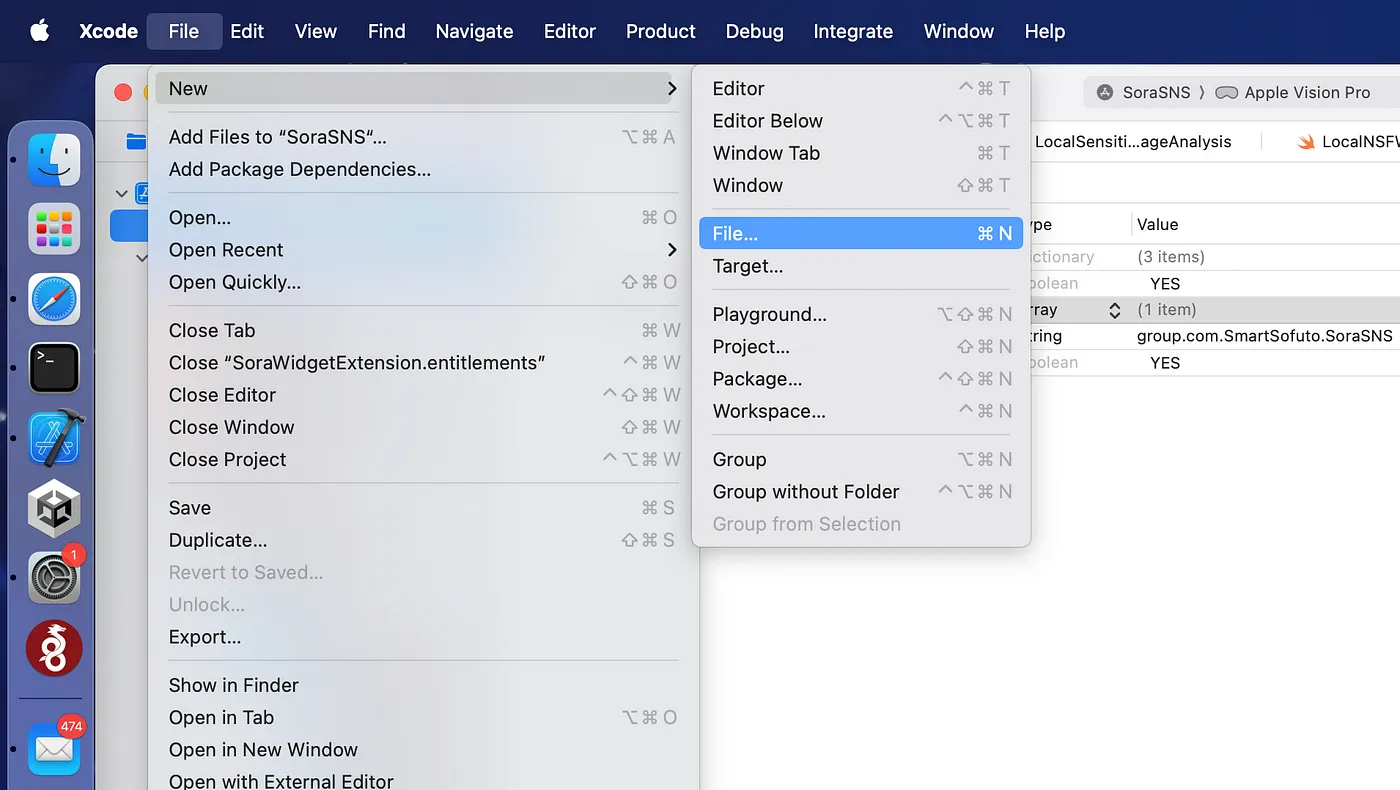
File > New > File inside the project that is triggering the warning.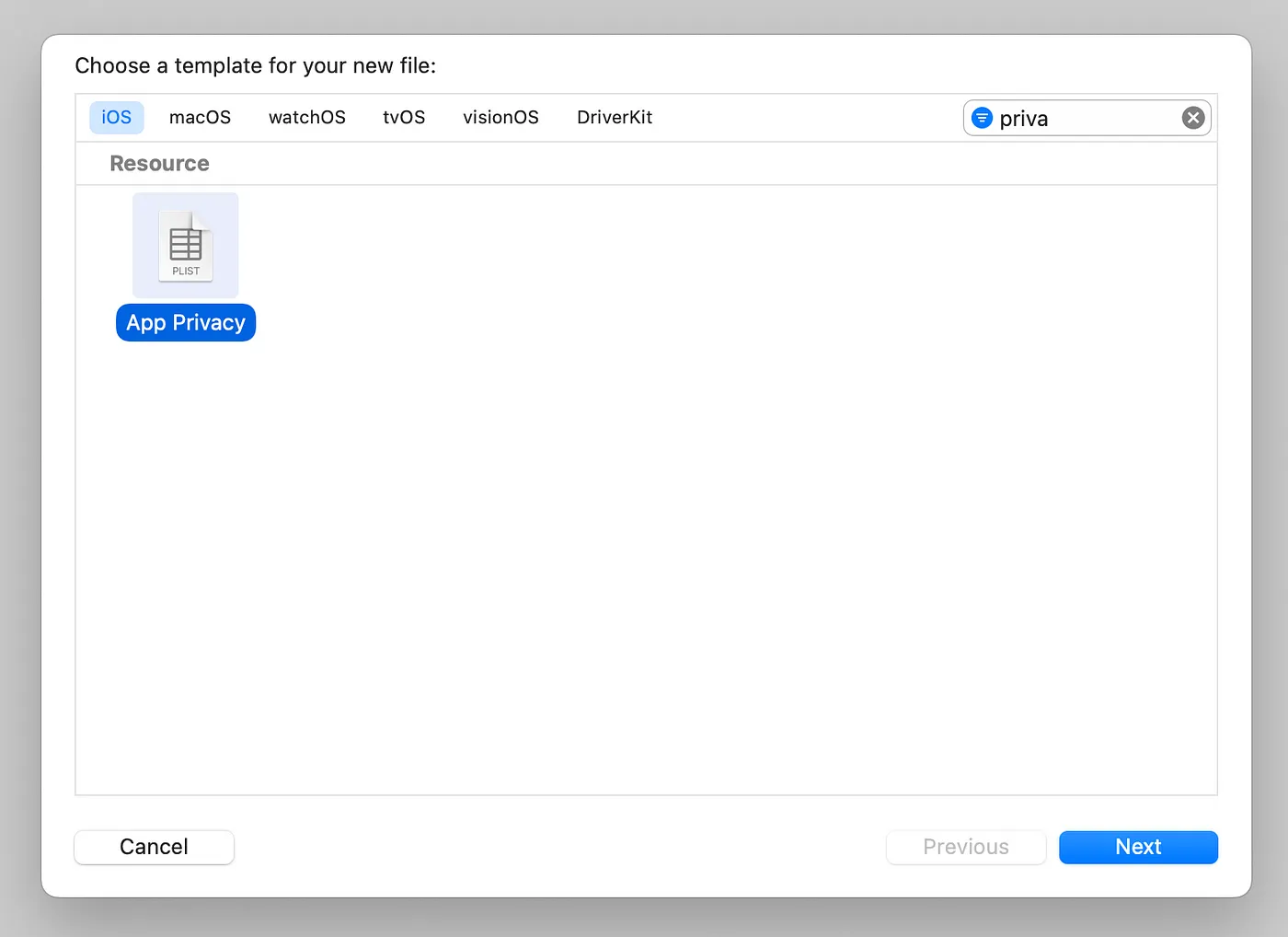
App Privacy, which creates the manifest plist structure for you.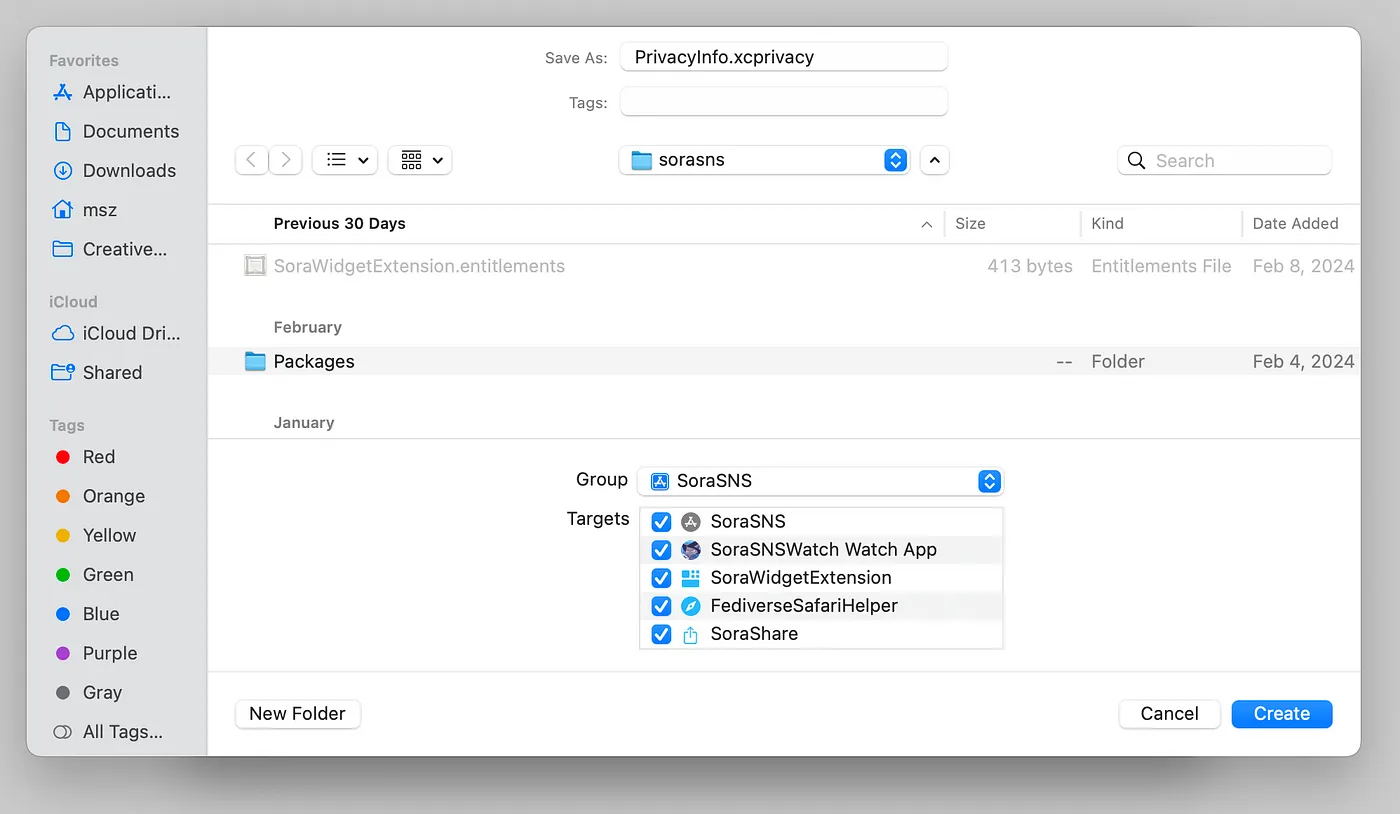
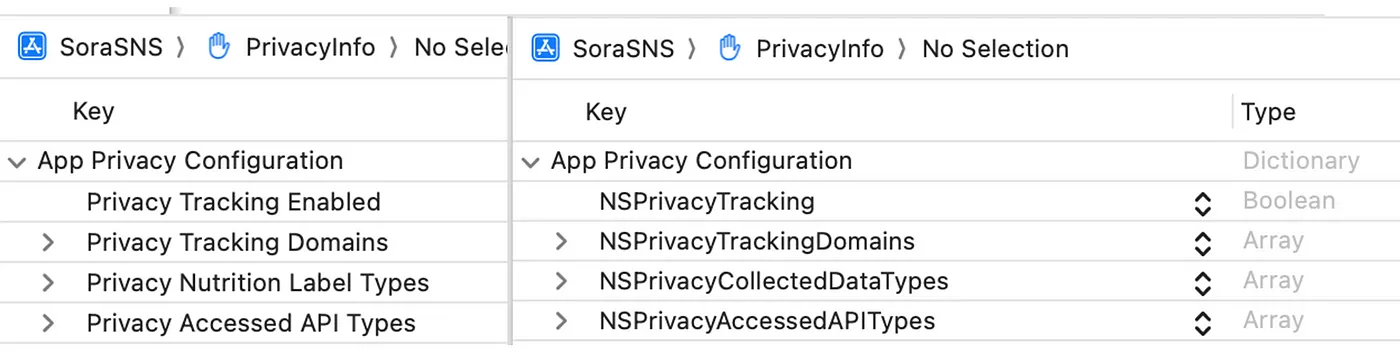
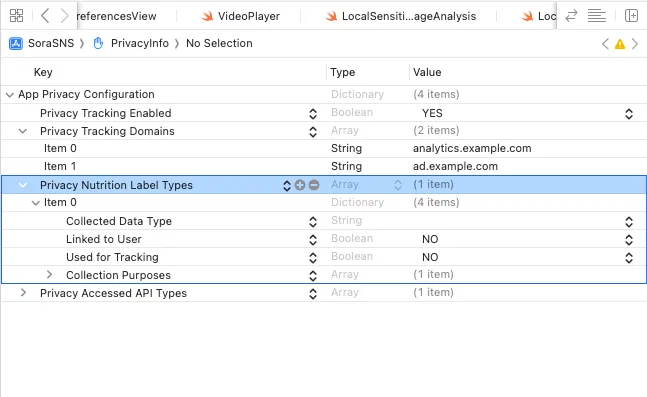
The privacy manifest really starts with four top-level areas: tracking, tracking domains, collected data types, and accessed API types.
The article calls out four keys you will usually see at the top of the file:
NSPrivacyTracking,
NSPrivacyTrackingDomains,
NSPrivacyCollectedDataTypes, and
NSPrivacyAccessedAPITypes.
Apple exposes these either as friendlier labels or as raw plist keys. Xcode can switch between the two views, which is useful when comparing your file against Apple's documentation or a rejection email that names the raw keys directly.
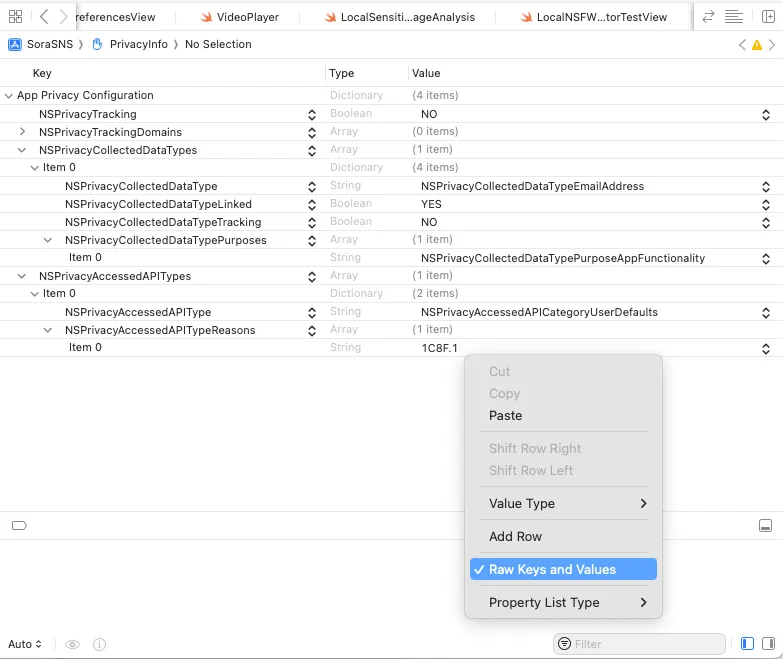
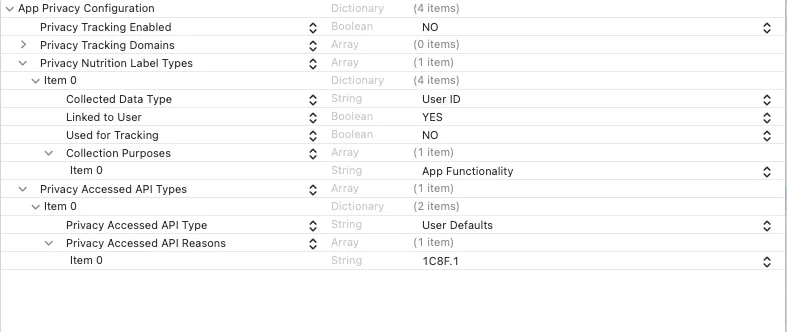
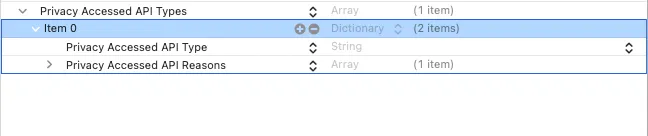
The core fix for ITMS-91053 is the NSPrivacyAccessedAPITypes array.
Each item in that array is a dictionary with two parts: the API category itself, and an array of approved reason codes.
In plist-label mode those appear as Privacy Accessed API Type and Privacy Accessed API Reasons.
<key>NSPrivacyAccessedAPITypes</key>
<array>
  <dict>
    <key>NSPrivacyAccessedAPIType</key>
    <string>NSPrivacyAccessedAPICategoryUserDefaults</string>
    <key>NSPrivacyAccessedAPITypeReasons</key>
    <array>
      <string>1C8F.1</string>
    </array>
  </dict>
</array>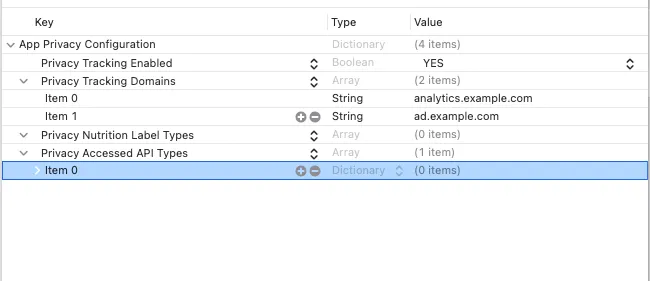
The useful part of the article is not only the file format. It is the practical mapping between common APIs and the reason codes Apple expects.
This article focuses on five categories that come up often in real iOS apps: UserDefaults,
file timestamps, system boot time, disk space, and active keyboard information.
UserDefaults
The category is NSPrivacyAccessedAPICategoryUserDefaults. The article summarizes the three most relevant reason codes:
CA92.1: app-only defaults, where the data is not shared through an app group.
1C8F.1: defaults shared among members of the same app group, such as a main app and widget.
C56D.1: a third-party SDK wrapper that touches UserDefaults only when your app calls into it.
The practical advice in the article is good: if your app and widget share values through an app group, use 1C8F.1, not CA92.1.
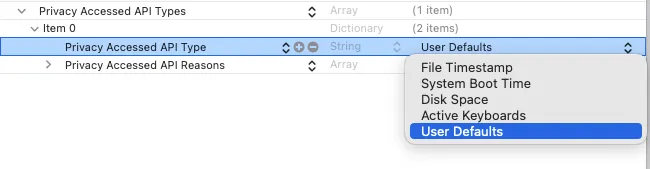
User Defaults entry uses 1C8F.1 for app-group sharing.File Timestamp API
The category is NSPrivacyAccessedAPICategoryFileTimestamp. The article lists methods such as
creationDate, modificationDate, stat, fstat, and related metadata calls.
The main codes called out are:
DDA9.1 for showing timestamp information to the user without sending it off device,
C617.1 for app container, app group, or CloudKit container metadata,
3B52.1 for files or directories the user explicitly chose, such as through the document picker,
and 0A2A.1 when a third-party SDK wrapper is the one touching the API.
The article's concrete example uses 3B52.1 because the app only reads timestamps from files the user selected through the native iOS picker.

3B52.1 is the right fit when you only inspect metadata for user-picked files.System Boot Time
The category is NSPrivacyAccessedAPICategorySystemBootTime, and the article calls out
systemUptime and mach_absolute_time().
35F9.1 covers elapsed-time measurement or timers inside the app,
8FFB.1 covers calculating absolute timestamps for app events such as UIKit or AVFAudio-related activity,
and 3D61.1 covers bug reports that the user explicitly chooses to submit.

Disk Space
The category is NSPrivacyAccessedAPICategoryDiskSpace. The examples include methods such as
volumeAvailableCapacityKey, systemFreeSize, and statfs.
85F4.1 is for showing disk information to the user,
E174.1 is for checking whether there is enough space to write or whether cleanup is needed,
7D9E.1 is for optional bug-report information,
and B728.1 is for health research apps warning participants about low storage affecting data collection.
Active Keyboards
The category is NSPrivacyAccessedAPICategoryActiveKeyboards and the article focuses on
activeInputModes.
3EC4.1 is for custom keyboard apps that need to identify the active keyboard.
54BD.1 is for adapting the app's own text-entry UI in an observable way based on the active keyboard.
The manifest does more than required-reason APIs. It also records tracking behavior and the data categories your app collects.
The article closes by walking through the remaining top-level fields:
NSPrivacyTracking as a boolean,
NSPrivacyTrackingDomains as an array of tracking-related domains,
and NSPrivacyCollectedDataTypes for privacy nutrition labels.
One important warning from this article is worth keeping: do not list domains under tracking domains unless they are actually used for tracking. If the user refuses tracking, requests to those listed domains can fail.
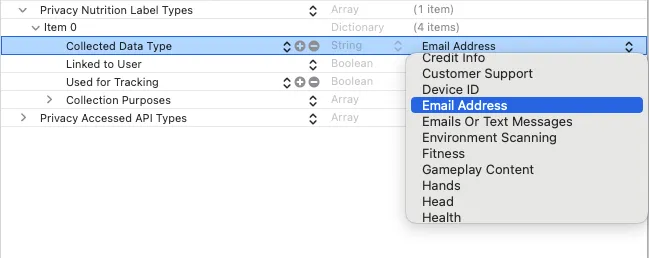
Email Address as collected data.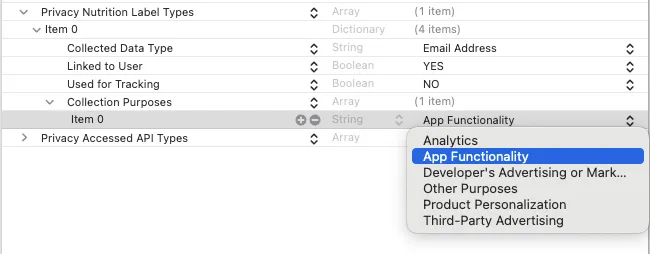
Keep Apple's two manifest docs close by when filling this out.
For the required-reason API categories and approved codes, use: Describing use of required reason API.
For privacy nutrition labels and collected data declarations, use: Describing data use in privacy manifests.
Most ITMS-91053 fixes come down to two mistakes: missing target coverage or the wrong reason code.
If the manifest file is present but the warning still appears, the first thing to check is whether the file was added to every relevant target,
including extensions. The second thing to check is whether the code matches how the API is really used, especially for
UserDefaults app-group sharing and file metadata access.
This article is useful because it does not stop at "make the file." It shows how the reason codes change based on the actual data path through the app.