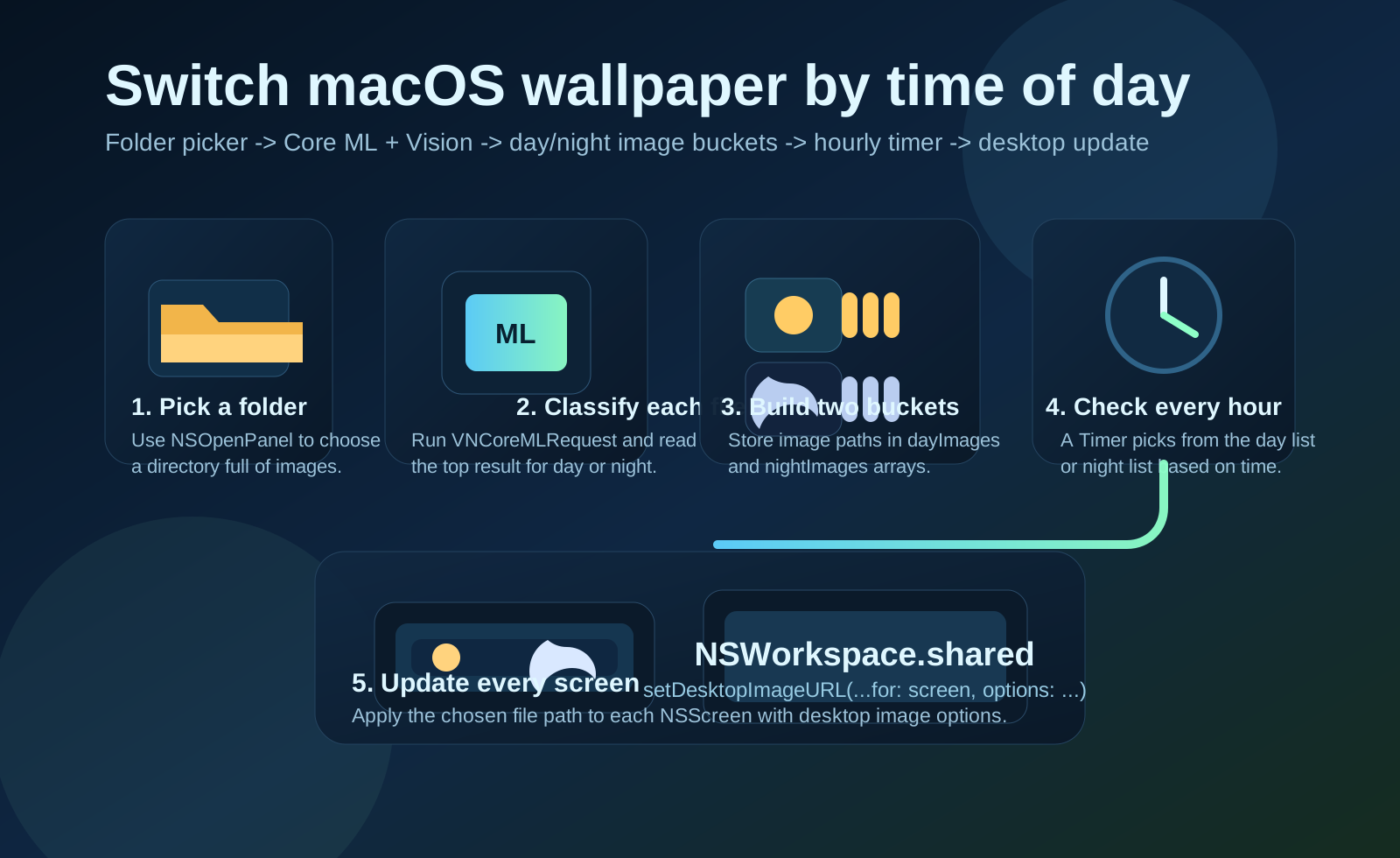
This article is useful because it turns a toy classifier into a complete macOS automation loop.
The earlier posts in the series already solved the model-training and label-reading pieces. This article adds the missing product logic around them: ask the user for a folder full of images, classify each file as day or night, then choose a wallpaper from the matching set based on the current hour.
That makes the article less about machine learning in isolation and more about how a
small Vision result can drive a visible desktop behavior.
This article is the third part of a three-step chain.
The original series breaks the problem into three pieces:
1. Train a Create ML image classifier with labeled anime scenes.
2. Use that model from Swift with Vision to get labels from new
images.
3. Use those labels to pick wallpapers that match the time of day.
If you want the earlier steps, the articles are here: Part 1 and Part 2.
Use NSOpenPanel to choose a directory, then walk that directory and pass each image into the classifier.
The article starts by changing the previous single-file picker into a folder picker.
On macOS that means canChooseDirectories = true and
canChooseFiles = false. Once the user confirms, the app reads every item
in the folder and tries to open it as a CIImage.
@IBAction func browseFile(sender: AnyObject) {
    let openPanel = NSOpenPanel()
    openPanel.title = "Select a file"
    openPanel.canChooseDirectories = true
    openPanel.canChooseFiles = false
    openPanel.allowsMultipleSelection = false
    openPanel.allowedFileTypes = ["jpg", "png", "jpeg"]

    openPanel.begin { result in
        if result == .OK, let path = openPanel.url?.path {
            self.processFiles(path: path)
        }
    }
}

func processFiles(path: String) {
    let fileManager = FileManager.default

    do {
        let items = try fileManager.contentsOfDirectory(atPath: path)

        for item in items {
            let completePath = path + "/" + item
            if let image = CIImage(contentsOf: URL(fileURLWithPath: completePath)) {
                imageCount += 1
                detectScene(image: image, path: completePath)
            }
        }
    } catch {
        print(error)
    }
}
The useful detail here is that the app stores paths, not decoded wallpaper objects. Classification only decides which array each file path belongs to.
Keep separate arrays for day and night paths, then use VNCoreMLRequest to append each image to the right bucket.
The article creates two arrays for the final wallpaper candidates and a counter for
how many files were seen. When the request finishes, it reads the top
VNClassificationObservation identifier and appends the image path to the
matching array.
var dayImages = [String]()
var nightImages = [String]()
var imageCount = 0

func detectScene(image: CIImage, path: String) {
    guard let model = try? VNCoreMLModel(for: SceneTimeClassifier().model) else {
        fatalError()
    }

    let request = VNCoreMLRequest(model: model) { [weak self] request, error in
        guard let self,
              let results = request.results as? [VNClassificationObservation],
              let topResult = results.first else {
            return
        }

        let detectedResult = topResult.identifier

        if detectedResult == "day" {
            self.dayImages.append(path)
        } else if detectedResult == "night" {
            self.nightImages.append(path)
        }
    }

    let handler = VNImageRequestHandler(ciImage: image)
    DispatchQueue.global(qos: .userInteractive).async {
        do {
            try handler.perform([request])
        } catch {
            print(error)
        }
    }
}dayImages and
dayImgAry. The intent is clear, so this rewrite normalizes them to one
pair of array names.
The original code also references a completion hook after classification finishes. That is where the app can start its timer or immediately set the first wallpaper once all files have been processed.
Schedule a repeating timer, check the current hour, and randomly pick from the day or night array.
The scheduling logic is intentionally simple. A Timer fires every 3600
seconds. The handler looks at Calendar.current, treats the range from
8:00 through 18:00 as day, and chooses a random element from the appropriate array.
var wallpaperTimer: Timer!

wallpaperTimer = Timer.scheduledTimer(withTimeInterval: 3600, repeats: true) { _ in
    self.changeWallpaper()
}

func changeWallpaper() {
    let hour = Calendar.current.component(.hour, from: Date())

    if 8 <= hour && hour <= 18 {
        if let random = dayImages.randomElement() {
            setWallpaper(wallpaperPath: random)
        }
    } else {
        if let random = nightImages.randomElement() {
            setWallpaper(wallpaperPath: random)
        }
    }
}
That range is a hard-coded policy, not a machine-learning output. The model only answers "does this picture look like day or night?" The clock decides which bucket is valid right now.
Use NSWorkspace.shared.setDesktopImageURL to apply the chosen file to every NSScreen.
The last piece is straight AppKit. The app converts the chosen path into a file URL, creates desktop-image options, then loops through every screen so multi-monitor setups update too.
func setWallpaper(wallpaperPath: String) {
    let sharedWorkspace = NSWorkspace.shared
    let screens = NSScreen.screens
    let wallpaperURL = URL(fileURLWithPath: wallpaperPath)

    var options = [NSWorkspace.DesktopImageOptionKey: Any]()
    options[.imageScaling] = NSImageScaling.scaleProportionallyUpOrDown.rawValue
    options[.allowClipping] = true

    for screen in screens {
        do {
            try sharedWorkspace.setDesktopImageURL(
                wallpaperURL,
                for: screen,
                options: options
            )
        } catch {
            print(error)
        }
    }
}
That is the point where the series stops being abstract. Once the image path reaches this function, the model result has become a visible desktop action.
The interesting part of this article is not the timer by itself. It is the handoff from classifier output into ordinary macOS app behavior.
The post is a good example of using machine learning for a narrow decision and then
letting the rest of the app stay simple. The classifier separates day scenes from
night scenes, the timer picks the right pool, and NSWorkspace handles
the final desktop update.
If you wanted to extend the idea, the next practical steps would be running the first wallpaper update immediately after classification, persisting the chosen folder, and refreshing the schedule more precisely at sunrise and sunset instead of fixed hours.