Background refresh work is short, scheduled, and system-controlled, so the design has to respect that.
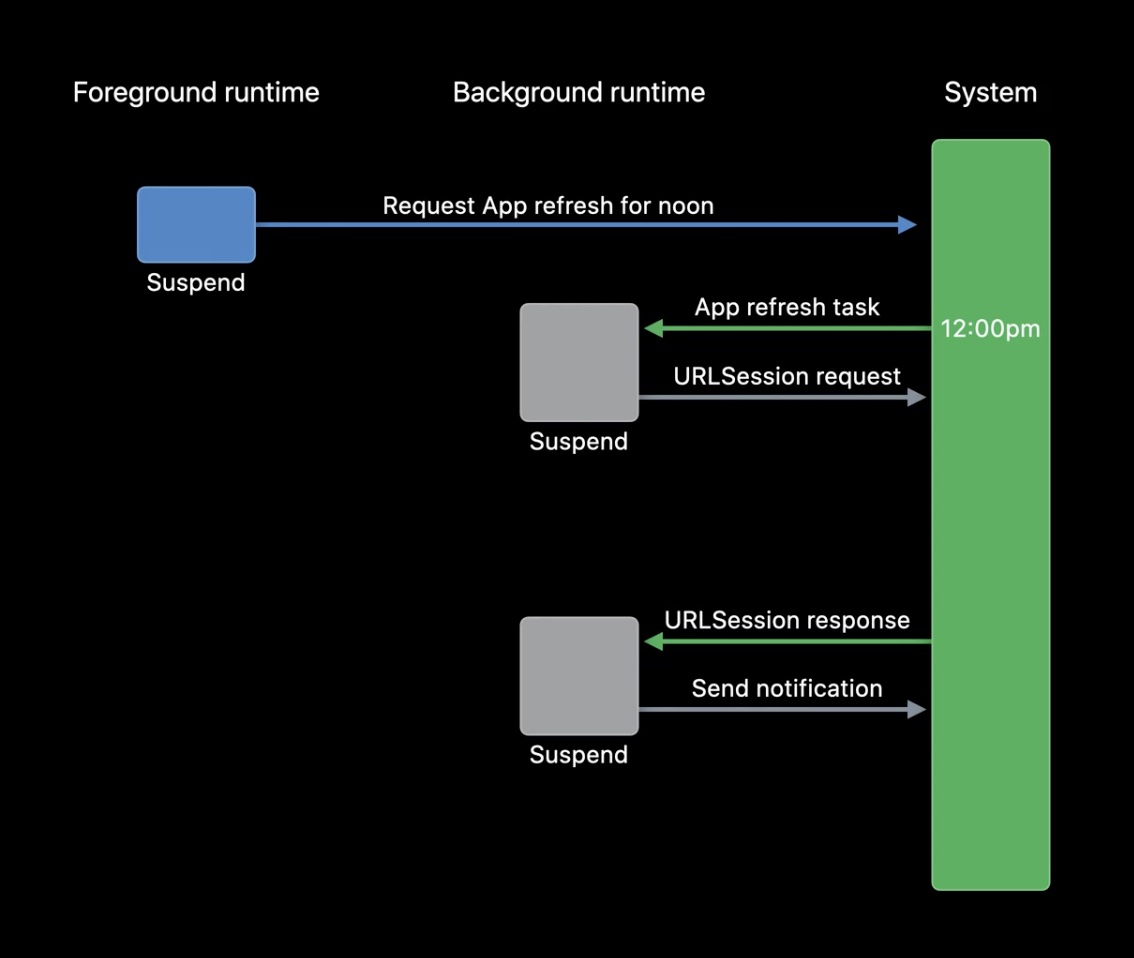
This article focuses on one specific kind of work: app refresh tasks that reload data, schedule the next refresh, and potentially trigger local notifications or widget updates. The key point is that the app does not choose the exact run time. It only asks for the earliest time the work may begin.
The demo use case in this article checks the Qiita homepage for the keyword `Swift`. If the response contains that string, the app schedules a local notification. The same pattern applies to inbox refreshes, dashboard updates, cache refreshes, and similar lightweight sync work.
Enable background modes first, then whitelist the task identifiers in Info.plist.
Before scheduling anything, the app must declare the necessary background capabilities. The article enables
Background Modes for background fetch and background processing, then adds a
BGTaskSchedulerPermittedIdentifiers array in Info.plist.
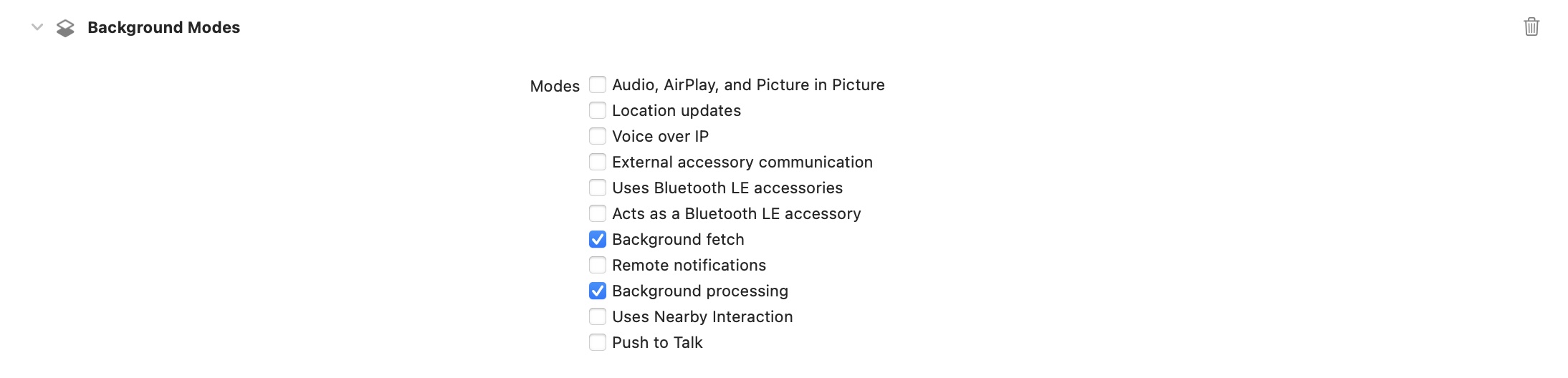

BGTaskSchedulerPermittedIdentifiers.The article also reminds you to check whether the user has background refresh enabled at all:
ProcessInfo.processInfo.backgroundRefreshStatusCreate a BGAppRefreshTaskRequest, set its earliest begin date, and submit it to the shared scheduler.
The scheduling example in the post uses a request identifier plus an earliestBeginDate. That date
is not a deadline and not a guarantee. It is simply the earliest time iOS is allowed to run the task.
if let scheduledTime = Calendar.current.date(
    byAdding: .second,
    value: 10,
    to: Date()
) {
    let request = BGAppRefreshTaskRequest(
        identifier: "com.test.test.appRefreshTest"
    )
    request.earliestBeginDate = scheduledTime

    do {
        try BGTaskScheduler.shared.submit(request)
    } catch {
        // Handle errors here
    }
}
This article notes two practical constraints that matter during testing: iOS usually runs the task later than the requested time, often tens of minutes later, and the simulator is not a reliable environment for this kind of background execution.
You can list every pending refresh request and also cancel either all of them or one by identifier.
When debugging background behavior, the first question is usually whether the request is still pending or has already been consumed by the system. The article shows both the callback-style and async-style APIs for reading pending task requests.
BGTaskScheduler.shared.getPendingTaskRequests { requests in
    DispatchQueue.main.async {
        self.allUpdateRequests = requests
    }
}

Task {
    let allRequests = await BGTaskScheduler.shared.pendingTaskRequests()
    print(allRequests)
}
It also covers the matching cancellation calls:
BGTaskScheduler.shared.cancelAllTaskRequests()
BGTaskScheduler.shared.cancel(
    taskRequestWithIdentifier: "com.test.test.appRefreshTest"
)
Once the system actually starts a task, that request disappears from the pending list. If it is still present, iOS has not launched it yet.
On iOS 16 and later, the new SwiftUI scene modifier can own the background handler directly.
The central API addition in the article is the scene-level .backgroundTask modifier. In the demo,
the app registers one refresh handler that both schedules a test notification and starts the remote fetch work.
@main
struct BackgroundTaskSwiftUIDemoApp: App {
    var body: some Scene {
        WindowGroup {
            ContentView()
        }
        .backgroundTask(.appRefresh("com.test.test.appRefreshTest")) {
            await scheduleTestNotification()
            await DataFetchHelper.shared.startRequestingRemoteData()
        }
    }
}
The post also points out that the task type can be .appRefresh for refresh tasks or
.urlSession for background URL session completion events.
If you need the same app to run on older systems, gate the SwiftUI modifier and keep a registration path in AppDelegate.
Because .backgroundTask only exists on iOS 16 and later, the article proposes a small compatibility
wrapper for the scene. That lets the same SwiftUI codebase compile while only attaching the modifier where it is available.
extension Scene {
    func backgroundTaskIfAvailable(
        _ taskIdentifier: String,
        action: @Sendable @escaping () async -> Void
    ) -> some Scene {
        if #available(iOS 16.0, *) {
            return self.backgroundTask(.appRefresh(taskIdentifier), action: action)
        } else {
            return self
        }
    }
}
The article then calls out the older registration API, which still matters if you want pre-iOS 16 systems to run background handlers:
BGTaskScheduler.shared.register(
    forTaskWithIdentifier: "...",
    using: nil
) { task in
    // Handle the task
}For longer network work, switch to URLSessionConfiguration.background and let the system relaunch the app when the download finishes.
The article separates quick refresh work from longer downloads. Refresh tasks have a short execution window, so if
the request might outlive that window, it should be handed to a background URLSession instead.
final class DataFetchHelper: NSObject, URLSessionDownloadDelegate {
    static let shared = DataFetchHelper(
        backgroundTaskIdentifier: "com.test.test.fetchRemoteData"
    )

    private var urlSession: URLSession?

    init(backgroundTaskIdentifier: String) {
        super.init()
        let config = URLSessionConfiguration.background(
            withIdentifier: backgroundTaskIdentifier
        )
        config.sessionSendsLaunchEvents = true
        self.urlSession = URLSession(
            configuration: config,
            delegate: self,
            delegateQueue: nil
        )
    }

    func startRequestingQiitaWebsite() {
        let request = URLRequest(url: URL(string: "https://qiita.com")!)
        let task = urlSession?.downloadTask(with: request)
        task?.resume()
    }

    func urlSession(
        _ session: URLSession,
        downloadTask: URLSessionDownloadTask,
        didFinishDownloadingTo location: URL
    ) {
        if let textData = try? String(contentsOf: location, encoding: .utf8) {
            print(textData)
        }
    }
}
To receive the completion wake-up in SwiftUI, the app also attaches a matching URL session background task:
.backgroundTask(.appRefresh("com.test.test.appRefreshTest")) {
    scheduleTestNotification()
    DataFetchHelper.shared.startRequestingQiitaWebsite()
}
.backgroundTask(.urlSession("com.test.test.fetchRemoteData")) { _ in
    _ = DataFetchHelper.shared
}
The article explains why that last line matters: when the app is relaunched for a finished background download, you must recreate the session with the same identifier so the delegate callback can be delivered.
func application(
    _ application: UIApplication,
    handleEventsForBackgroundURLSession identifier: String,
    completionHandler: @escaping () -> Void
)
Older systems surface that handoff through AppDelegate instead of the SwiftUI scene modifier, so the post keeps both models in view.
Testing is slower than the API shape suggests, and the debugger setup matters.
The source demo is meant to run on a real device. The article recommends launching the app from Xcode, scheduling the background task, leaving the debugger attached, moving the app to the background, and then waiting. Roughly 30 minutes later, the logs and local notification should show that the task executed.
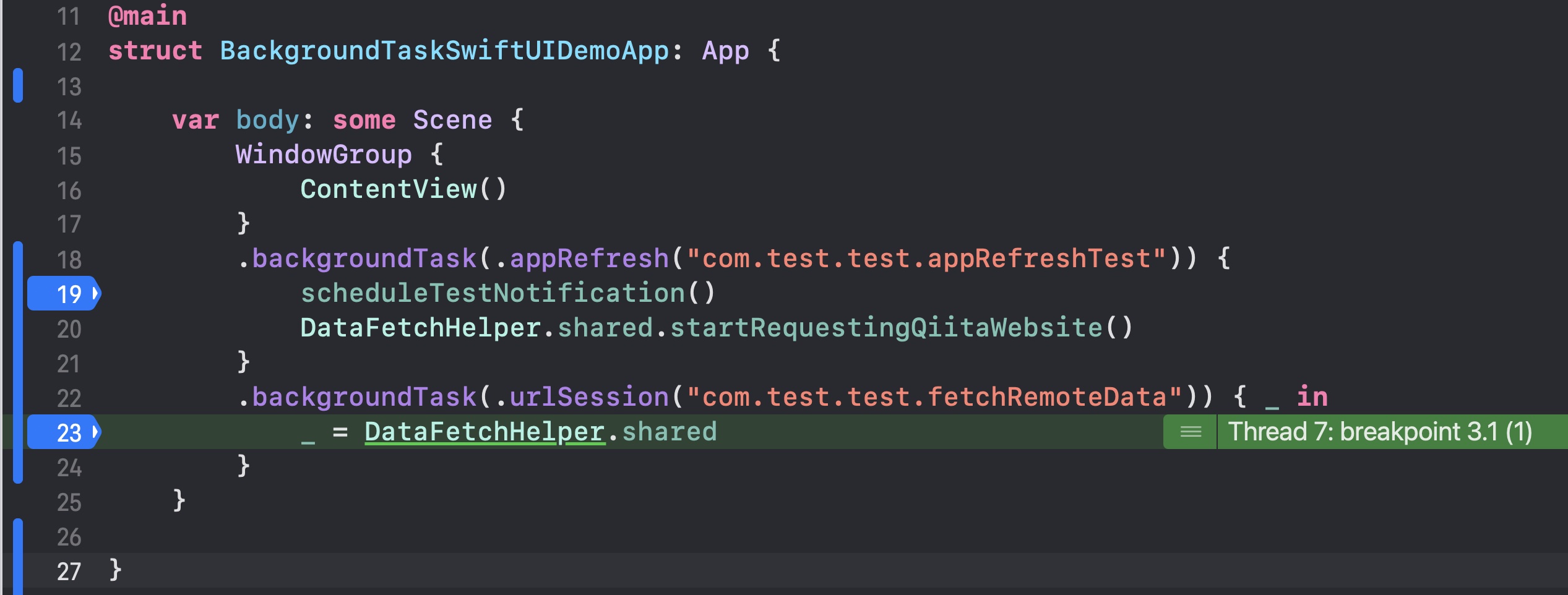
It also warns against lingering too long on breakpoints. The execution budget is short enough that extended debugging can cause the background process to expire before the flow finishes.
The cleanest mental model is to let refresh tasks start work and let background URL sessions finish it.
That is the most useful lesson from the article. SwiftUI now offers a cleaner place to declare background task handlers, but the constraints are still system-driven. Lightweight refresh work should stay small, scheduled, and repeatable. Anything that may outlast the refresh window should move into a background session that can wake the app again when the response is ready.