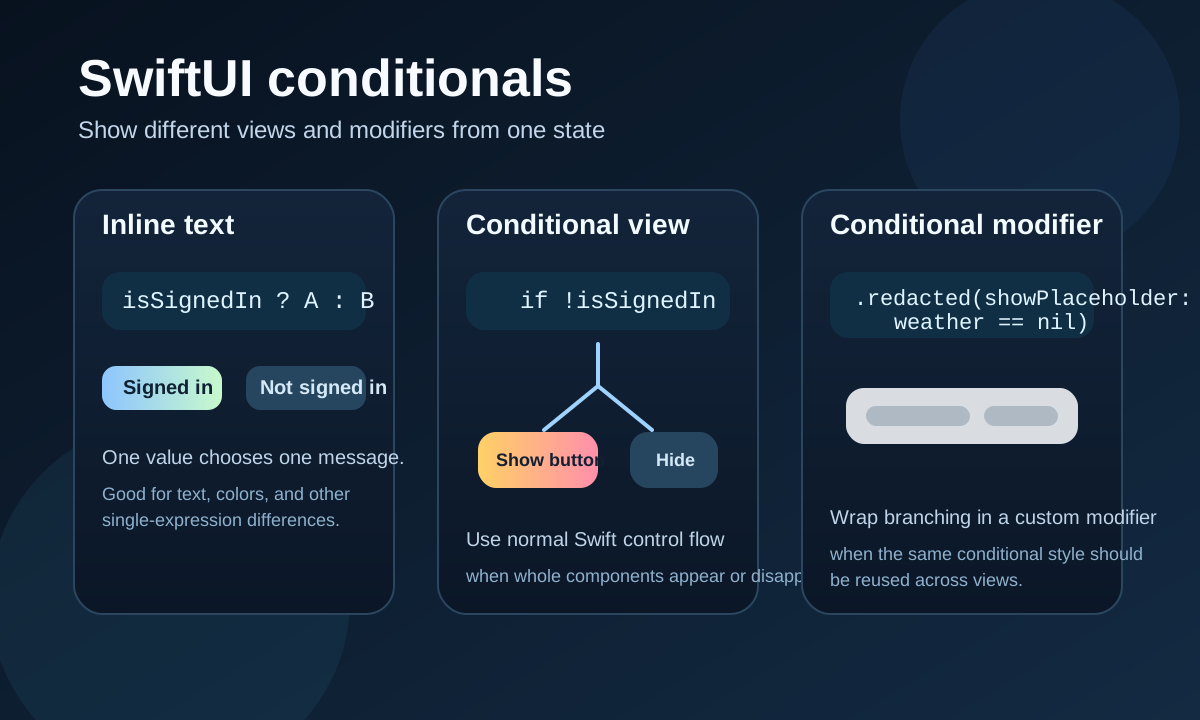
This article is aimed at SwiftUI beginners, and its strength is that it separates three different kinds of conditional UI instead of treating them as one vague idea.
SwiftUI makes it easy to change what appears on screen based on state. But there are different tools for different scopes of change: sometimes you only need a different string, sometimes a whole button should appear or disappear, and sometimes you want to reuse a conditional styling rule across multiple views.
This article explains those three cases in order: inline conditional expressions, conditionally displayed view components, and conditional view modifiers.
Use a ternary expression when the view itself stays the same but one small value changes, such as a string or color.
The article starts with the simplest case: a text label that shows one message for signed-in users and a different message for users who are not signed in.
Text(isSignedIn ? "Signed in" : "You are not signed in")This is just the standard ternary expression:
[condition] ? [expression when true] : [expression when false]This pattern is a good fit when you are selecting one value, not switching between large parts of the view tree.
When an entire component should appear only in one state, use normal Swift control flow in the view body.
This article uses a sign-in example: if the user is not signed in, show a sign-in button. If the user is already signed in, do not render that button at all.
struct ContentView: View {

    @State var isSignedIn: Bool

    var body: some View {
        if !isSignedIn {
            SignInWithAppleButton(...)
        }
    }
}
This is the right mental model for conditional view structure. Instead of trying to force everything into one expression, let the body describe the component tree that should exist for the current state.
If the same conditional styling logic should be reused, move it into a custom modifier-like helper on View.
The article then shows a practical extension that conditionally applies placeholder redaction while data is missing.
This is more reusable than scattering small if checks around every call site.
extension View {
    @ViewBuilder
    func redacted(showPlaceholder: Bool) -> some View {
        if showPlaceholder {
            self
                .redacted(reason: .placeholder)
        } else {
            self
                .unredacted()
        }
    }
}
With that helper in place, the call site becomes much cleaner:
WeatherView(weatherInformation: $weatherInformation)
    .redacted(showPlaceholder: (weatherInformation == nil))
This article also notes that the same conditional-modifier idea can be used for things like applying animations only in certain states.
The real lesson is not only syntax. It is choosing the right level of conditionality so the code stays readable.
Use the ternary operator when only a small value changes. Use if blocks when whole components
should come and go. Use a custom View extension when the same conditional presentation rule
should be shared across several places.
That keeps the body of the view easier to scan, and it makes state-driven UI feel intentional instead of ad hoc.
This is a small beginner article, but it covers a distinction that stays useful long after the beginner stage: not every conditional change belongs in the same kind of syntax.
SwiftUI works best when the code mirrors the level of UI change you are making. That is why the article's three-part breakdown still holds up: value selection, view selection, and modifier selection are related, but they should not be written the same way.