The effect looks complex, but the implementation becomes manageable once you treat it as many copies of one moving dot.
This article starts from the practical goal: make a firework-like effect in SwiftUI without a physics engine. That goal still maps well to SwiftUI's strengths. You do not need to simulate every particle precisely. You only need movement that looks believable, fades out at the right time, and spreads in many directions.
The rest of the solution follows that simplification. First understand the shape of the burst. Then describe one particle's motion mathematically. Then reuse that particle many times with random values and a shared animation timeline.
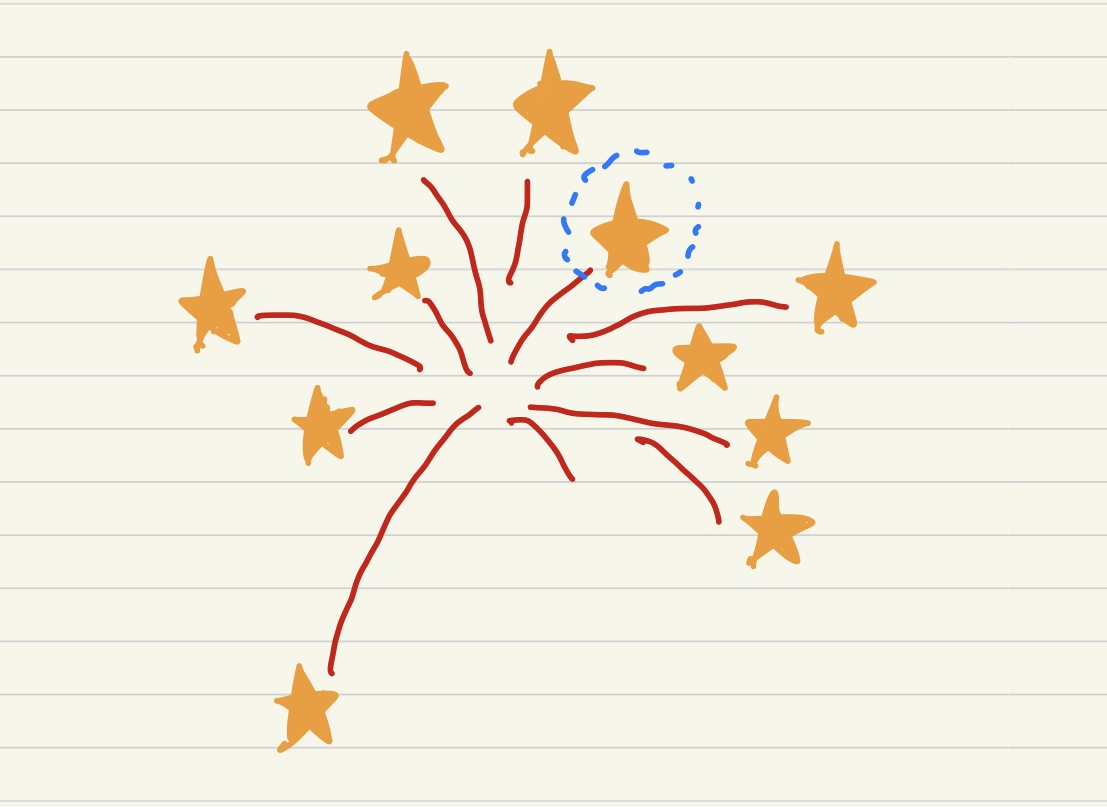
Before writing code, sketch the burst and isolate one particle from the whole pattern.
In this article, the first step is not Swift code. It is understanding the motion over time. A firework burst contains many small particles, and each one moves in a different direction. The overall pattern is circular, but each particle still behaves like a single object traveling away from the center.
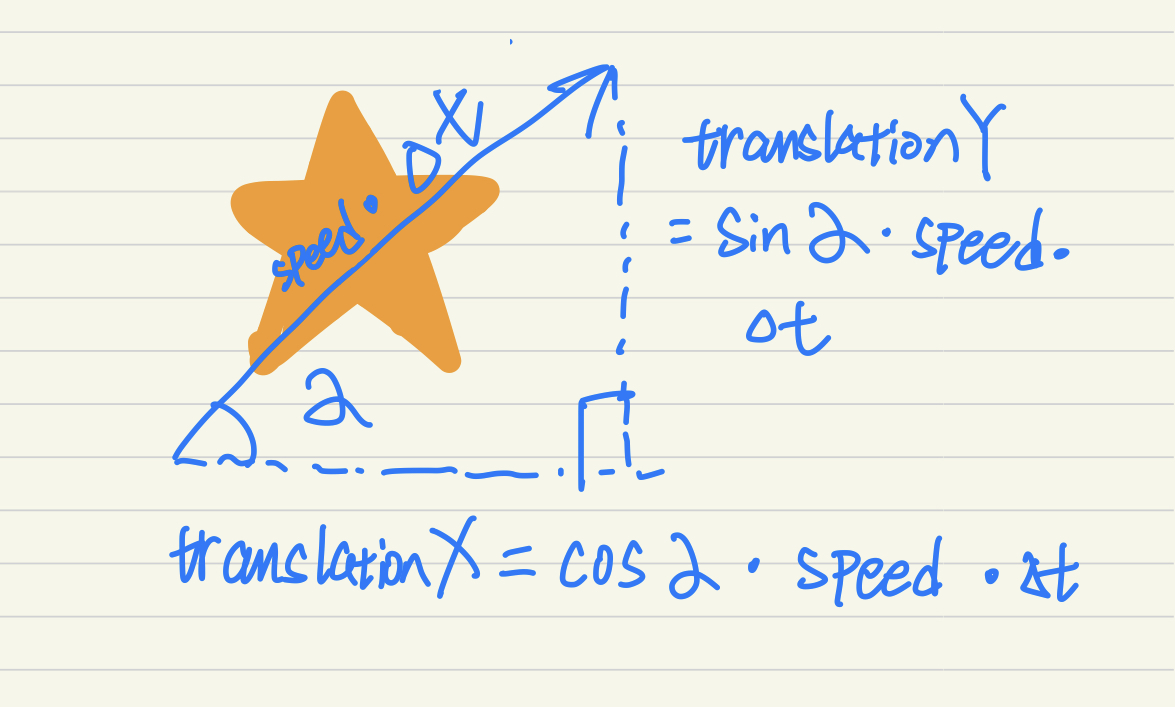
That is where sin and cos come in. If the particle has a direction angle, a speed, and an elapsed time,
then the x position can be modeled as cos(angle) * speed * time and the y position as sin(angle) * speed * time.
The angle and speed can be random per particle, while the time value stays shared across the burst.
Use a custom GeometryEffect so a particle's position is derived directly from the animation progress.
The article models one particle with a GeometryEffect. That is a good fit because the effect's job is simply to
transform the view as the animation progresses. Each particle gets a random speed and random direction when the effect instance is created.
struct ParticlesFireworkEffect: GeometryEffect {
    var time: Double
    var speed: Double = .random(in: 10...100)
    var direction: Double = .random(in: -Double.pi...Double.pi)

    var animatableData: Double {
        get { time }
        set { time = newValue }
    }

    func effectValue(size: CGSize) -> ProjectionTransform {
        let translationX = cos(direction) * speed * time
        let translationY = sin(direction) * speed * time
        let translation = CGAffineTransform(translationX: translationX, y: translationY)
        return ProjectionTransform(translation)
    }
}
The key point is that the effect does not store an explicit final position. It recomputes the transform from the current animation time.
That keeps the behavior clean and lets SwiftUI interpolate the time value through animatableData.
Once one particle works, the full firework is just a stack of many particles sharing the same timeline.
The second code step is a ViewModifier that repeats the content view many times. Every copy gets the same animated
time value, but because the particle effect itself contains random speed and direction values, the particles spread differently.
The modifier also scales the content up and fades it out as the burst finishes.
struct ParticlesModifier: ViewModifier {
    @State var time = 0.0
    @State var scale = 0.1
    var duration = 5.0
    var particlesCount: Int = 100

    func body(content: Content) -> some View {
        ZStack {
            ForEach(0..<particlesCount, id: \.self) { _ in
                content
                    .scaleEffect(scale)
                    .opacity((duration - time) / duration)
                    .modifier(ParticlesFireworkEffect(time: time))
            }
        }
        .onAppear {
            withAnimation(.easeOut(duration: duration)) {
                time = duration
                scale = 1.0
            }
        }
    }
}
This is where the firework starts to feel alive. The repetition supplies density, the shared animation progress keeps the burst coherent, and the random per-particle values keep it from looking mechanically uniform.
To use the effect, apply the modifier to a small shape and place multiple bursts anywhere you want.
This article finishes with a very simple preview. It applies the modifier to two tiny circles, gives them different colors, and offsets them to different positions. That is enough to prove the modifier is reusable and not tied to one hardcoded burst.
struct ParticlesModifier_Preview: PreviewProvider {
    static var previews: some View {
        ZStack {
            Circle()
                .fill(Color.blue)
                .frame(width: 12, height: 12)
                .modifier(ParticlesModifier())
                .offset(x: -100, y: -50)

            Circle()
                .fill(Color.red)
                .frame(width: 12, height: 12)
                .modifier(ParticlesModifier())
                .offset(x: 60, y: 70)
        }
    }
}
In a real app, the same pattern can sit behind a button tap, a celebration banner, a game result, or any other short-lived success animation. The reusable piece is the modifier, while the view you attach it to can stay small and flexible.
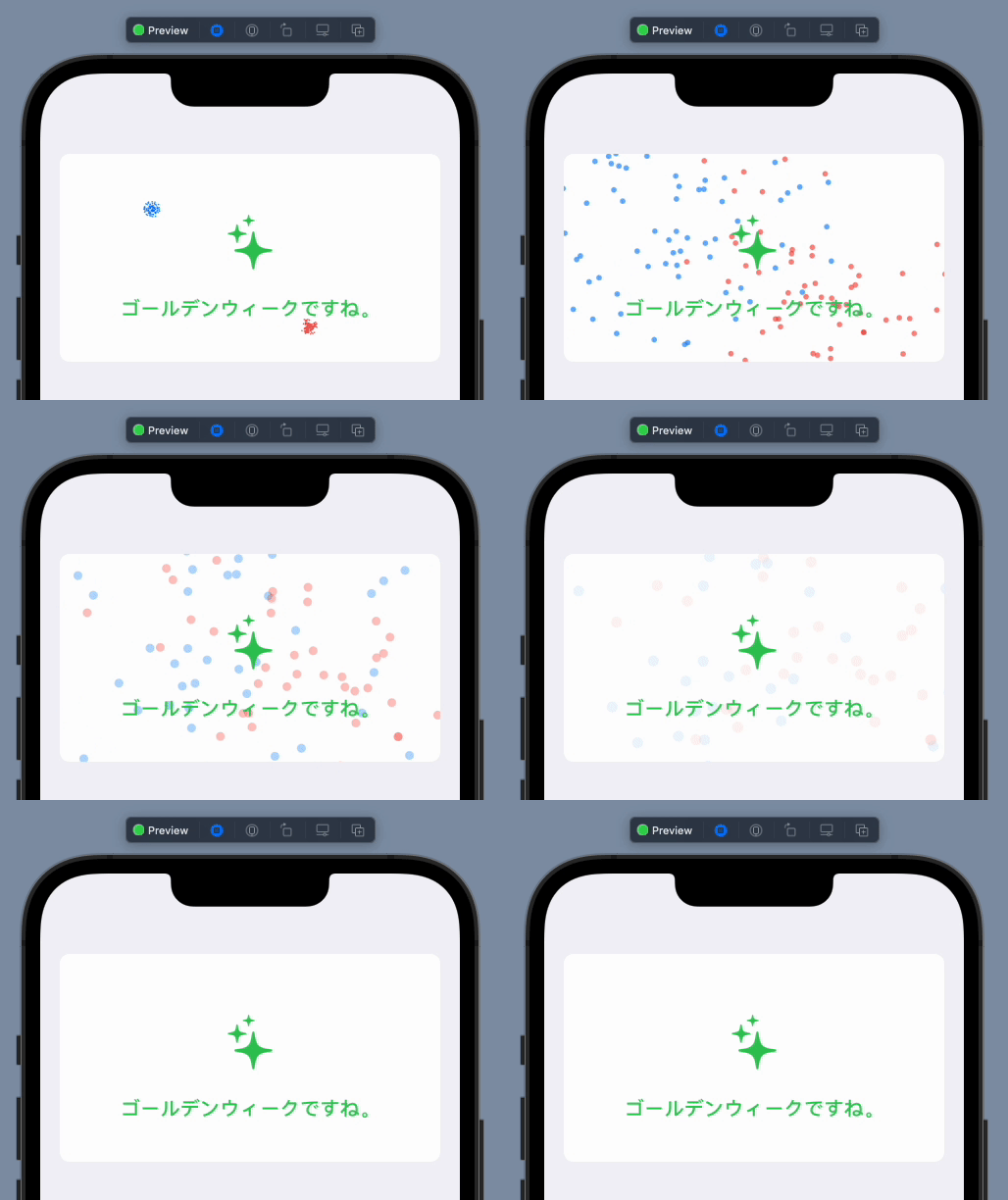
This effect is a good example of how SwiftUI animations get easier when you describe the motion model instead of trying to fake the final frames.
The article works well because it does not jump straight into layered animation code. It starts with the motion pattern, reduces the effect to one particle, and only then scales it up into the full burst. That sequence makes the final code easier to reason about and easier to adapt.
If you want to evolve it further, the next obvious steps are different easing curves, color variation per particle, multiple burst phases, or triggering the effect on demand instead of only on view appearance. But the foundation is already here: geometry, randomness, and shared time.