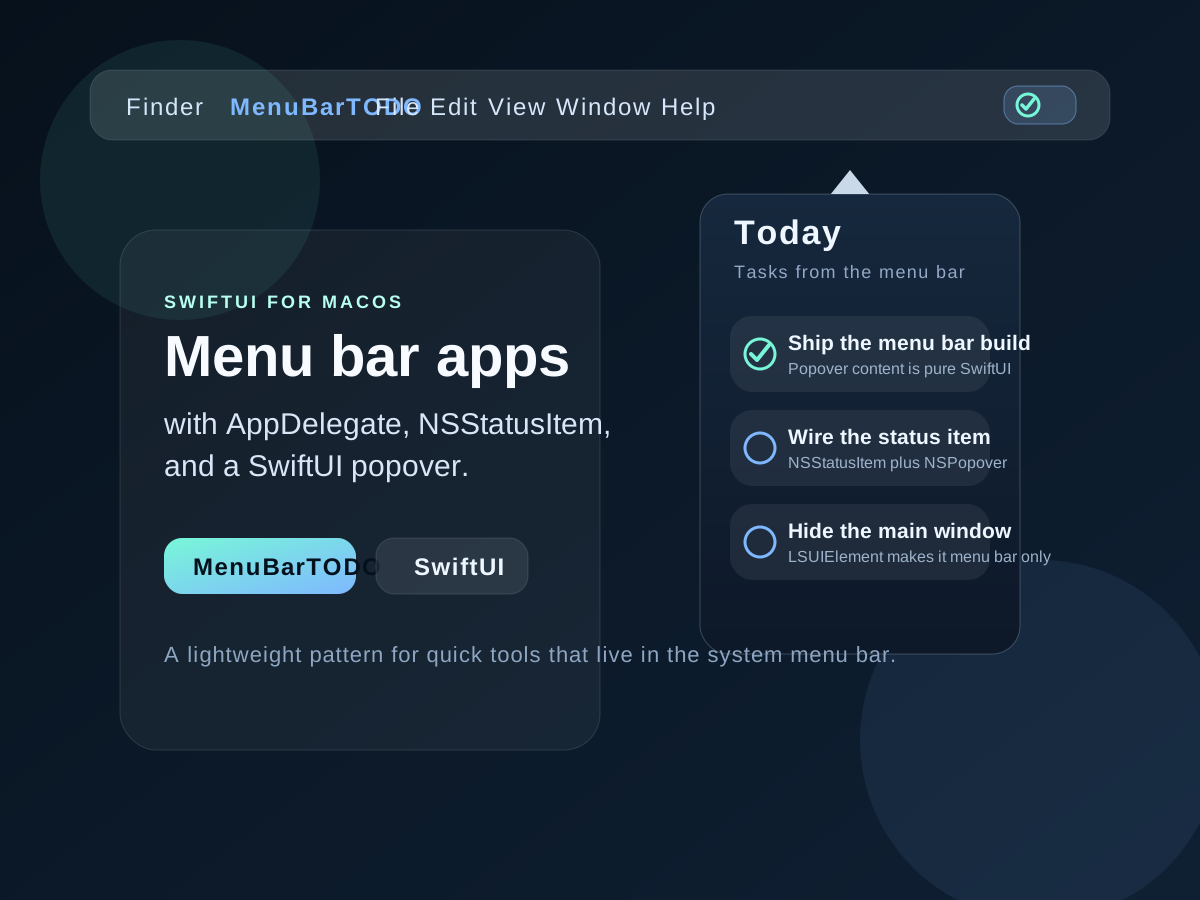
A menu bar app is just a small utility until you wire together the status item, the popover, and the launch behavior.
This article opens with the appeal of this app shape: once a menu bar utility is installed, the user can reach it
immediately from the top system bar instead of opening a normal app window. The example project is a compact TODO tool called
MenuBarTODO, but the same pattern applies to timers, quick notes, upload tools, and other lightweight Mac helpers.
Architecturally, the split is straightforward. SwiftUI still renders the visible content. AppDelegate.swift handles
the AppKit objects that actually live in the system interface: the NSStatusItem, the NSPopover, and the
launch path that decides whether the app appears as a regular windowed app or only in the menu bar.
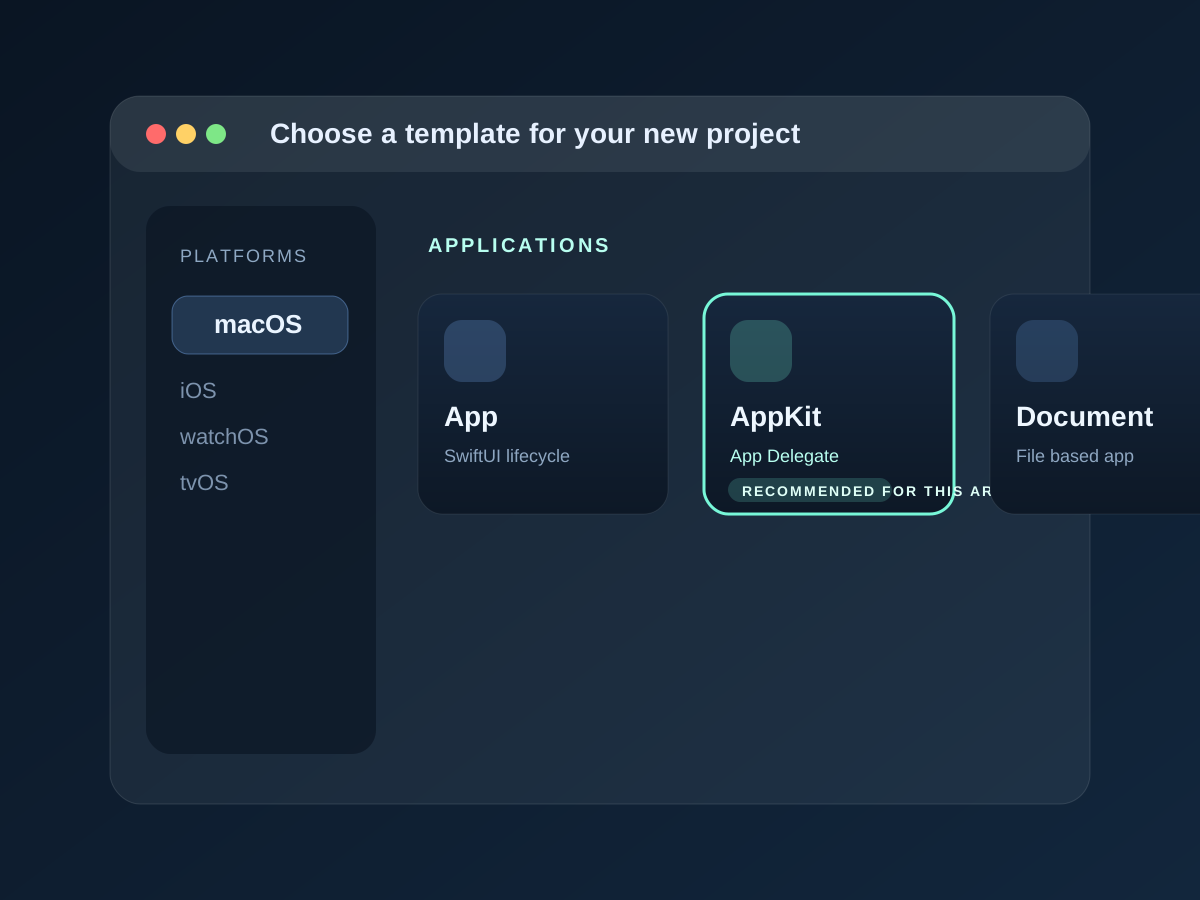
Create an empty macOS SwiftUI app and make sure the project uses the AppKit App Delegate lifecycle option.
The first setup detail in the article is easy to miss but important for this pattern. When you create the project in Xcode,
choose a macOS app with SwiftUI enabled and make sure the app type includes AppKit App Delegate. That gives you the
delegate file where the menu bar item and popover will be configured.
AppDelegate.swift becomes the place where the menu bar item and popover live.
After project creation, the article moves directly into AppDelegate.swift. That file owns the two key AppKit objects:
the status item that appears in the system menu bar and the popover window that hosts the SwiftUI content.
var statusBarItem: NSStatusItem!
var popover: NSPopover!
The article also notes that if the app needs a regular main window in addition to the popover, you should separate the UI concerns and build a dedicated SwiftUI view just for the popup content instead of reusing everything blindly.
Create the NSStatusItem, give its button an image, and point the click action at a popover toggle method.
The next step is to create the visible menu bar control. In AppKit, that means asking
NSStatusBar.system for a status item, retrieving its button, assigning a symbol image, and wiring its action to
a method that will later show or hide the popover.
self.statusBarItem = NSStatusBar.system.statusItem(
    withLength: CGFloat(NSStatusItem.variableLength)
)

guard let button = self.statusBarItem.button else { return }
button.image = NSImage(
    systemSymbolName: "checkmark.circle.fill",
    accessibilityDescription: nil
)
button.action = #selector(showHidePopover(_:))
The status item is not the popover itself. It is just the system-level anchor point that the user clicks.
Build the popover separately, then host a SwiftUI view inside it with NSHostingController.
Once the status item exists, the article sets up the popover window. It defines a size, makes the popover transient, and wraps
ContentView() in an NSHostingController so the visible panel can still be written in SwiftUI.
let popover = NSPopover()
popover.contentSize = NSSize(width: 350, height: 500)
popover.behavior = .transient

let contentView = ContentView()
popover.contentViewController = NSHostingController(rootView: contentView)

self.popover = popover
The source example passes a Core Data context into the SwiftUI view, since the sample app is a TODO list. The broader takeaway is the same even without persistence: AppKit owns the shell, SwiftUI owns the content.
The click handler only needs one job: if the popover is visible, close it; otherwise show it next to the status item button.
With the status item and popover ready, the article defines the method that toggles visibility. The important call is
show(relativeTo:of:preferredEdge:), which anchors the popover to the button in the menu bar.
@objc func showHidePopover(_ sender: AnyObject?) {
    guard let button = self.statusBarItem.button else { return }

    if self.popover.isShown {
        self.popover.performClose(sender)
    } else {
        self.popover.show(
            relativeTo: button.bounds,
            of: button,
            preferredEdge: NSRectEdge.minY
        )
        self.popover.contentViewController?.view.window?.becomeKey()
    }
}
At that point the basic menu bar app works. Running the app should place the new icon in the system menu bar and show the SwiftUI popup when clicked.
To keep the app in the menu bar only, remove the regular window setup code and set LSUIElement to YES.
Xcode's default macOS app template still creates a normal app window in applicationDidFinishLaunching. The article says to
delete that window-related code and keep only the parts that initialize the content view, status item, and popover.
func applicationDidFinishLaunching(_ aNotification: Notification) {
    let contentView = ContentView()
    // Keep only the menu bar and popover setup.
}
The second half of the change is in Info.plist: set LSUIElement to YES. That tells macOS not to
treat the app like a standard dock-and-window app and instead keep it living as an agent-style utility.
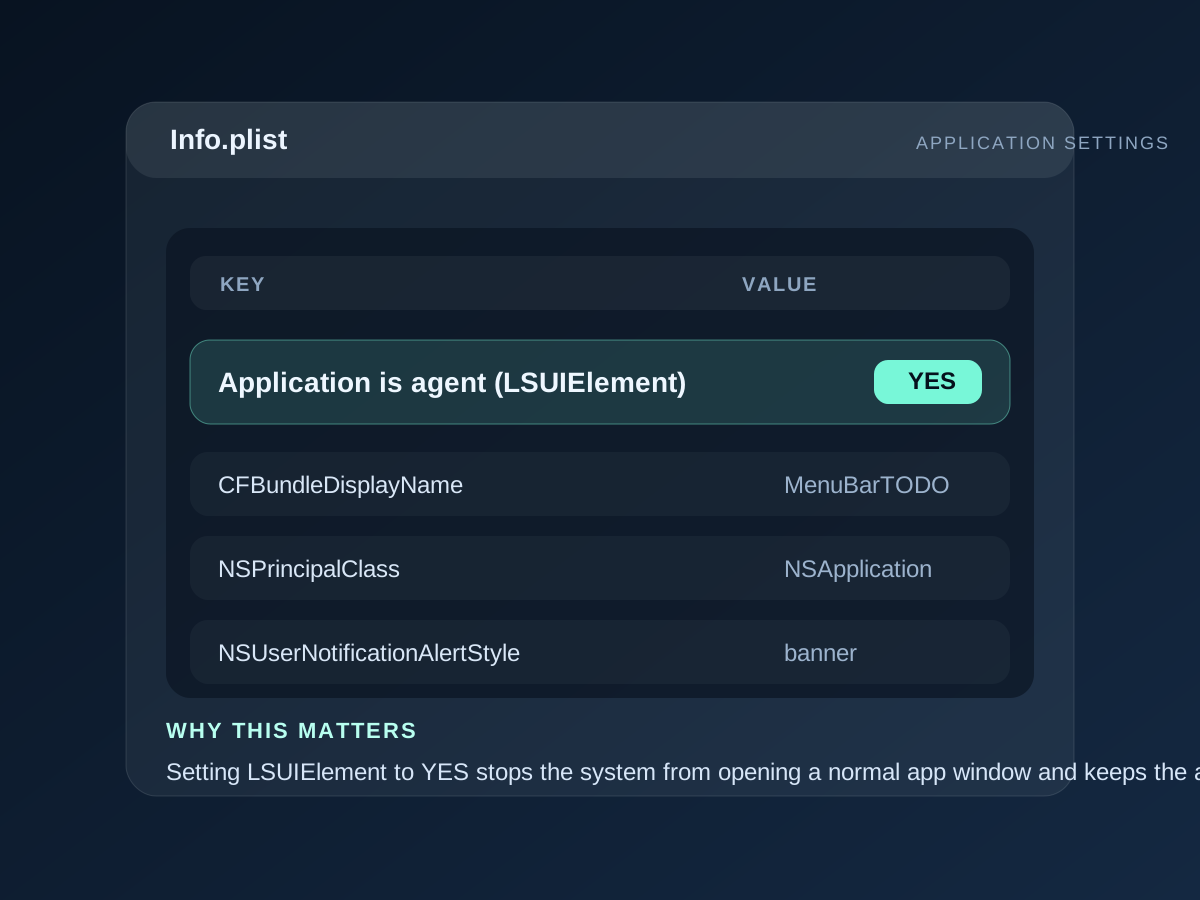
LSUIElement enabled, the app stays in the menu bar and stops trying to present a regular main window.The pattern is small but effective: SwiftUI for the content, AppDelegate for the shell, and one plist key to make it feel native.
That is the real lesson of the post. A menu bar utility does not need much infrastructure, but the pieces need to line up cleanly:
create the right project type, let AppDelegate.swift own the AppKit objects, host SwiftUI inside the popover, and remove
the standard window path when the app should live in the menu bar only.