This scanner uses AVFoundation metadata detection rather than a heavier Vision pipeline.
The goal is simple: show the camera preview, detect QR codes in the live stream, and draw a visible frame around the code that was found. The article also takes the extra step of making the scanner usable from SwiftUI instead of leaving it as a UIKit-only view.
The implementation is built around AVCaptureSession, AVCaptureVideoPreviewLayer,
AVCaptureMetadataOutput, and a plain overlay UIView whose frame is updated whenever a code is detected.
AVCaptureMetadataOutput, AVCaptureMetadataOutputObjectsDelegate, AVMetadataMachineReadableCodeObject, and UIViewRepresentable.
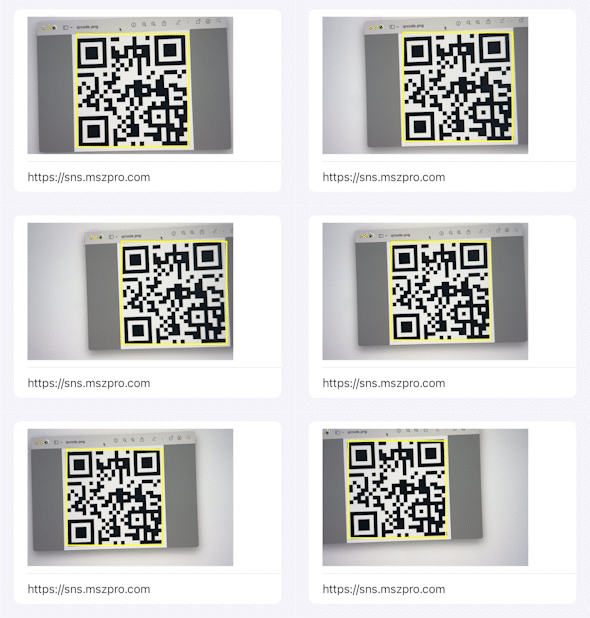
Start with one binding, one capture session, one preview layer, and one overlay view.
The scanner needs to push the scanned string back into SwiftUI, so it keeps the result in a binding. It also stores the capture session, a preview layer for the live camera feed, and a border view that will later be resized to match the detected code.
@Binding var scannedCode: String?
var viewSize: CGSize

private var captureSession = AVCaptureSession()
private var qrCodeFrameView = UIView()
var videoPreviewLayer: AVCaptureVideoPreviewLayer
The preview layer is created from the session and sized to match the host view. The overlay starts empty, but its border styling can be configured immediately.
videoPreviewLayer = AVCaptureVideoPreviewLayer(session: captureSession)
videoPreviewLayer.videoGravity = .resizeAspectFill
videoPreviewLayer.frame = .init(origin: .zero, size: viewSize)

qrCodeFrameView.layer.borderColor = UIColor.green.cgColor
qrCodeFrameView.layer.borderWidth = 2Fetch the default video device and add it as a capture-session input.
The camera side is standard AVFoundation setup: get the default video device, build an
AVCaptureDeviceInput, and add it to the session inside a do/catch block.
guard let captureDevice = AVCaptureDevice.default(for: .video) else {
    print("Failed to get the camera device")
    return
}

let input = try AVCaptureDeviceInput(device: captureDevice)
captureSession.addInput(input)
If that part fails, there is no point continuing because the preview and scanner have no source frames to work with.
Use metadata output when the goal is machine-readable codes rather than general computer vision.
For QR scanning, AVCaptureMetadataOutput is already enough. Add it to the session, assign a delegate,
and limit the metadata types to .qr.
let captureMetadataOutput = AVCaptureMetadataOutput()
captureSession.addOutput(captureMetadataOutput)
captureMetadataOutput.setMetadataObjectsDelegate(context.coordinator, queue: .main)
captureMetadataOutput.metadataObjectTypes = [.qr]
The same mechanism can be extended to barcodes and other metadata object types if the app needs broader scanning support later.
Add the preview layer, start the capture session off the main thread, and place the overlay above everything else.
Once the input and output are attached, the main view can host the live preview layer. The article starts the session on a background queue, then adds the overlay view and brings it to the front so the detection frame stays visible on top of the video.
mainView.layer.addSublayer(videoPreviewLayer)

DispatchQueue.global(qos: .background).async {
    captureSession.startRunning()
}

mainView.addSubview(qrCodeFrameView)
mainView.bringSubviewToFront(qrCodeFrameView)
At this stage the overlay still has no meaningful frame, so nothing is visible yet. That changes when the delegate receives a detected QR code.
Transform the metadata object into preview-layer coordinates, then update the overlay frame and scanned value.
The key delegate method receives the detected metadata objects. When the first object is a QR code, the code converts it through
transformedMetadataObject(for:) so the resulting bounds line up with the preview layer on screen.
func metadataOutput(
    _ output: AVCaptureMetadataOutput,
    didOutput metadataObjects: [AVMetadataObject],
    from connection: AVCaptureConnection
) {
    if let metadataObj = metadataObjects.first as? AVMetadataMachineReadableCodeObject,
       metadataObj.type == .qr,
       let barCodeObject = videoPreviewLayer?.transformedMetadataObject(for: metadataObj) {
        qrCodeFrameView.frame = barCodeObject.bounds
        qrCodeFrameView.layer.borderColor = UIColor.green.cgColor

        if scannedCode != metadataObj.stringValue {
            scannedCode = metadataObj.stringValue
            UINotificationFeedbackGenerator().notificationOccurred(.success)
        }
    } else {
        qrCodeFrameView.frame = .zero
        qrCodeFrameView.layer.borderColor = UIColor.yellow.cgColor
    }
}
Two small details matter here. First, the binding is only updated when the value actually changes, which avoids repeating the same result constantly.
Second, the overlay is hidden again by setting its frame to .zero when no QR code is present.
Package the entire scanner into a SwiftUI-compatible view with a coordinator.
The finished component is a UIViewRepresentable named QRCodeScanner. It creates the UIKit view in
makeUIView, exposes the binding to SwiftUI, and installs a coordinator that adopts
AVCaptureMetadataOutputObjectsDelegate.
import SwiftUI
import AVFoundation

struct QRCodeScanner: UIViewRepresentable {
    @Binding var scannedCode: String?
    var viewSize: CGSize

    private var captureSession = AVCaptureSession()
    private var qrCodeFrameView = UIView()
    var videoPreviewLayer: AVCaptureVideoPreviewLayer

    init(scannedCode: Binding<String?>, viewSize: CGSize) {
        self._scannedCode = scannedCode
        self.viewSize = viewSize
        videoPreviewLayer = AVCaptureVideoPreviewLayer(session: captureSession)
        videoPreviewLayer.videoGravity = .resizeAspectFill
        videoPreviewLayer.frame = .init(origin: .zero, size: viewSize)
    }

    func makeUIView(context: Context) -> UIView {
        let mainView = UIView(frame: .init(origin: .zero, size: viewSize))
        ...
        captureMetadataOutput.setMetadataObjectsDelegate(context.coordinator, queue: .main)
        ...
        return mainView
    }

    func makeCoordinator() -> Coordinator {
        Coordinator(
            qrCodeFrameView: qrCodeFrameView,
            videoPreviewLayer: videoPreviewLayer,
            scannedCode: $scannedCode
        )
    }

    func updateUIView(_ view: UIView, context: Context) {}
}
That separation is the important architectural point. UIKit still owns the low-level camera and metadata delegate work, but SwiftUI only has to deal with a binding and a normal view value.
Use the scanner like any other SwiftUI view and observe the scanned value with onChange.
Once wrapped, the scanner can be dropped into a SwiftUI hierarchy with a fixed size. The example listens for changes to the bound result and prints the new code.
QRCodeScanner(
    scannedCode: $scannedCode,
    viewSize: .init(width: 300, height: 250)
)
.frame(width: 300, height: 250)
.onChange(of: scannedCode) { newValue in
    print(newValue)
}
Do not forget the camera permission description in the app's plist. Without a camera usage string, the scanner will not be allowed to access the device camera.
The scanner is small because AVFoundation already gives you most of the building blocks.
The full workflow is just a few layers: a capture session, a metadata output configured for QR codes, a preview layer for live video,
and an overlay view whose frame follows the detected code. Wrapping that in UIViewRepresentable is what makes it usable
in a SwiftUI app without rewriting the camera logic from scratch.
If you need a lightweight scanner with visible targeting feedback, this is a clean baseline to build from.