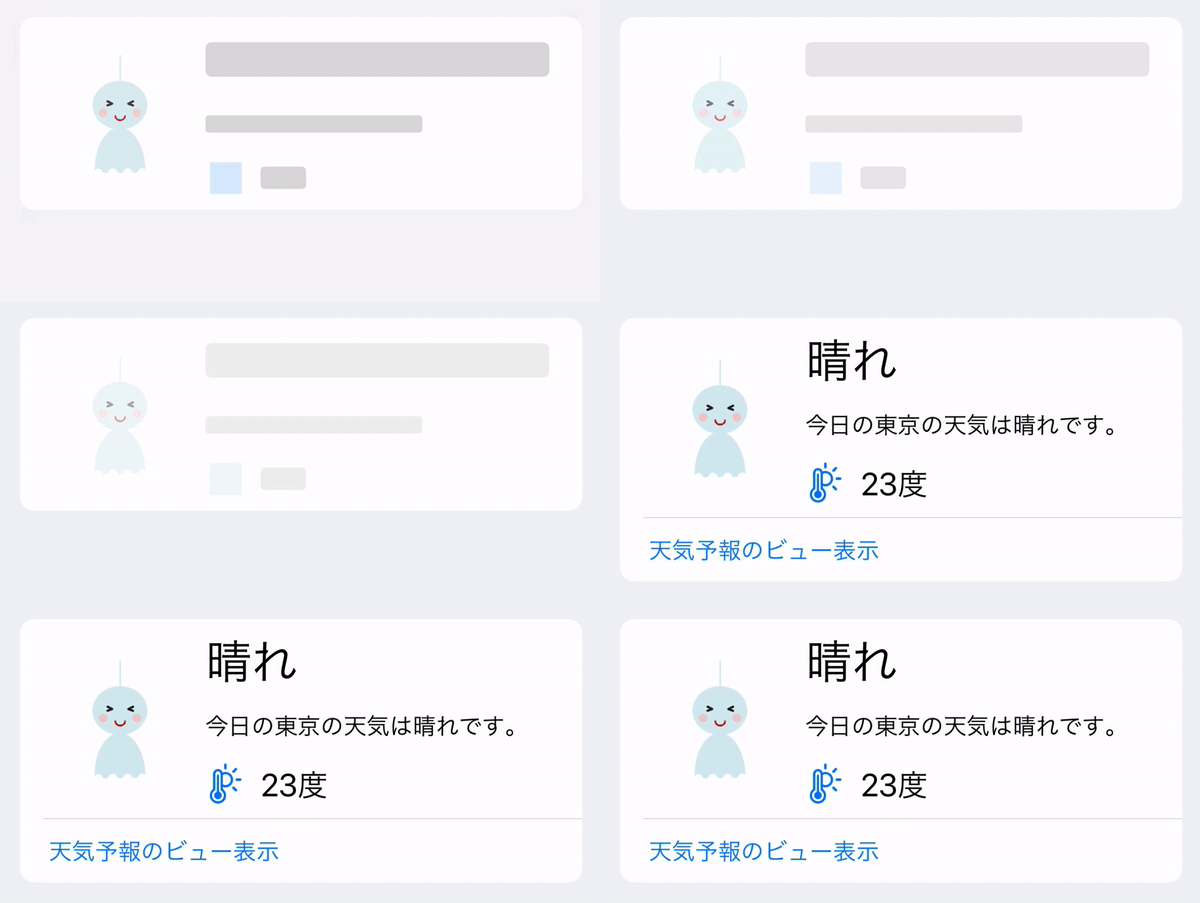
This article solves a very normal UI problem: when data is still loading, a blank screen is worse than a structured placeholder.
The core tool is SwiftUI's .redacted modifier. Instead of hiding everything while an API call
is running, you let the final layout stay on screen and turn the text-based parts into placeholder blocks.
The article then extends that base idea in three useful directions: keeping selected content visible with
.unredacted(), making the redaction rule easier to reuse, and adding a simple repeating animation
so the loading state feels alive instead of frozen.
Use .redacted(reason:) when the view should stay in place but its content should look like a loading skeleton.
This article drives redaction from whether the downloaded weather model is still nil:
.redacted(reason: (weatherInformation == nil) ? .placeholder : [])
When the reason is .placeholder, SwiftUI overlays placeholder blocks onto eligible content.
When the reasons array is empty, the real content shows normally.
One detail this article calls out is important: text-based views still need fallback strings, so SwiftUI can infer the size of the placeholder it should draw.
Text(weatherInformation?.weatherDescription ?? "Downloading weather information...")
If a part of the interface should remain visible even during loading, add .unredacted() to it.
In the example, the weather icon stays visible while the text content is still masked.
The article improves readability by wrapping the placeholder decision in a small View extension.
Instead of repeating the ternary form at every call site, the post adds a custom helper that takes a simple Boolean:
extension View {
    @ViewBuilder
    func redacted(showPlaceholder: Bool) -> some View {
        if showPlaceholder {
            self
                .redacted(reason: .placeholder)
        } else {
            self
                .unredacted()
        }
    }
}
With that in place, the call site reads more like intent than implementation:
.redacted(showPlaceholder: (weatherInformation == nil))The sample view keeps the layout stable by rendering a real weather card immediately, then swapping the text content in once the download finishes.
The original example uses a weather card with an image, status text, description text, and a temperature
label. The image is marked with .unredacted(), while the text elements get reasonable fallback
values for the loading state.
Image("sunnyImage")
    .resizable()
    .scaledToFit()
    .frame(width: 100, height: 100)
    .unredacted()

Text(weatherInformation?.status ?? "Downloading...")
Text(weatherInformation?.weatherDescription ?? "Downloading weather information...")
Label(weatherInformation?.degrees ?? "...", systemImage: "thermometer.sun")
The parent can then apply redaction to the whole card and fill in the data later, for example after an asynchronous fetch or a delayed mock load.
You can also inspect the redaction state from inside the view through @Environment(\.redactionReasons).
The article uses this to detect whether the placeholder overlay is currently active:
@Environment(\.redactionReasons) var redactions

if self.redactions.isEmpty {
    Button(action: {}, label: {
        Text("Show weather forecast view")
    })
}
That gives the view a way to change what is interactive or visible while the placeholder mode is active.
The final step in this article is to animate the loading state by fading the redacted content between two opacity levels.
The sample wraps that behavior in a dedicated ViewModifier:
struct EaseInOutAnimation: ViewModifier {

    @State private var contentOpacity = 1.0

    func body(content: Content) -> some View {
        content
            .opacity(contentOpacity)
            .animation(
                Animation
                    .easeInOut(duration: 2)
                    .repeatForever(autoreverses: true)
            )
            .onAppear { contentOpacity = 0.3 }
    }
}
It is then folded back into the helper so the animated placeholder behavior only appears while loading:
extension View {
    @ViewBuilder
    func redacted(showPlaceholder: Bool) -> some View {
        if showPlaceholder {
            self
                .redacted(reason: .placeholder)
                .modifier(EaseInOutAnimation())
        } else {
            self
                .unredacted()
        }
    }
}
This article predates some of SwiftUI's newer animation API refinements, but the underlying design still holds up well: keep the skeleton state visually distinct, lightweight, and easy to reuse.
This post is useful because it treats loading UI as part of the real interface, not as an afterthought.
The main takeaways are straightforward: use .redacted when your final layout is already known,
keep selected elements visible with .unredacted(), supply fallback text so placeholder sizing
works correctly, and hide the repetitive logic behind one small helper if the same pattern appears across the app.