The central trick is simple: publish the current text value back into the view and react every time it changes.
This article uses Combine together with SwiftUI's TextField to solve a practical problem:
run extra logic as the user types. Once that hook is in place, the same pattern can power length limits, live counters,
and lightweight validation rules.
The article focuses on three examples:
TextField, trimming the text to a maximum length, and showing live password requirement state from the same input stream.
Attach .onReceive(Just(messageText)) to the field so code runs every time the bound text changes.
The smallest example in the article imports both SwiftUI and Combine, binds the field to a @State string,
then attaches an .onReceive modifier that republishes the current value through Just.
import SwiftUI
import Combine

struct ContentView: View {
    @State var messageText: String = ""

    var body: some View {
        Form {
            TextField("Message", text: $messageText)
                .onReceive(Just(messageText)) { _ in
                    // Put your text-change logic here.
                }
                .padding()
        }
    }
}
That is the whole technique. Once the closure is firing on each edit, the rest of the article just swaps different validation logic into that same location.
A character limit is just one extra branch: if the text is too long, replace it with its allowed prefix.
The second example uses the same .onReceive hook to cap the input at 30 characters and show a simple count underneath.
When the user types past the limit, the value is reassigned to a truncated prefix.
import SwiftUI
import Combine

struct ContentView: View {
    @State var messageText: String = ""

    var body: some View {
        Form {
            TextField("Message", text: $messageText)
                .onReceive(Just(messageText)) { _ in
                    if messageText.count > 30 {
                        messageText = String(messageText.prefix(30))
                    }
                }
                .padding()

            Text(String(messageText.count))
        }
    }
}
It is a small pattern, but it is often enough for tweet-like fields, short titles, invite codes, or other bounded text inputs.
The same text stream can also drive live password rules with booleans, regex checks, and a small status row view.
The final section extends the same idea into a password-style form. The text change handler updates booleans for uppercase letters, symbols, and a length warning, then the UI renders those conditions with a tiny helper view.
import SwiftUI
import Combine

struct ContentView: View {
    @State var messageText: String = ""

    @State var hasCapitalLetter: Bool = false
    @State var hasSymbol: Bool = false
    @State var lengthExceeds16: Bool = false

    var body: some View {
        Form {
            TextField("Message", text: $messageText)
                .onReceive(Just(messageText)) { _ in
                    self.lengthExceeds16 = (messageText.count > 16)

                    let capitalLetterExpression = ".*[A-Z]+.*"
                    let capitalLetterCondition = NSPredicate(
                        format: "SELF MATCHES %@",
                        capitalLetterExpression
                    )
                    self.hasCapitalLetter = capitalLetterCondition.evaluate(with: messageText)

                    let symbolExpression = ".*[!&^%$#@()/]+.*"
                    let symbolCondition = NSPredicate(
                        format: "SELF MATCHES %@",
                        symbolExpression
                    )
                    self.hasSymbol = symbolCondition.evaluate(with: messageText)
                }
                .padding()

            Text(String(messageText.count))
                .keyboardType(.asciiCapable)
                .autocapitalization(.none)
                .disableAutocorrection(true)

            PasswordConditionDisplay(
                isConditionMet: $hasCapitalLetter,
                conditionName: "Capital letter"
            )
            PasswordConditionDisplay(
                isConditionMet: $hasSymbol,
                conditionName: "Symbol"
            )
            PasswordConditionDisplay(
                isConditionMet: $lengthExceeds16,
                conditionName: "Password exceeds 16 characters"
            )
        }
    }
}

struct PasswordConditionDisplay: View {
    @Binding var isConditionMet: Bool
    var conditionName: String

    var body: some View {
        HStack {
            Image(systemName: isConditionMet ? "circle.fill" : "xmark")
                .padding(.horizontal, 5)
            Text(conditionName)
        }
    }
}
This article also mentions checking for digits. In the posted sample, the digit regex only appears as a comment, so the fully implemented conditions are uppercase letters, symbols, and the 16-character threshold state.
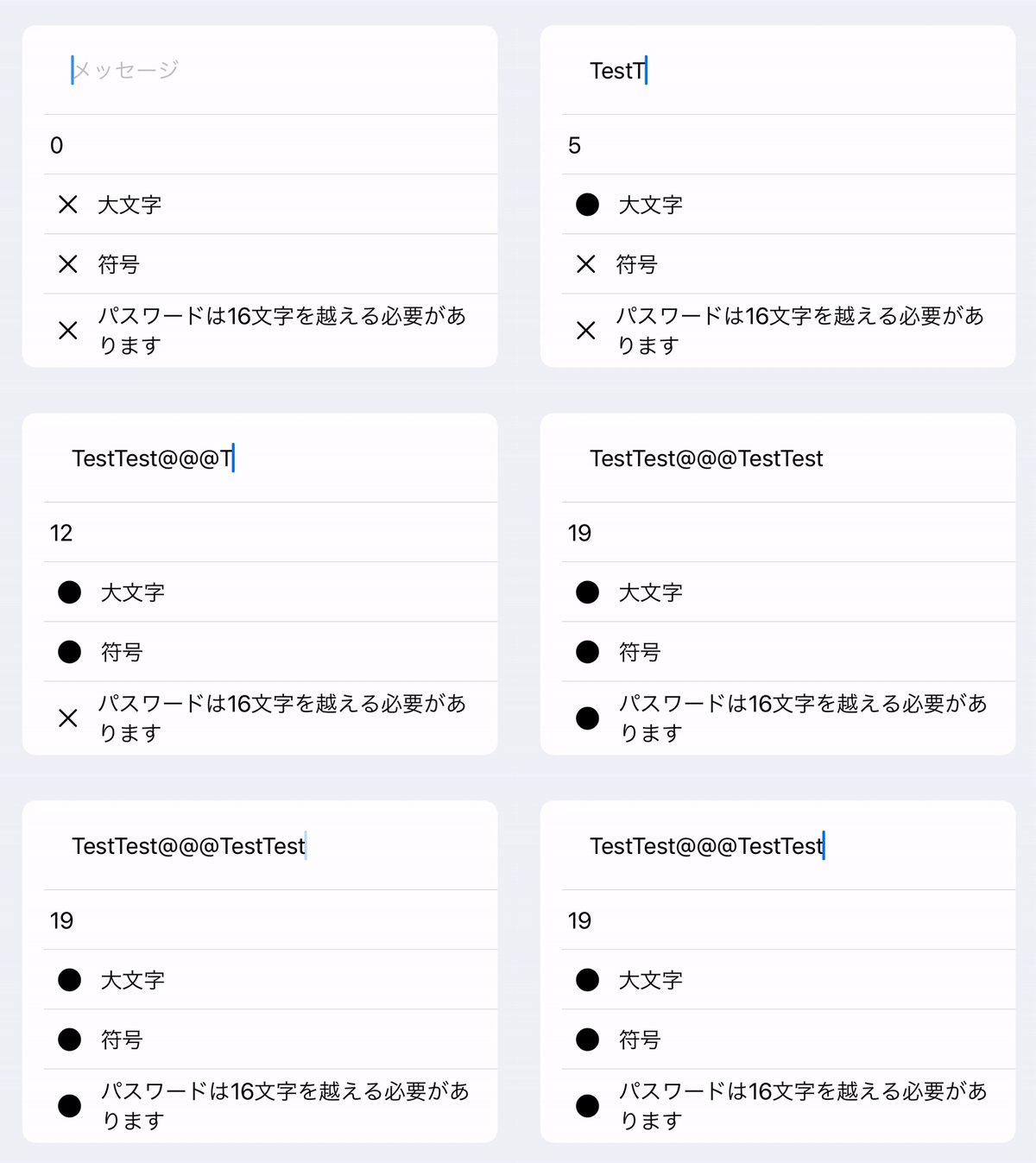
This is a useful early SwiftUI pattern, even though newer apps may reach for .onChange first.
The article was written in early 2021, and it reflects that moment in the SwiftUI API surface. The Combine-based approach is still valid, especially if the rest of the screen already leans on publishers, but it is best understood as a practical pattern from that era rather than the only way to observe text changes in modern SwiftUI.
Once the field can publish edits back into the view, validation logic becomes ordinary state updates.
That is the real point of the post. .onReceive(Just(text)) is not only a way to observe typing. It gives you a place
to normalize, trim, validate, and annotate input while keeping the surrounding SwiftUI code small and direct.