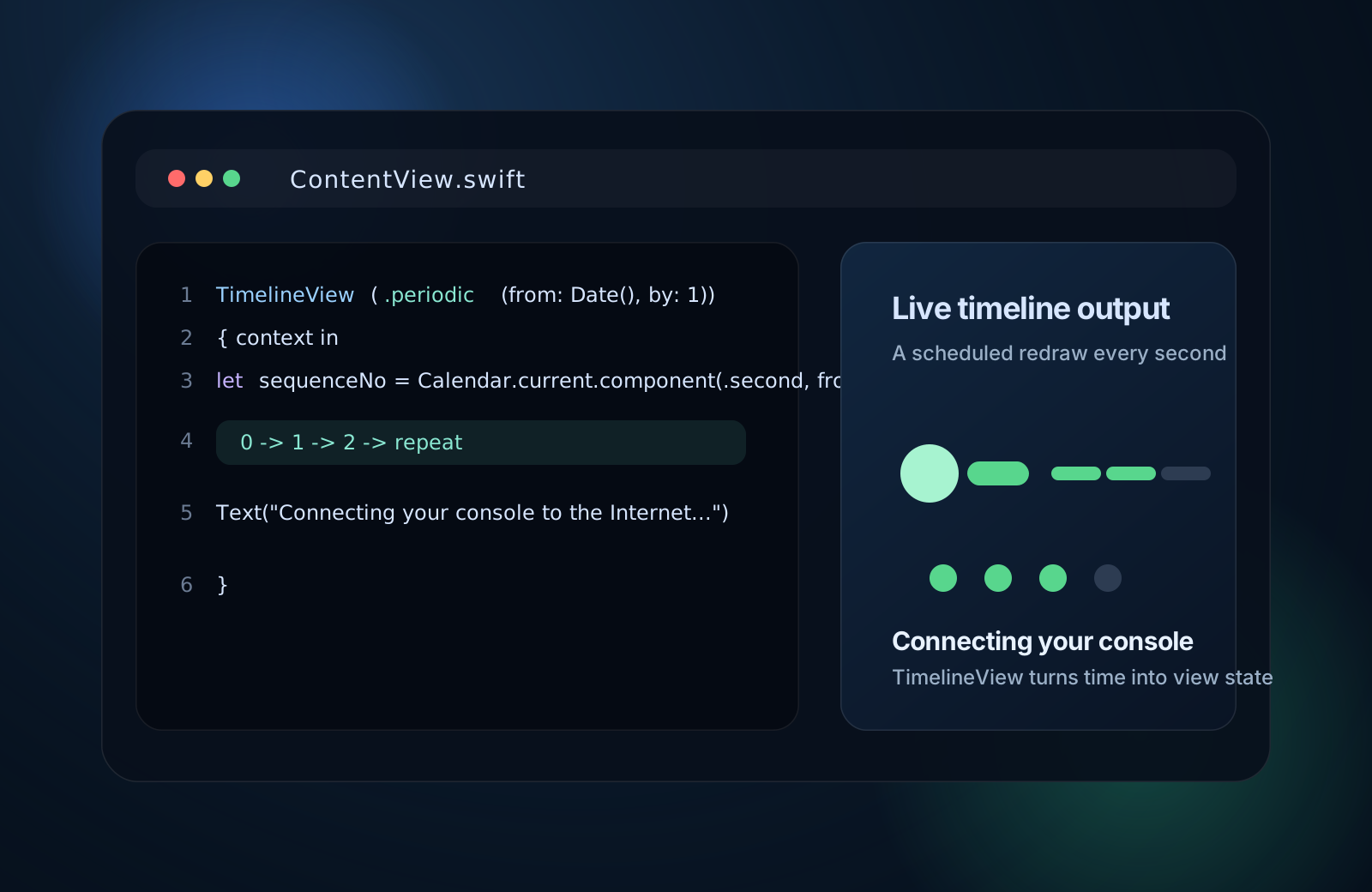
This pattern matters when time itself is the input. Instead of manually forcing a redraw, you let SwiftUI rebuild the view on a schedule.
This article introduces TimelineView as a new SwiftUI 3 view type on iOS 15.
Its job is simple: provide a timeline and rerender the enclosed content when that timeline advances.
That is a better mental model than trying to imperatively "reload" a SwiftUI view. If the UI should change every second, every minute, or at some other predictable cadence, time becomes another data source.
TimelineView first with a bare date label, then with a small loading animation that changes once per second.
The smallest useful example is a periodic timeline that updates once per second and exposes the current date through the view context.
The core example from the article looks like this:
struct ContentView: View {
    var body: some View {
        TimelineView(.periodic(from: Date(), by: 1)) { context in
            Text("\(context.date)")
        }
    }
}
There are two important parts here. .periodic(from:by:) defines the schedule, and
context.date gives you the current timestamp for that refresh cycle.
Once you have that date, you can derive whatever display state you want from it instead of storing a separate timer-driven state property.
The article's next step is to convert the current second into a repeating sequence number, then use that sequence to switch what the UI shows.
The logic is intentionally small:
let sequenceNo = Calendar.current.component(.second, from: context.date) % 3
Because the value is modulo 3, it loops through 0, 1, and 2.
That is enough to drive a three-step animation or progress hint without introducing a separate timer publisher.
This is the useful takeaway from the post: TimelineView is not only for displaying dates.
It is a structured way to derive time-based view state.
The sample uses the repeating sequence to light up a row of chevrons between a game controller icon and a network icon.
Each second, one more chevron turns green. After the third step, the modulo logic resets and the sequence starts again. The result feels like a lightweight connection or transfer animation.
struct ContentView: View {

    var body: some View {
        Form {

            TimelineView(.periodic(from: Date(), by: 1)) { context in

                // A number that's in range 0, 1, 2
                let sequenceNo = Calendar.current.component(.second, from: context.date) % 3

                HStack {
                    Image(systemName: "gamecontroller")
                        .font(.largeTitle)

                    Image(systemName: "chevron.right")
                        .font(.largeTitle)
                        .foregroundColor((sequenceNo >= 0) ? .green : .init(UIColor.label))

                    Image(systemName: "chevron.right")
                        .font(.largeTitle)
                        .foregroundColor((sequenceNo >= 1) ? .green : .init(UIColor.label))

                    Image(systemName: "chevron.right")
                        .font(.largeTitle)
                        .foregroundColor((sequenceNo >= 2) ? .green : .init(UIColor.label))

                    Image(systemName: "network")
                        .font(.largeTitle)
                        .symbolRenderingMode(.multicolor)
                }
            }

            Text("Connecting your console to the Internet...")
        }
    }
}
The example is effective because it uses plain SwiftUI building blocks:
Image(systemName:), conditional color changes, and a single repeating timeline.
No separate animation framework is needed.
The closing note in this article is important: ordinary SwiftUI redraws are still state-driven, and TimelineView does not replace that model.
The article points out that SwiftUI views are usually redrawn automatically when observed data changes. In normal cases, you do not call a reload function directly.
TimelineView is the right tool when the changing input is time itself.
If the changing input is app data, use SwiftUI's normal state and observation tools instead.
If you need a view to update on a cadence, TimelineView is the clean SwiftUI-native answer.
The article stays small, but the pattern is broadly useful.
Start with a periodic schedule, read context.date, derive the state you need, and let the view rebuild from that value.
For clocks, progress hints, temporary status indicators, and other time-shaped UI, this is a better approach than trying to force a redraw manually.