Xcode can already show a mini table of contents for the current file, and these comment annotations make that outline much more useful.
This article is short, but the tip holds up well. When a file grows beyond a handful of methods, scrolling is a poor way to move around it. Xcode's jump bar can list the symbols in the current file, and special comment markers let you add your own named sections and reminders into that same list.
That means navigation stops being limited to functions and types. You can mark a new section, leave a task note, or flag an area that still needs repair, and all of those markers become visible from the same file outline menu.
The first step is knowing where the current-file outline lives inside Xcode.
In the editor header, open the jump bar for the current file. Xcode shows the list of functions, methods, and other symbols it can see in that source file. This is already useful on its own because it gives you a faster way to jump than manual scrolling.
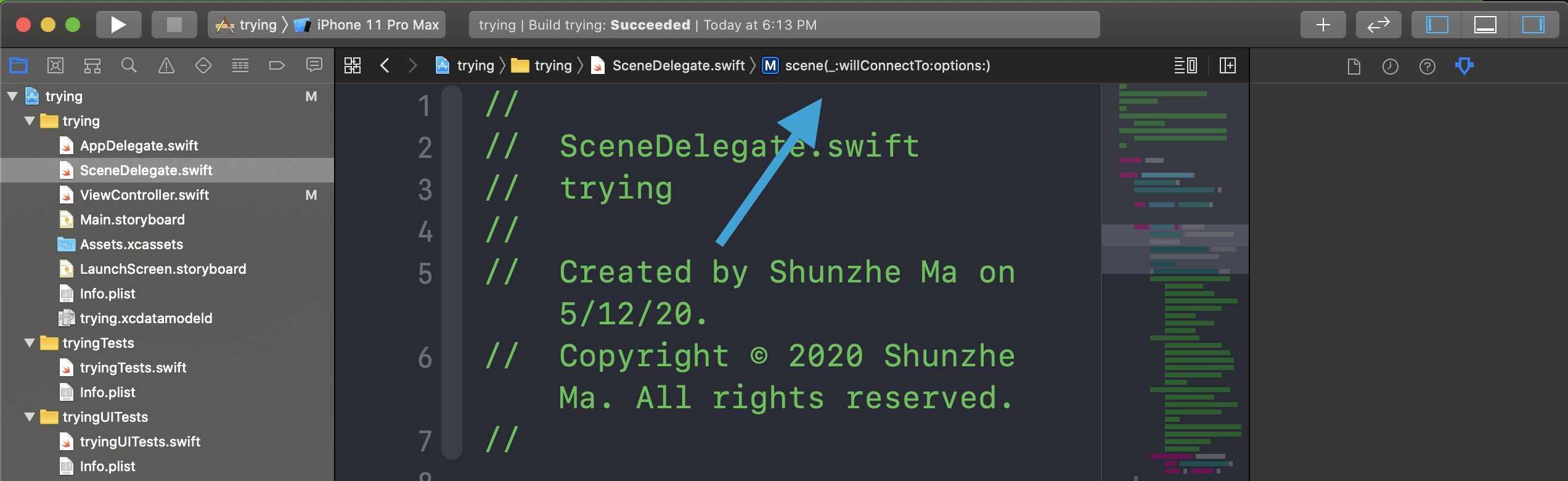
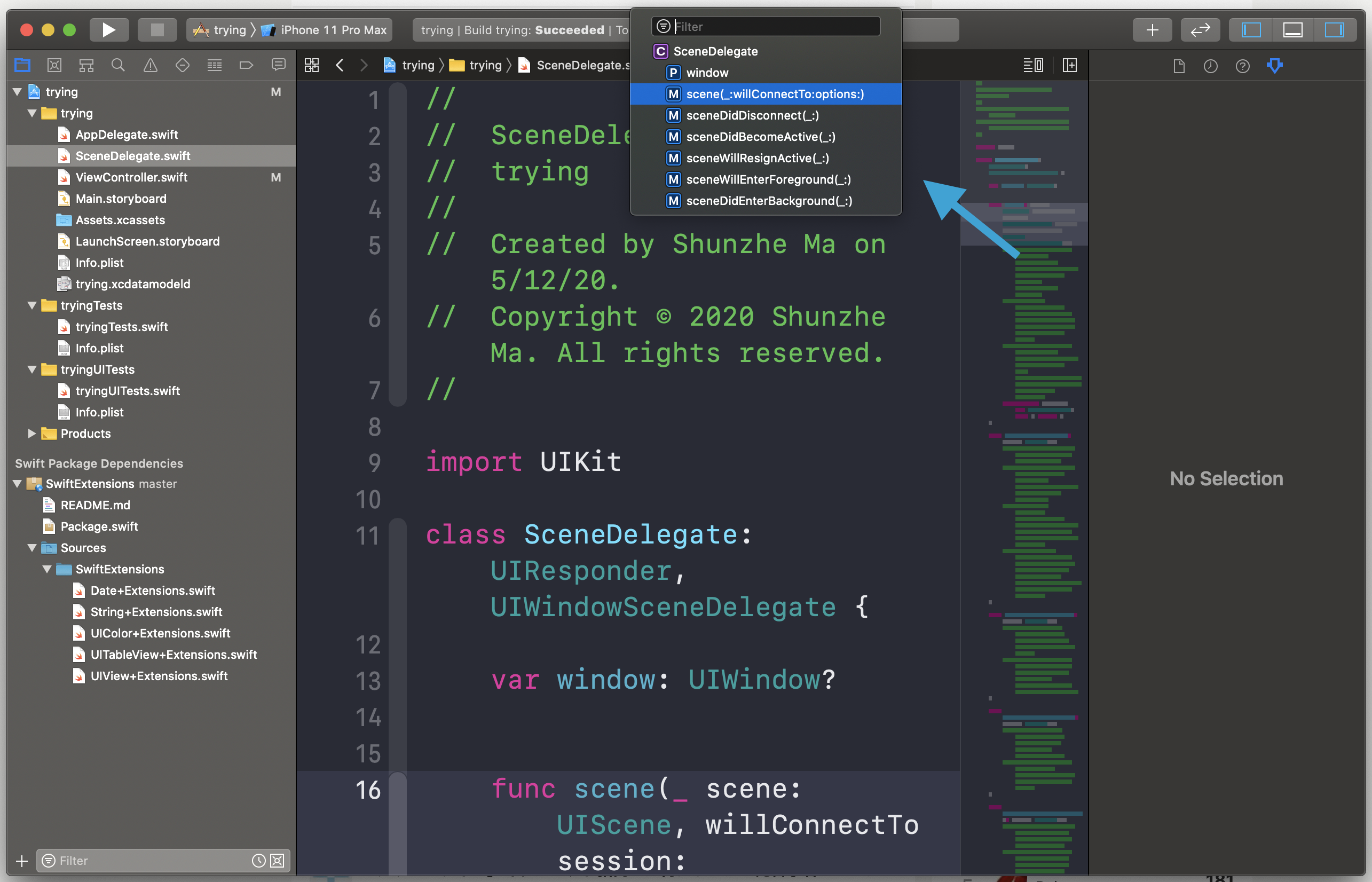
Add MARK, TODO, and FIXME comments to inject your own structure into that outline.
After you add these special comments, reopen the jump bar list. Xcode recognizes them and inserts them into the same menu as your functions. That makes them act like named dividers or action items inside the file.
// MARK: mark the beginning of a new code section

//TODO: this task is needed

//FIXME: this fix is needed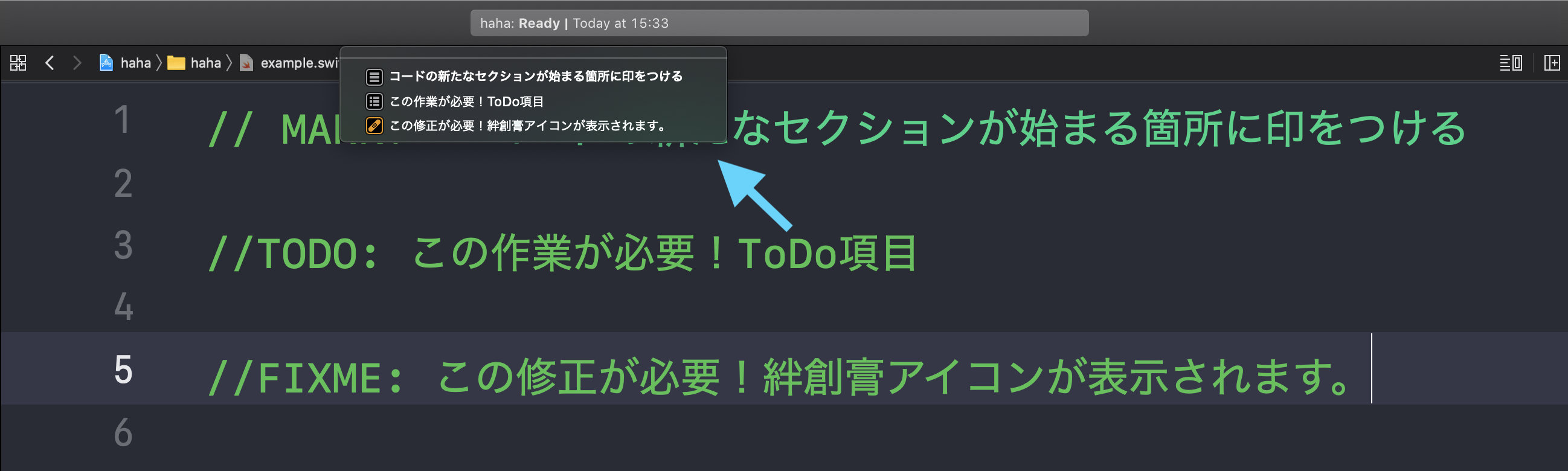
The syntax matters. Xcode only recognizes these annotations when you keep the exact comment forms it expects.
This is the most important practical detail in this article. If you improvise the spelling or punctuation, you may still have a readable comment for humans, but Xcode will not promote it into the file outline.
Keep the comments in these shapes:
// MARK:
//TODO:
//FIXME:
MARK works well for section headers. TODO is a visible reminder that work is still pending.
FIXME is the stronger signal that something is known to be broken or unfinished and needs attention.
This trick is small, but it pays off because it keeps large files readable without changing your architecture first.
The best fix for an oversized file is often to split responsibilities and move code out. But even before you do that, these
annotations give the file a clearer shape. A few MARK lines can separate lifecycle code, UI setup, networking,
delegate methods, and helper logic. TODO and FIXME keep unfinished areas visible instead of letting them disappear in the middle of the file.
In practice, the benefit is less about the comments themselves and more about turning comments into navigation anchors that Xcode understands.
The article's real lesson is that a few disciplined comment conventions can make the editor easier to navigate every day.
If you already use the jump bar, add MARK sections to make it cleaner. If you do not use the jump bar yet, this is
a good reason to start. Xcode has supported these annotations for years, and they are still one of the lowest-effort productivity upgrades in the editor.