This article is really a tour of the parts of Xcode that make code easier to clean up, inspect, and move through without doing everything by hand.
It starts with direct refactoring operations such as renaming, extracting methods, extracting variables,
and converting conditional code into a switch. Then it expands into related tooling:
localization helpers, generated initializers, reusable code snippets, generated documentation comments,
Git-aware change review, call hierarchy search, code folding, and a handful of keyboard shortcuts.
The value of the article is not that any one tip is obscure. Most of them are already in Xcode menus. The value is that many developers never build the habit of using them, so cleanup work stays manual longer than it should.
Xcode already handles several of the common refactors you should not be doing by hand: safe renaming, extracting methods, extracting boolean conditions, and converting repetitive enum checks into switch.
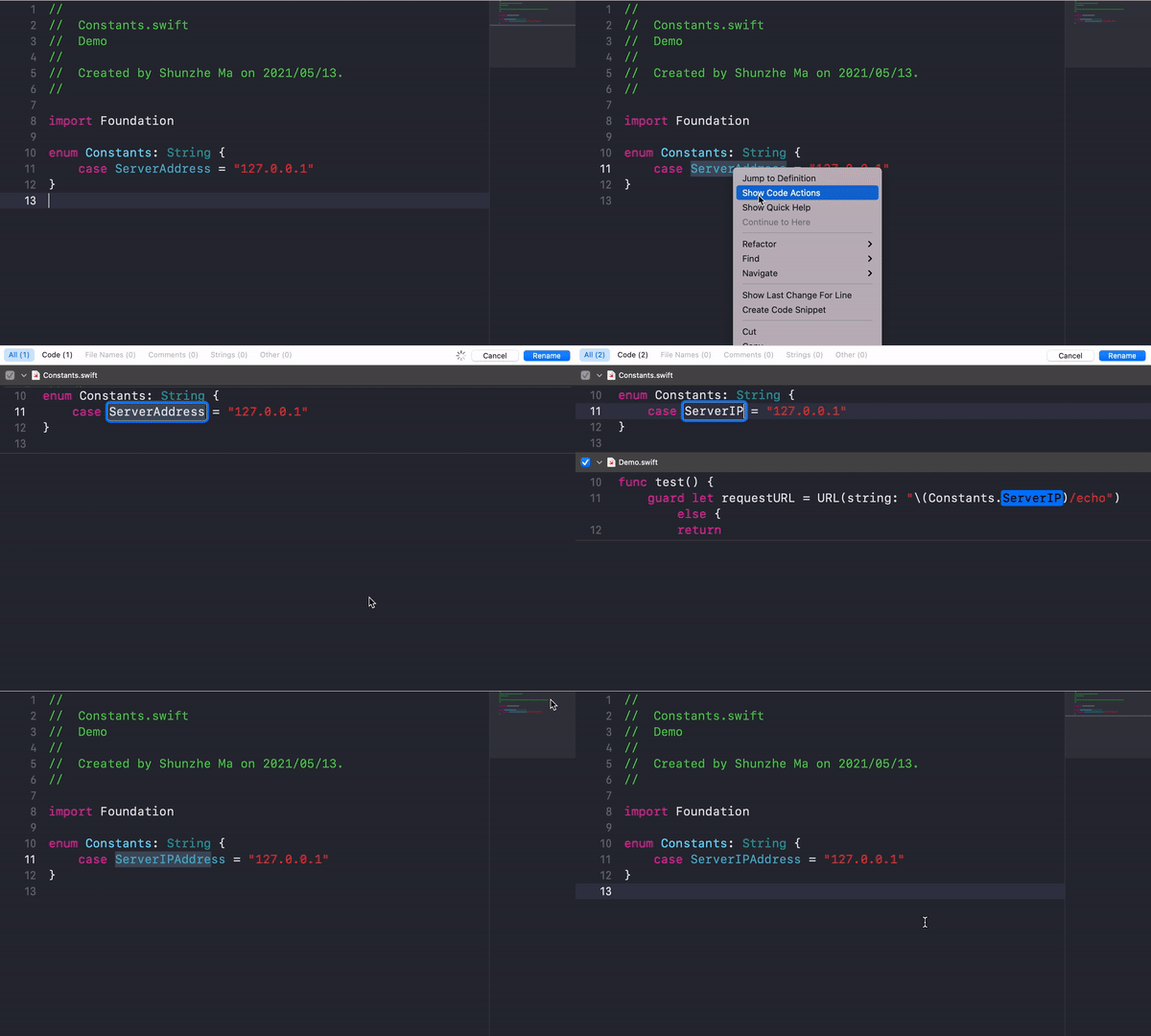
The most basic one is symbol renaming. Double-click the variable, right-click, open the Refactor
menu, and choose Rename.... Xcode finds the actual symbol references instead of doing a blind text replace,
which is the whole point.
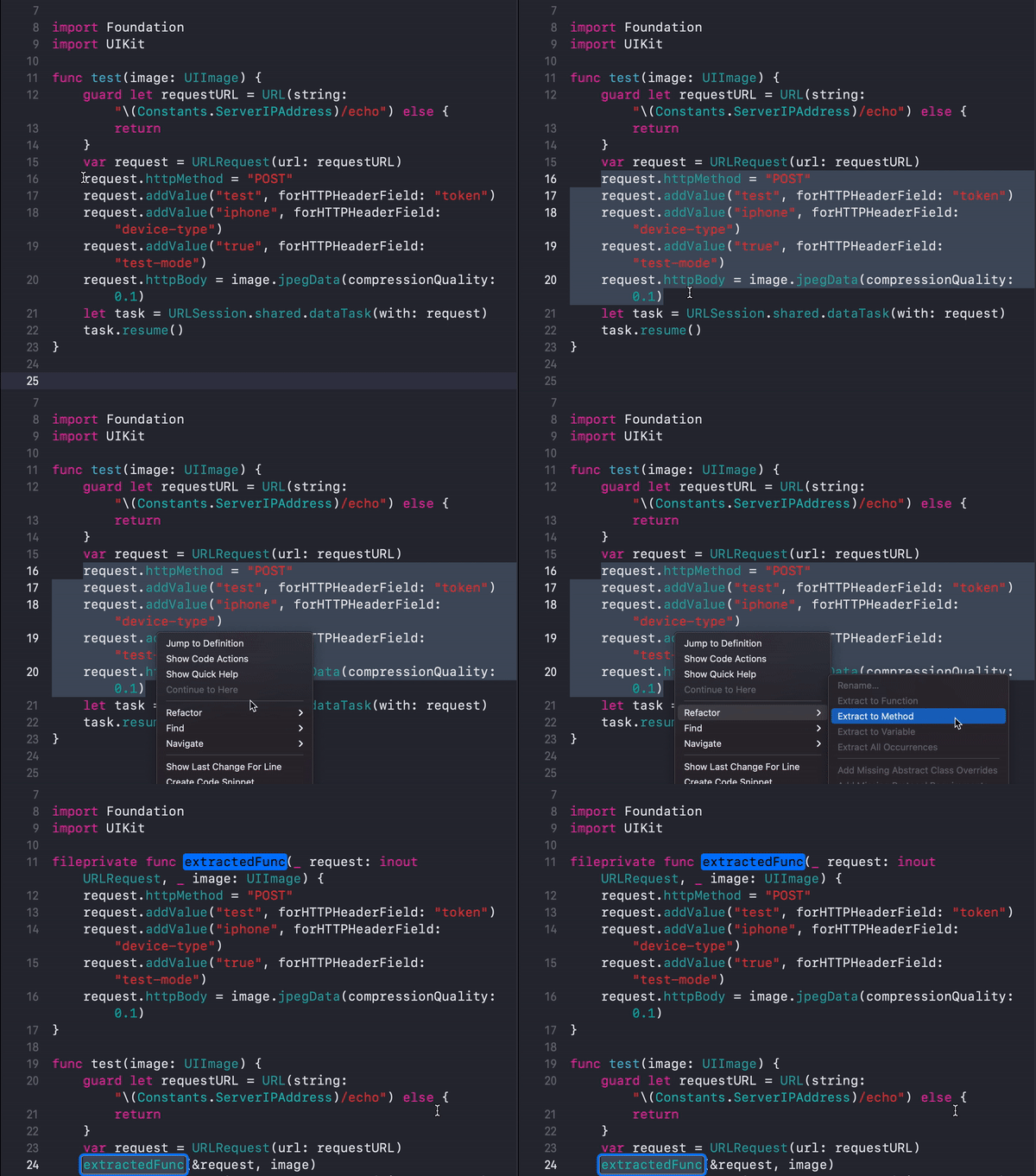
The same menu helps when code is becoming too long or too tangled. You can select a block and use
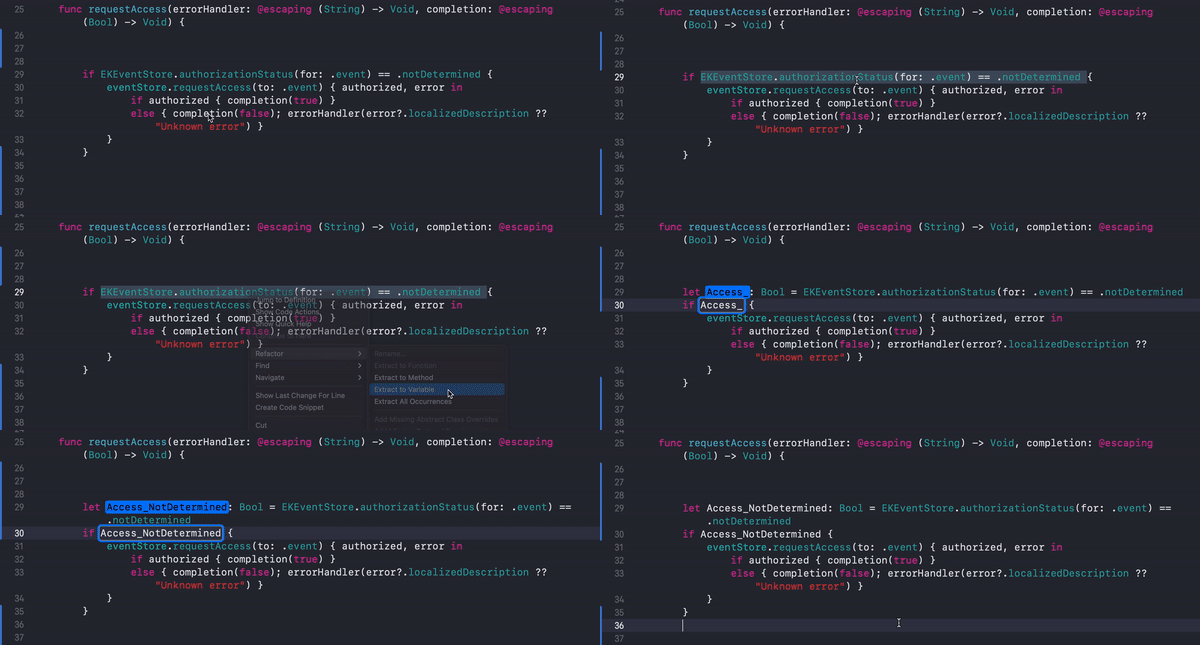
Extract to Method to break it into a separate function, or use Extract to Variable
when a long if condition deserves a readable boolean name.
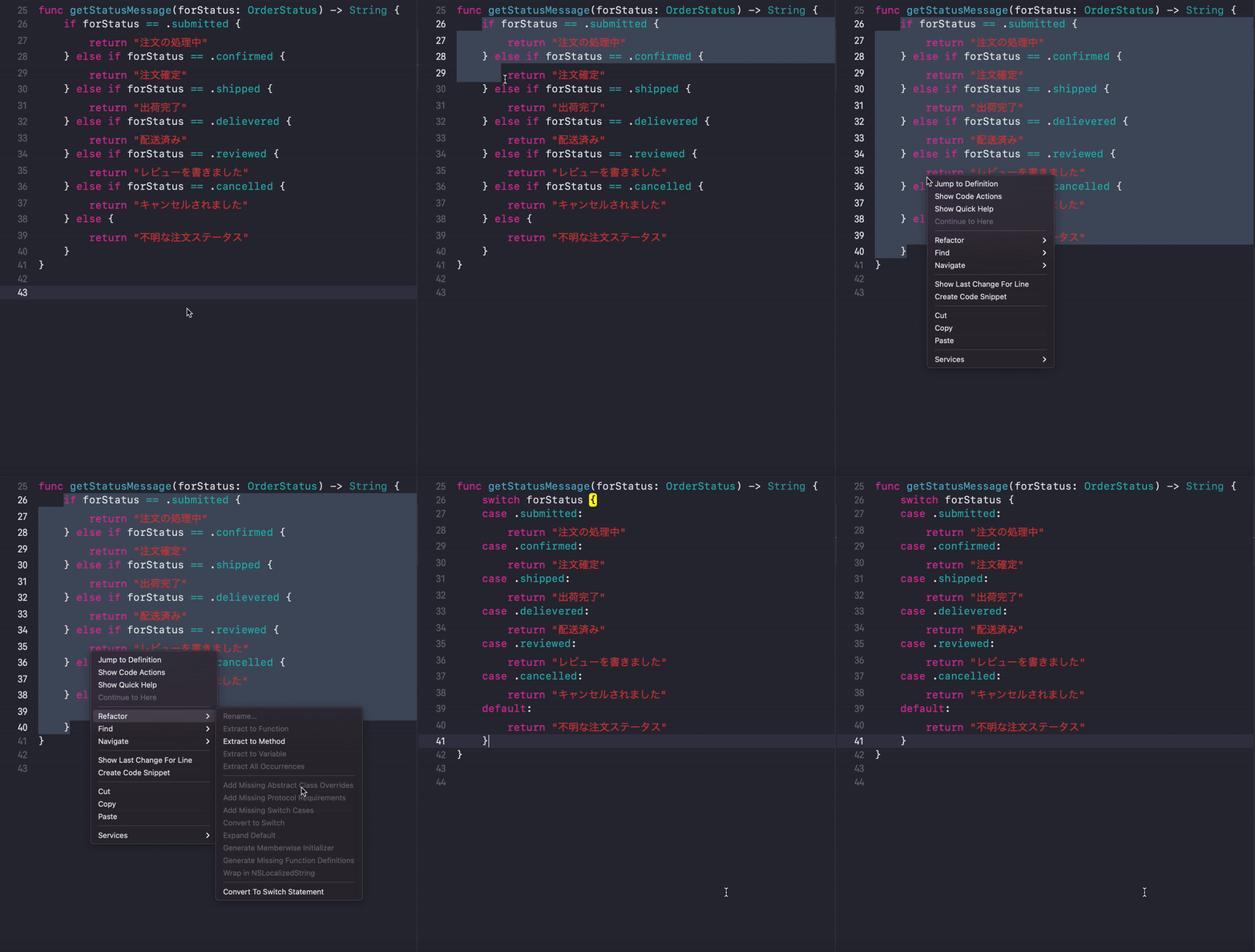
The article also calls out the enum case where several if checks should obviously become a
switch. Xcode can perform that conversion directly through Convert to Switch Statement.
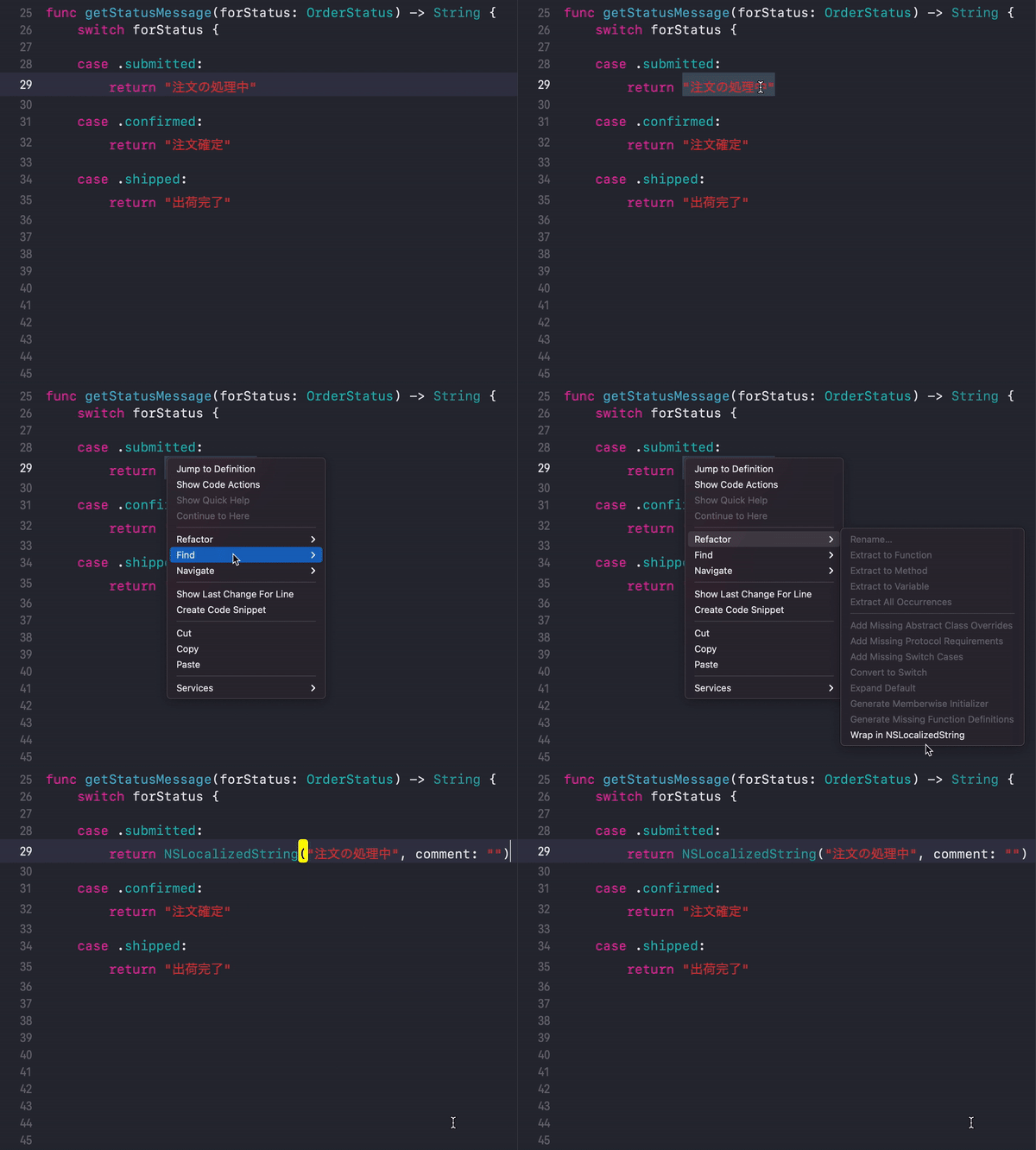
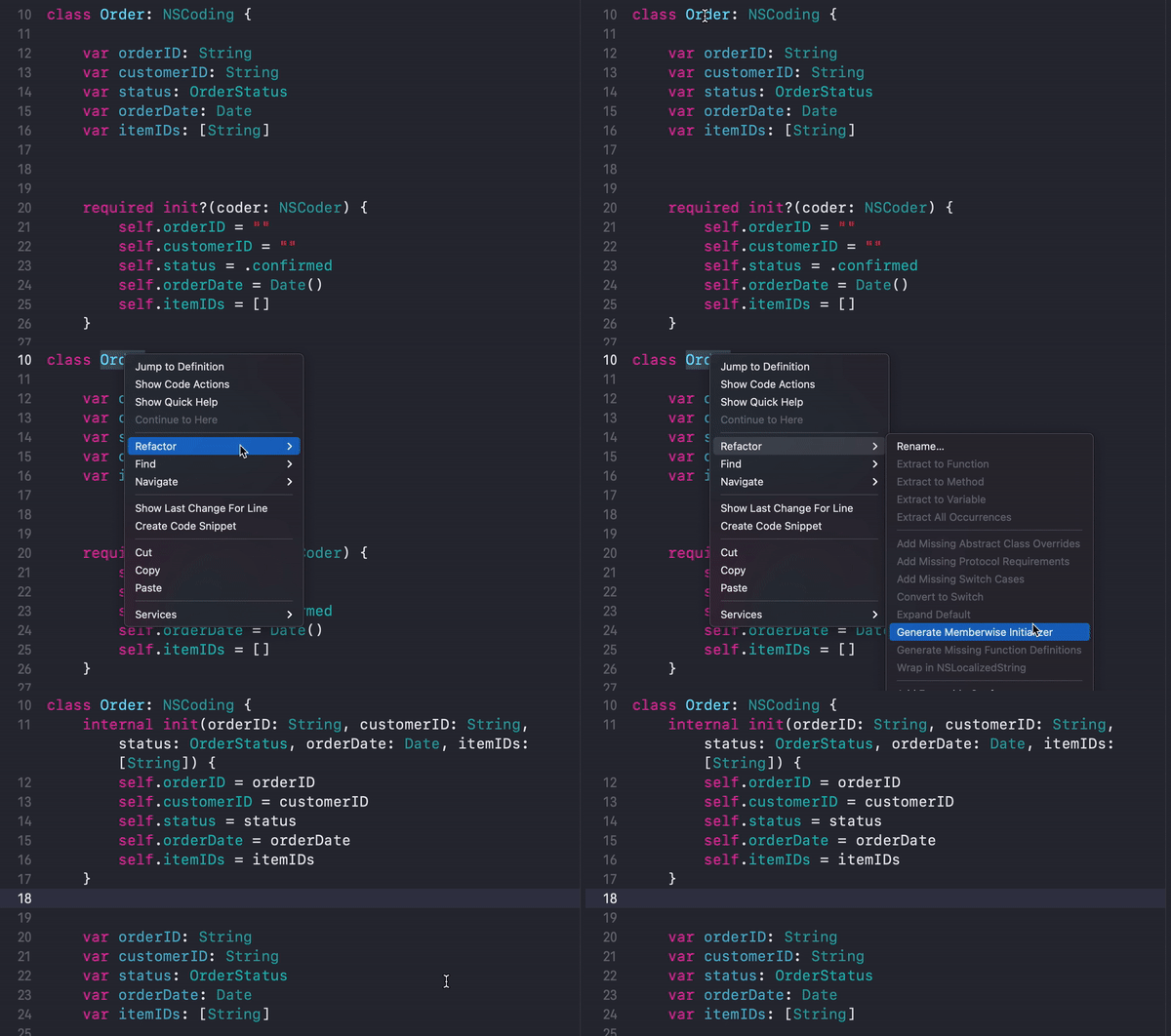
Two smaller helpers in the article save a surprising amount of repetitive work: wrapping strings for localization and generating a memberwise initializer for a class.
For strings, you do not need to type NSLocalizedString from scratch every time.
Select the string literal, open Refactor, and use Wrap in NSLocalizedString.
That keeps localization adoption lightweight instead of turning it into a chore developers postpone.
The initializer tip is equally practical. Structs already get a memberwise initializer automatically, but classes do not.
Xcode can generate one through Generate Memberwise Initializer after you select the class name in the refactor menu.
Reusable snippets and generated documentation comments are the article's next layer: once your code is cleaner, make the common parts faster to reuse and easier to inspect.
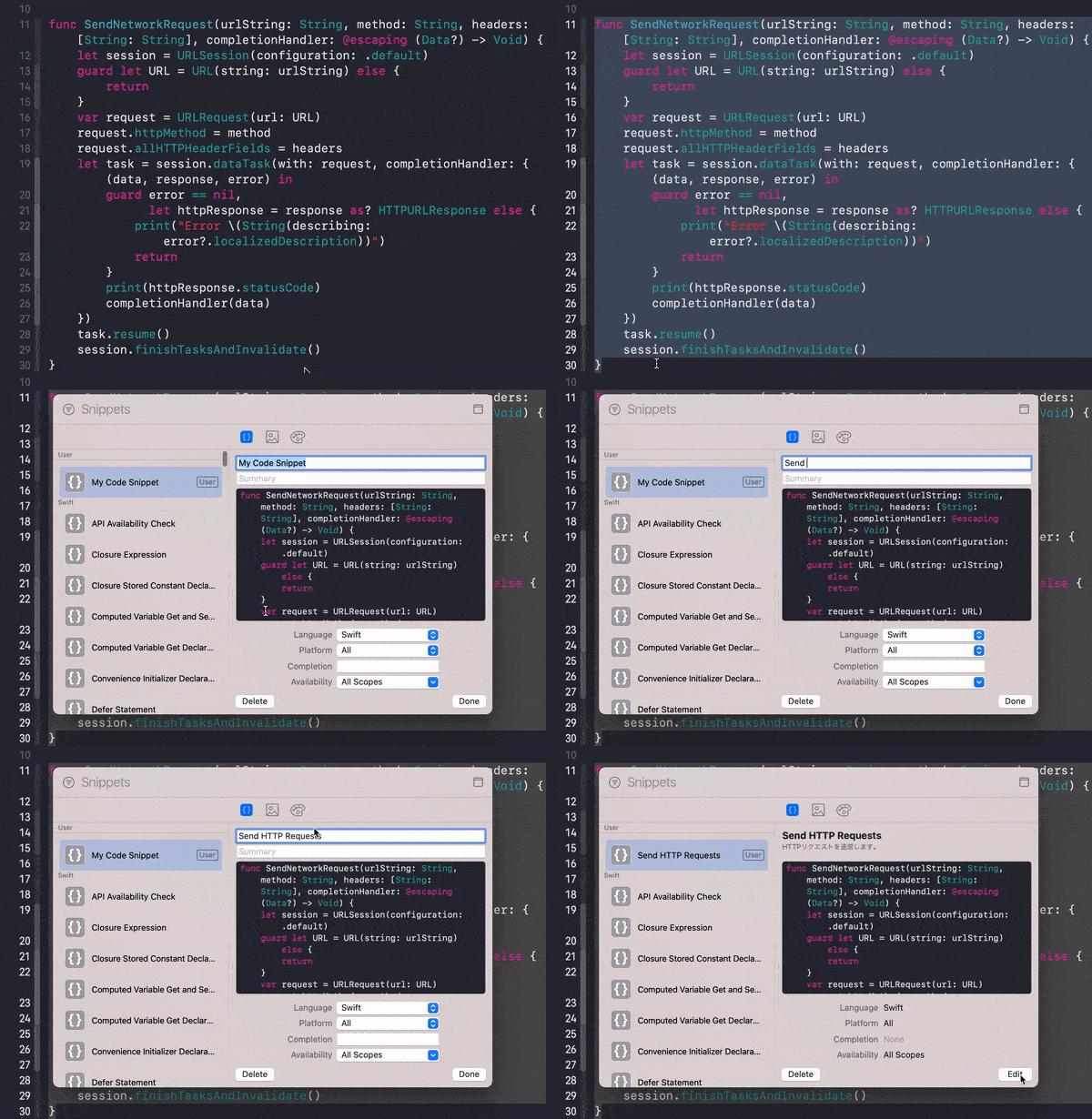
If you write the same code shape often, Xcode snippets are the right home for it.
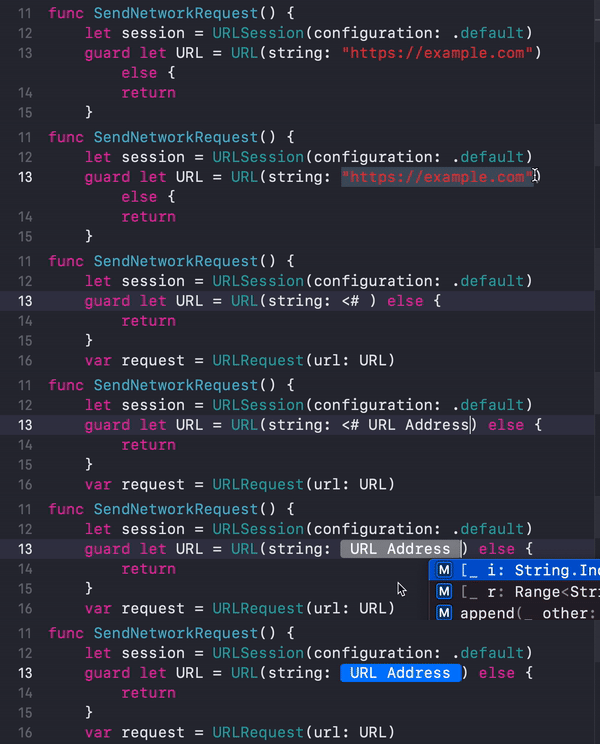
The article suggests adding placeholders with <# comment #>, selecting the code,
and choosing Create Code Snippet. That snippet then becomes available from the library button
in the top-right corner of Xcode and stays available across projects because Xcode stores snippets in
~/Library/Developer/Xcode/UserData/CodeSnippets/.
<# comment #>
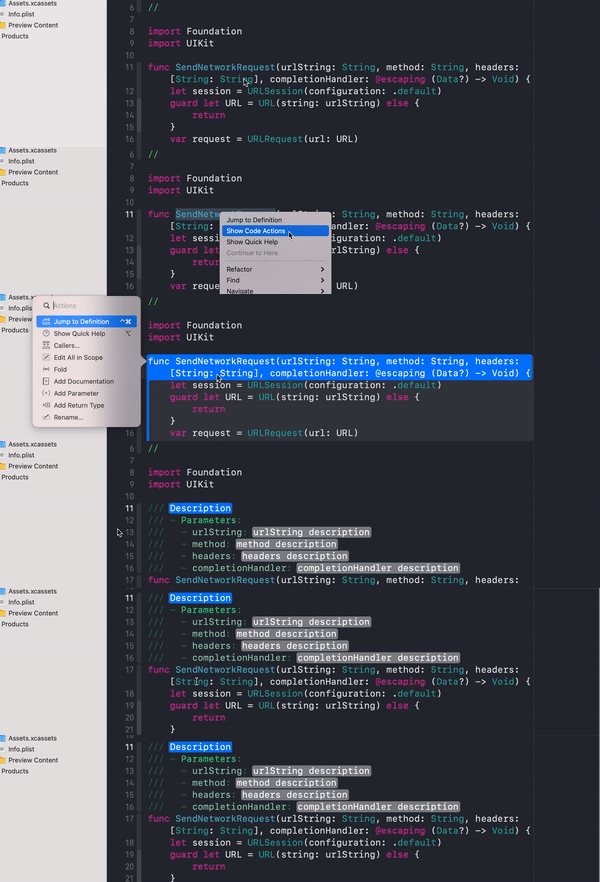
Documentation comments follow the same spirit. Right-click the function name, choose Show Code Actions,
then click Add Documentation. Xcode builds the template with parameter names for you.
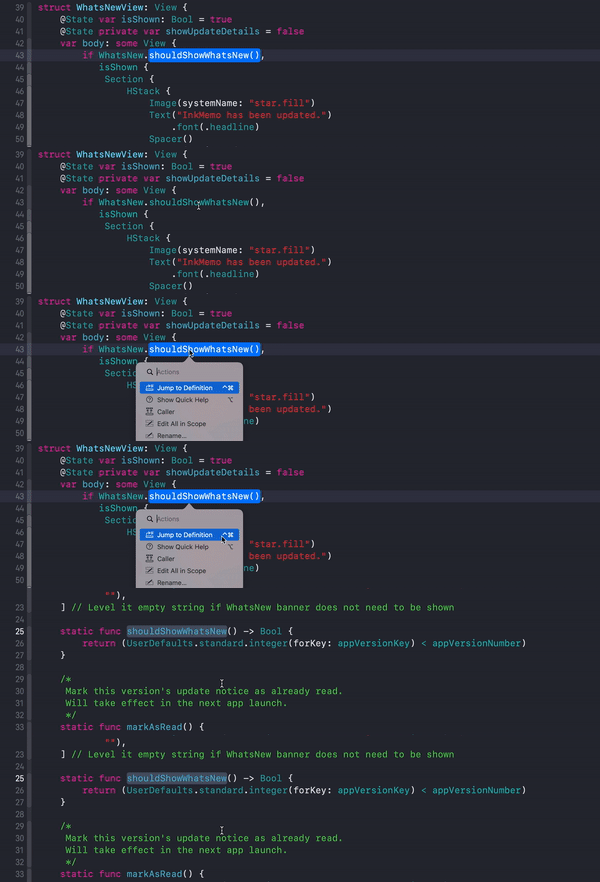
The article also points out two related moves: command-click to bring up the code action menu, and option-click
a symbol later to read its documentation inline.
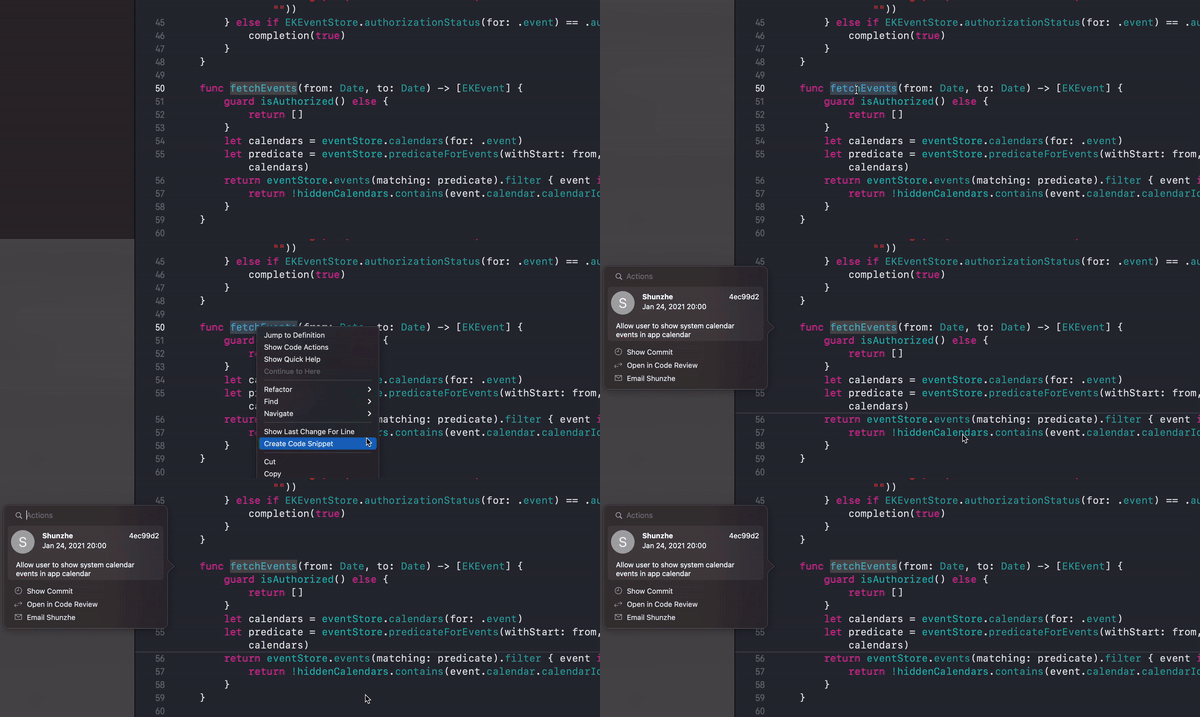
Xcode also gives you lightweight source-control and call-tracing tools without leaving the editor: discard local edits, inspect who changed a line last, and find every call site of a function.
One tip is the blue change bar on the left side of edited lines. Click it and choose Discard Changes
to restore that modified region back to the last committed version. The article warns, correctly, that this discards
all edits covered by that change marker.
For history, right-click a line and use Show Last Change for Line to see who touched it last.
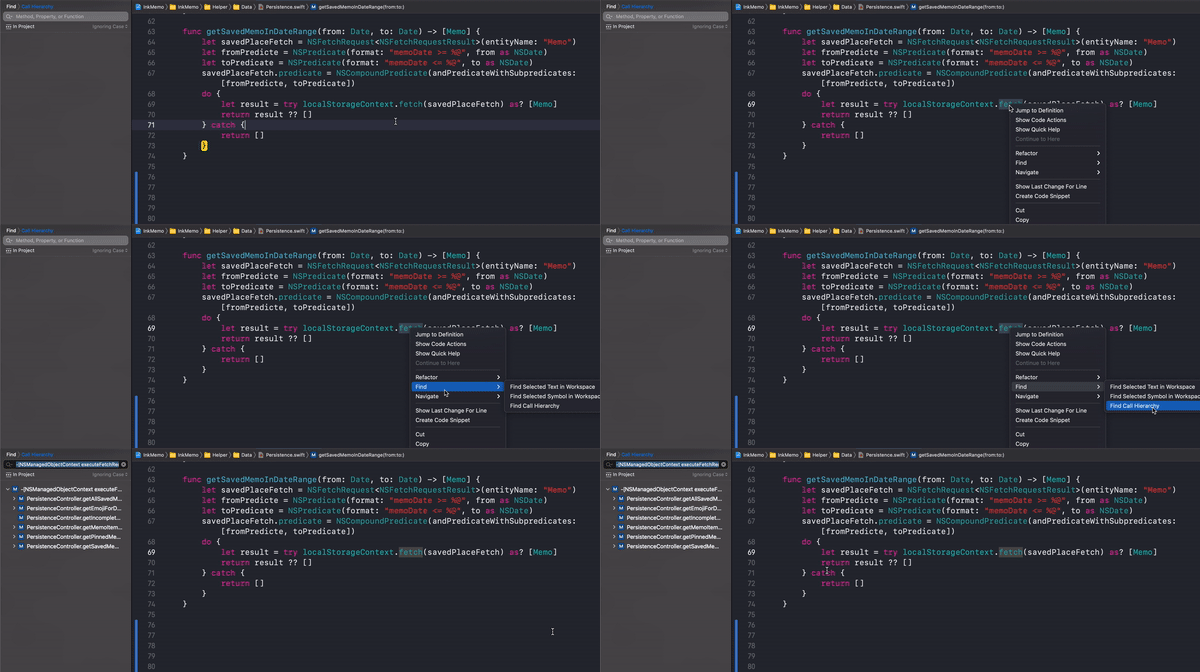
For code relationships, right-click a function, open Find, and use Find Call Hierarchy
to see where it is called. The post notes that this also works for system framework functions, which is often the more interesting case.

When the file gets long, the answer is not always another split window. Xcode's folding ribbon and symbol search are often enough.
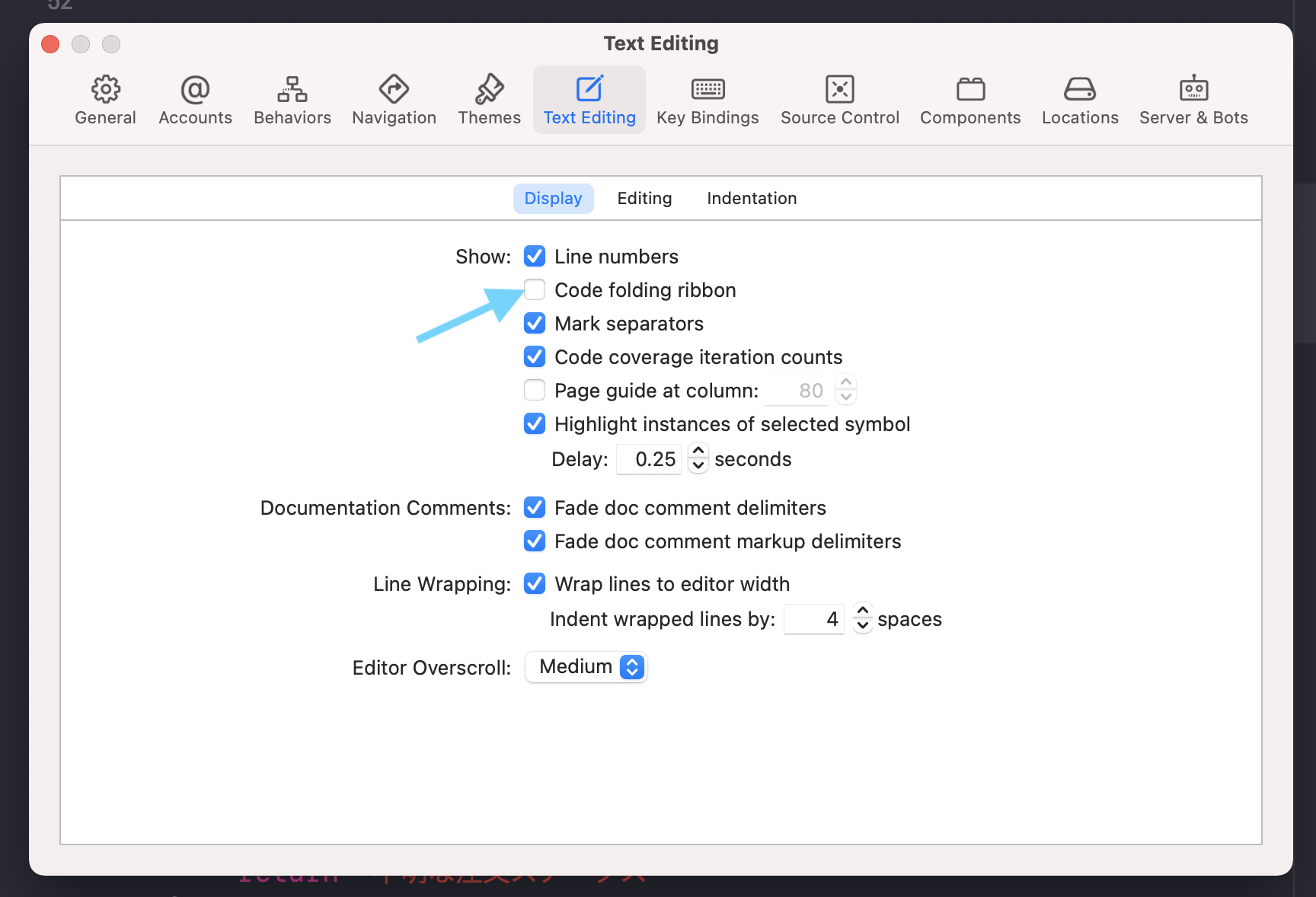
The folding tip begins in settings: enable Code Folding Ribbon inside the
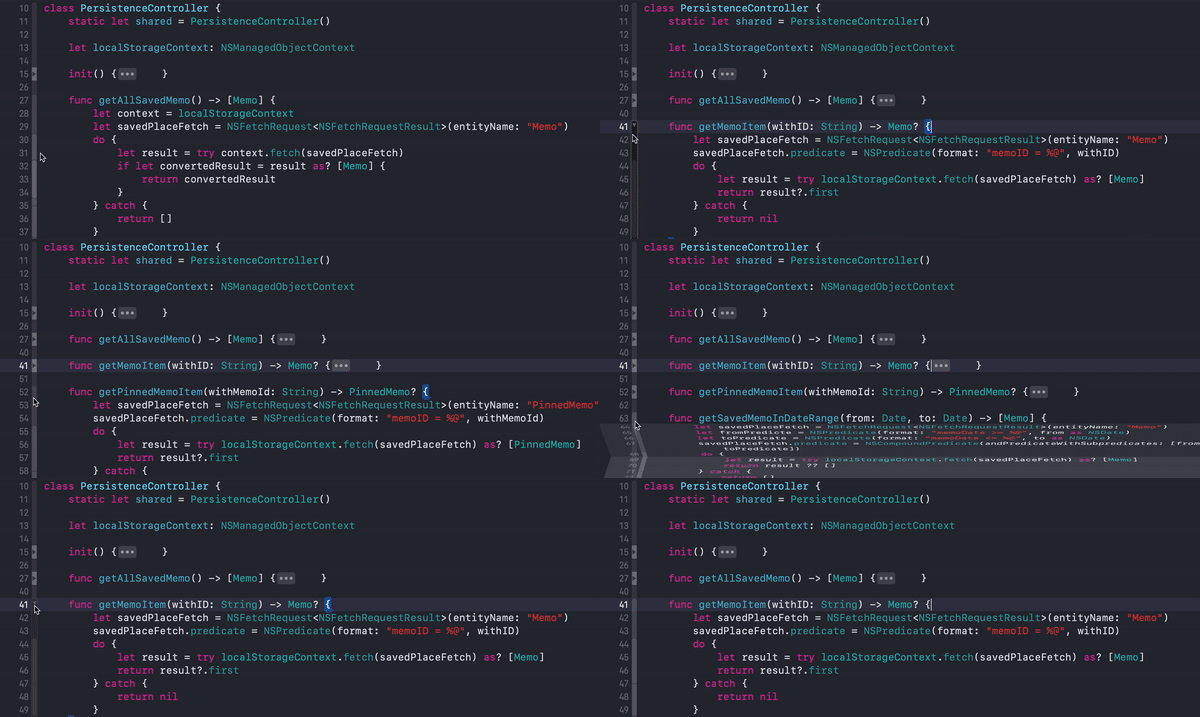
Text Editing section. After that, the editor's left-edge indicator lets you collapse and expand code regions
so files with many functions are easier to scan.
For symbol-level movement, the article highlights command shift O. That command jumps quickly to
functions, classes, and structs by name. It is not full text search; it is a fast header or symbol jump.
The last part of the article is a keyboard-shortcut grab bag: small commands that add up if you repeat them every day.
The source list includes resizing the editor font, reindenting code, building, running, running without rebuilding, opening the library, generating documentation, listing items in the current file, jumping to a line, applying fix-its, toggling the minimap, and viewing Git changes. It also calls out two practical extras: multi-cursor editing and the terminal command that opens the current working directory in Xcode.
command -      smaller font
command +      larger font
command I      reindent code
command B      build
command R      run
control command R      run last build without rebuilding
shift command L      open the library
option command /      add documentation
control 6      list items in the current file
command L      go to a line
control option command F      apply fix-its
control shift command M      toggle minimap
option shift command return      show Git changes

xed .The common thread across all 15 tips is that Xcode is usually more capable than the habits many developers bring into it.
Rename safely instead of with search and replace. Extract code instead of scrolling past it forever. Generate the boring parts. Keep useful snippets. Let the editor show you Git context and call relationships before you start guessing. That is the real lesson in this article, and it still holds up well.