This article is a short reminder that real-device testing does not have to mean leaving a cable on your desk all day.
If your Mac and iPhone are on the same local network, Xcode can keep talking to the device after the initial setup. That means fewer cables, easier device swapping, and less friction when you need to test on multiple phones.
This is a small feature, but it matters most when you test often and move between devices constantly.
This article frames it as a desk-cleanup problem, and that is accurate. If you work with several physical devices, cable-only testing turns into clutter fast. Wireless deployment removes one repetitive step without changing the way you already use Xcode.
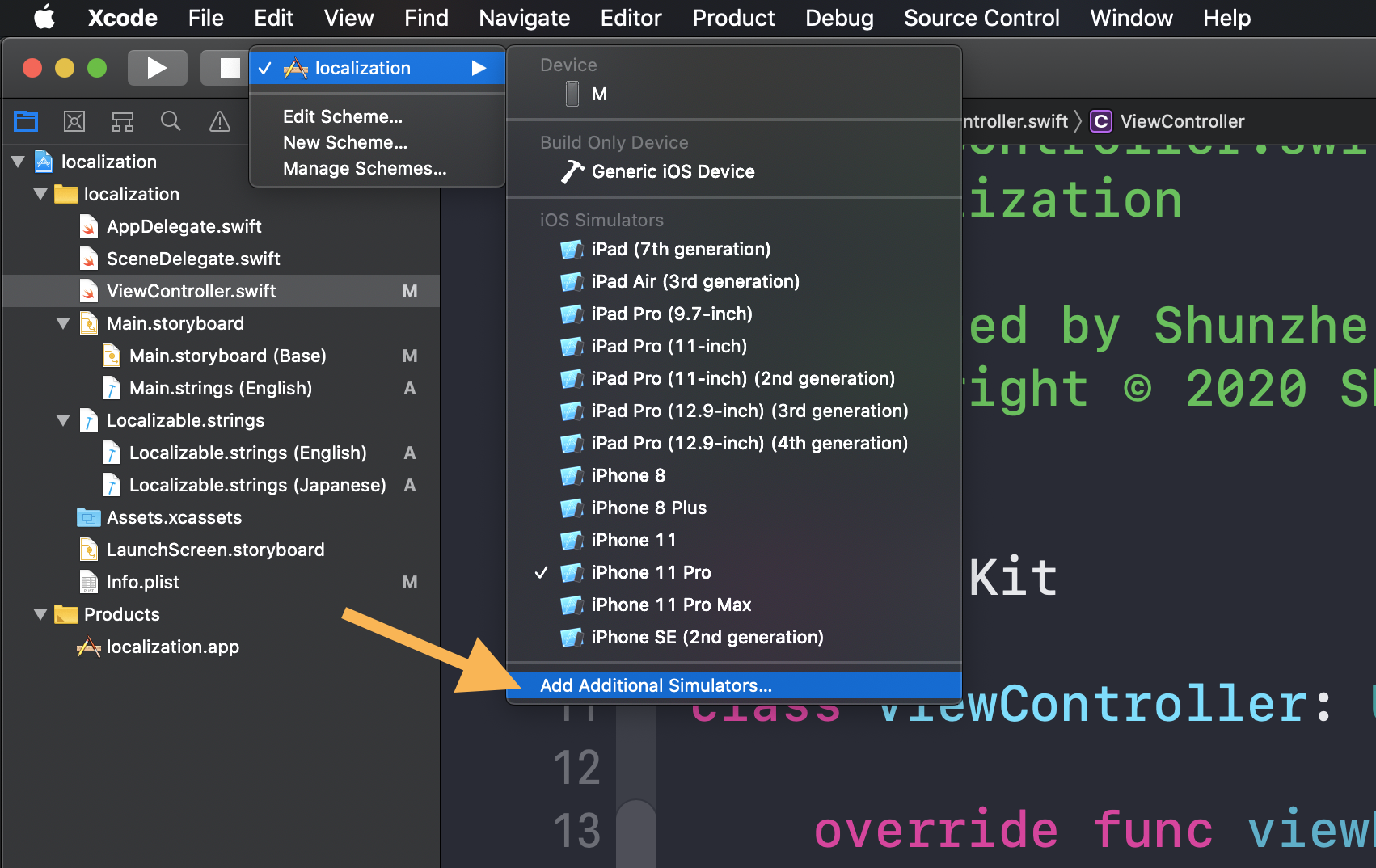
Open the Xcode device-management window from the run destination area.
Start from the same place you normally pick a simulator or physical device. From that menu, open the
screen that manages simulators and connected hardware, then switch to the Devices side so
you can inspect the iPhone directly.
With the phone still attached by cable, select it and enable Connect via Network.
This is the key step. Xcode needs that first wired connection so it can register the device correctly.
Once the device appears in the window, enable Connect via Network and let Xcode finish the
setup.

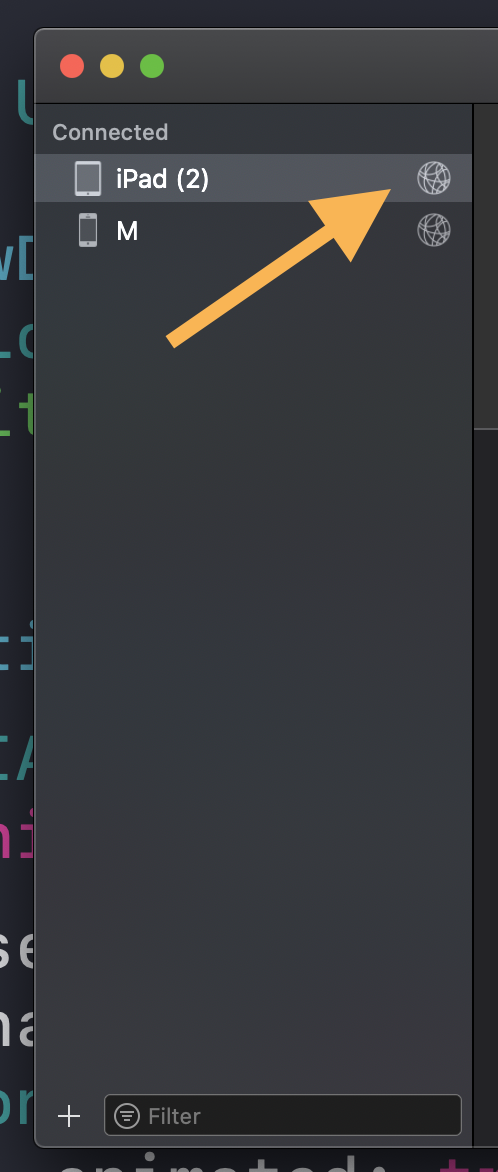
Unplug the cable, confirm the network icon appears, and run the app again.
Once the phone reconnects over Wi-Fi, Xcode shows a small network indicator next to the device. That is the signal that the device is still available as a run destination even without the cable attached.
This article is brief, but the tip is worth keeping in your normal Xcode setup checklist.
Pair once by cable, enable Connect via Network, and then treat the phone almost like a
wireless run target. For teams or solo developers testing across several iPhones, that small setup change
removes a lot of needless plugging and unplugging.