Before Xcode 13, alternate app icons were possible, but the setup felt more fragile than it needed to be. This workflow is the simpler version.
This article frames this as a three-step improvement in Xcode 13. You still prepare icon assets, but the surrounding setup is easier to understand: define extra iOS app icon sets in the asset catalog, tell Xcode which names are valid in Build Settings, and switch between them from code when the user makes a choice.
Create additional iOS app icon sets in the asset catalog instead of trying to treat every icon as part of the default AppIcon bundle.
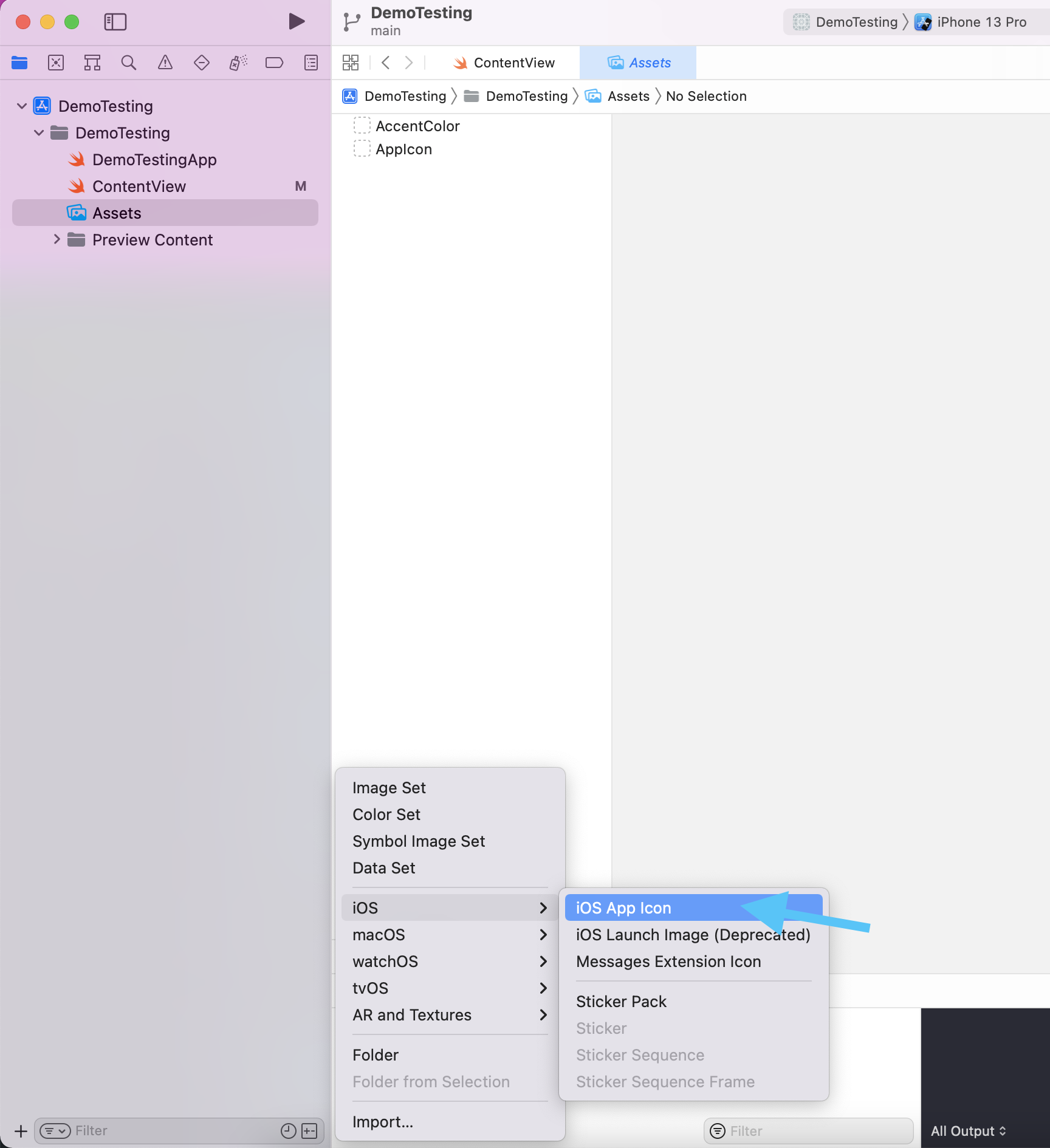
Start where app icons already live: the asset catalog. After your default AppIcon is in place,
click the + button in the lower bar, choose iOS, then create a new iOS App Icon set.
That gives each alternate icon pack its own place in the catalog.
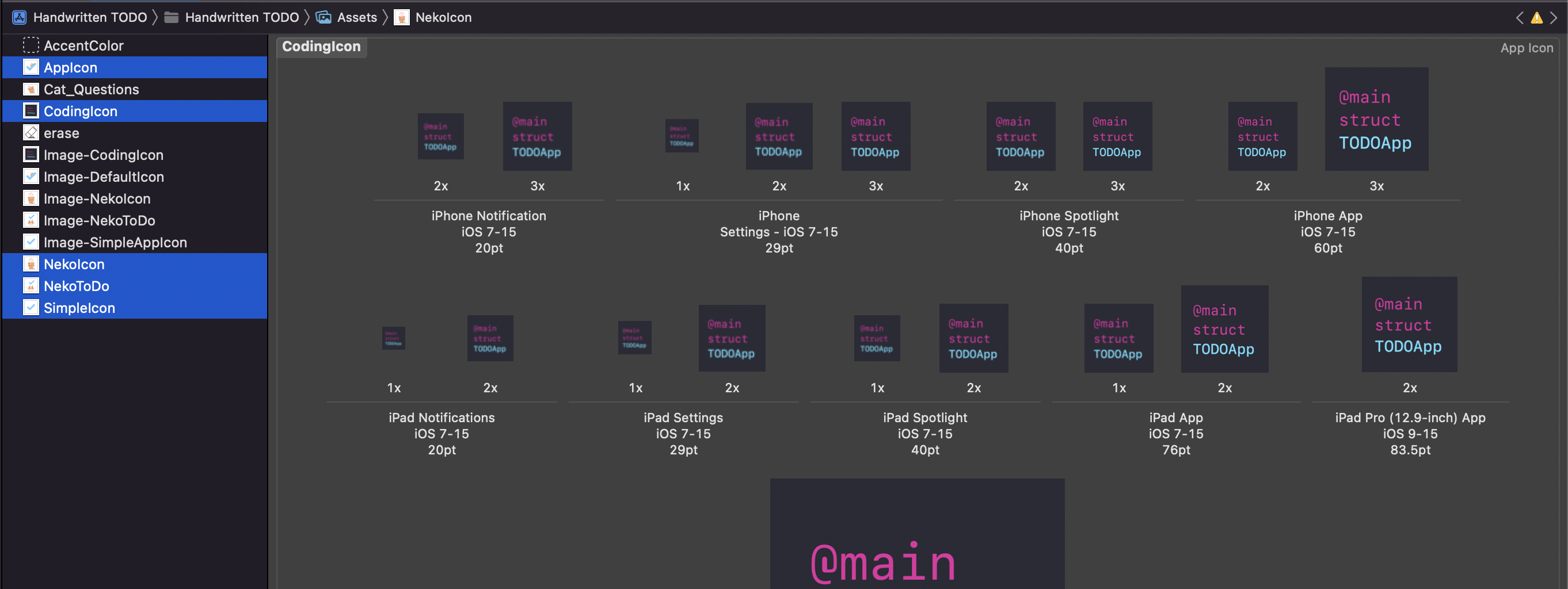
Once the extra icon sets exist, fill each one with the actual icon assets you want the app to expose to users.
This article points out that one app can carry multiple alternate icon packs. In the example, several variants are added side by side. The important part is keeping each pack complete and distinct, because the name of that pack becomes the value you later pass into the switching API.
Xcode still needs to know which alternate icon set names are valid, so register them in the target Build Settings.
Go to the target settings, open Build Settings, and search for Alternate App Icon Sets.
That setting is an array. Add one entry for each alternate icon pack name you created in the asset catalog.
The names here need to match the icon pack names you expect to activate later in code.

After setup, the runtime API is small: call setAlternateIconName with the icon set name the user selected.
The article uses a direct UIKit example:
UIApplication.shared.setAlternateIconName(iconBundleName) { error in
    print(error)
}
The iconBundleName value must be one of the icon set names you registered in Build Settings.
In this article, NekoIcon is used as a concrete example of one valid alternate icon set name.
If the user wants to go back to the main app icon, pass nil instead of an alternate icon name.
That restores the default icon bundle:
UIApplication.shared.setAlternateIconName(nil) { error in
    print(error)
}
That is the entire reset path. You do not need a separate alternate icon entry for the default icon itself.
The useful idea here is that alternate icons are mostly an asset-and-configuration problem. The runtime code is the easy part.
Xcode 13 makes this workflow easier to reason about because the setup becomes more explicit:
create separate icon sets, list their names in Alternate App Icon Sets, and activate the chosen one with
UIApplication.shared.setAlternateIconName. For a short post, that is the right amount of detail.