DocC changes documentation from a side file into something Xcode can derive from your symbols, enrich with markdown, and ship as a browsable site.
That is the core idea running through this article. Xcode 13 can generate documentation from symbol
comments, but it also gives you a place to add manual pages and customize the landing experience. The final
result is not only for local browsing inside Xcode. You can export a .doccarchive or publish the
generated site on a standard server.
If you want only auto-generated symbol docs, you can stop at code comments. If you want custom pages and a tailored landing page, create a documentation catalog.
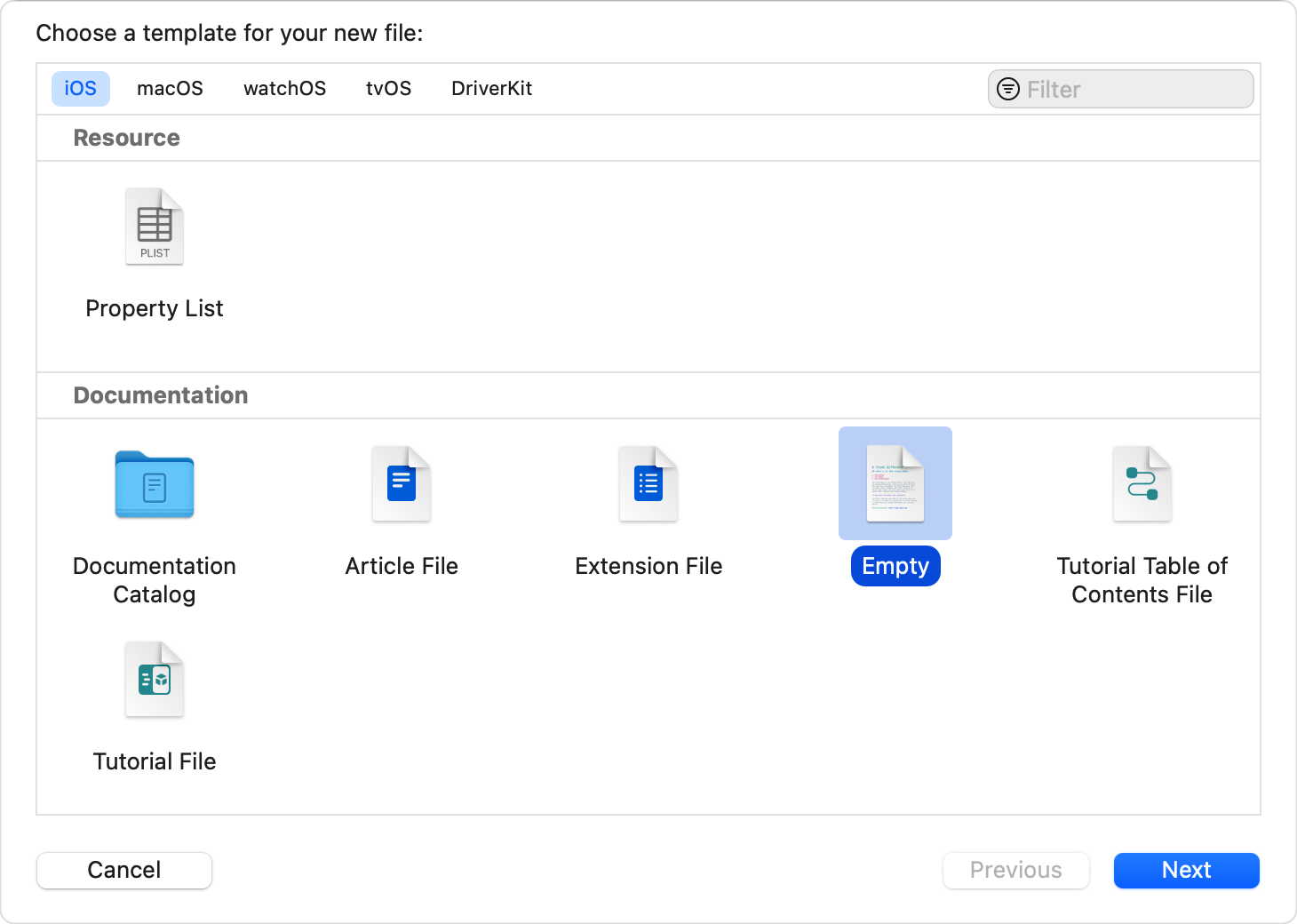
The article starts by creating a documentation catalog from Xcode's template picker. From the
Sources folder, press Command-N, choose Documentation Catalog, then
rename the generated files to match the project:
[ProjectName].docc
- [ProjectName].md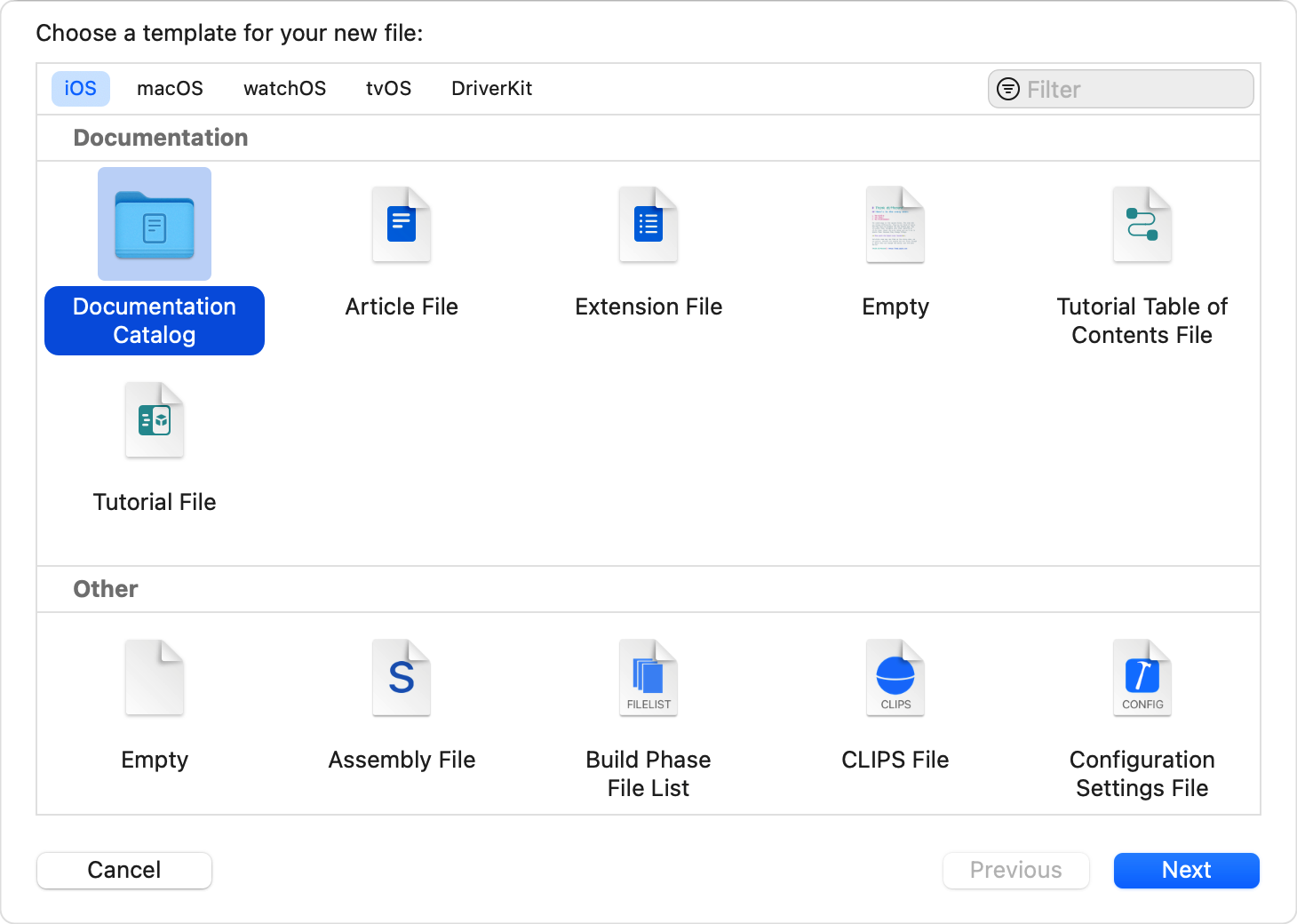
DocC still depends on good symbol comments. The generation quality follows the clarity of your public API comments.
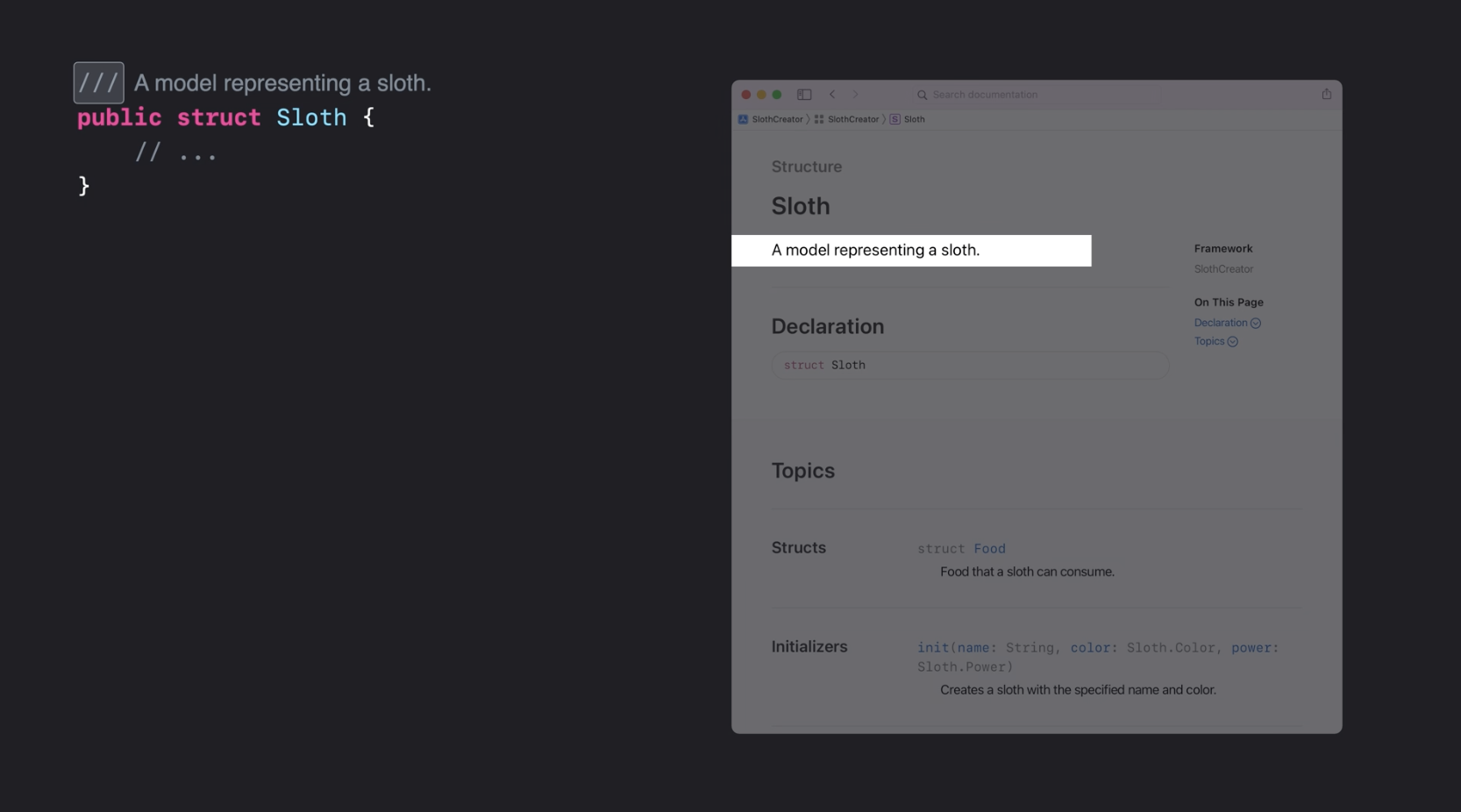
The article recommends adding comments to public func, struct,
class, and enum symbols. Xcode can even scaffold the comment block for you
through Show Code Actions then Add Documentation.
/**
 Prompts the user to choose a document.
 # Example #
 `Your example code`
 */
@available(iOS 13.0, *)
public struct DocumentPicker: UIViewControllerRepresentable
{ ... }
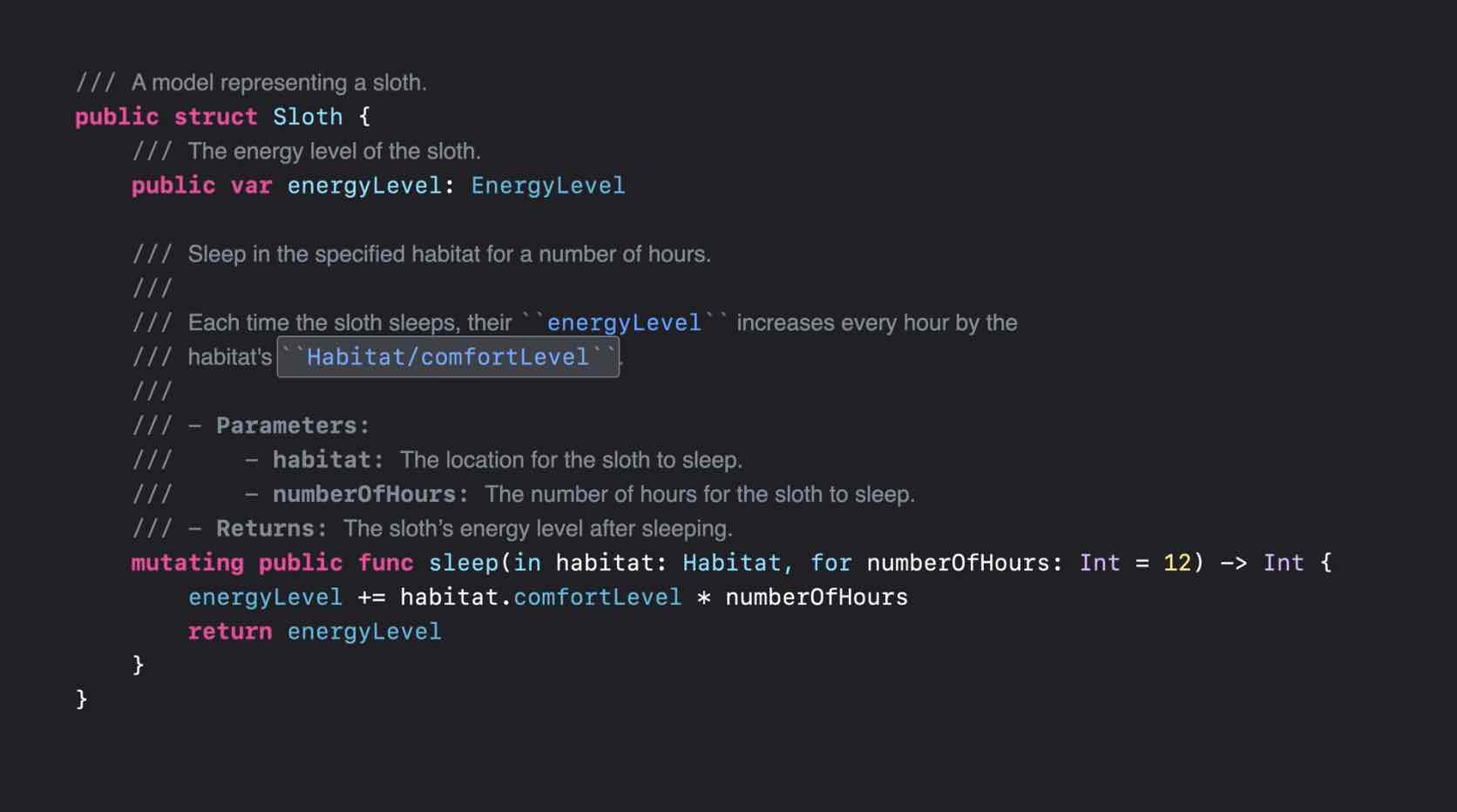
The article also shows how DocC treats a multi-line summary and discussion block:
/// Eat the provided specialty sloth food.
///
/// Sloths love to eat while they move very slowly through their rainforest
/// habitats. They are especially happy to consume leaves and twigs, which they
/// digest over long periods of time, mostly while they sleep.
///
/// When they eat food, a sloth's `energyLevel` increases by the food's `energy`.
mutating public func eat(_ food: Food, quantity: Int) throws -> Int {
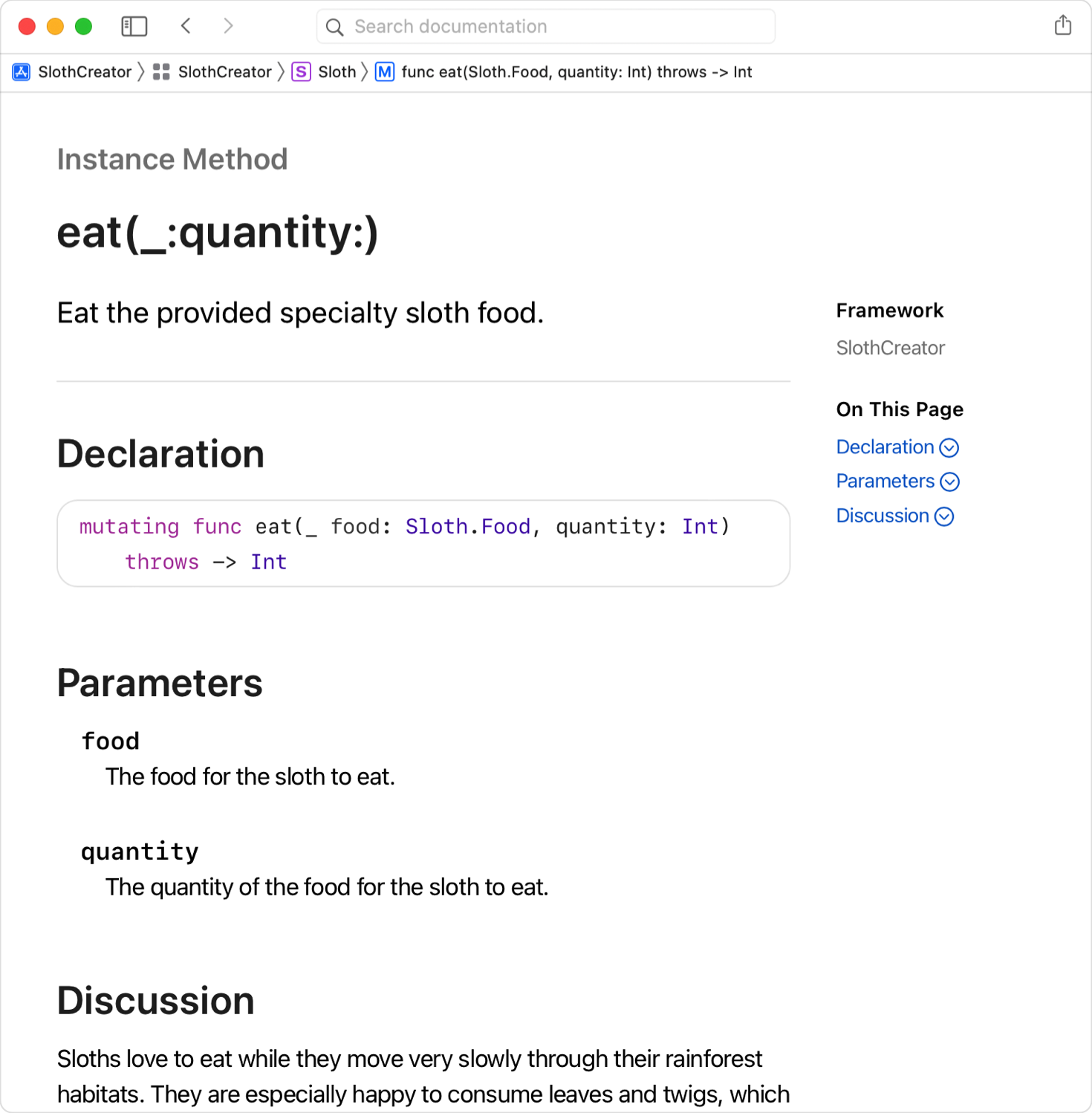
Parameter docs are added with the usual triple-slash form:
/// - Parameter food: The food for the sloth to eat.
/// - Parameter quantity: The quantity of the food for the sloth to eat.
mutating public func eat(_ food: Food, quantity: Int) throws -> Int {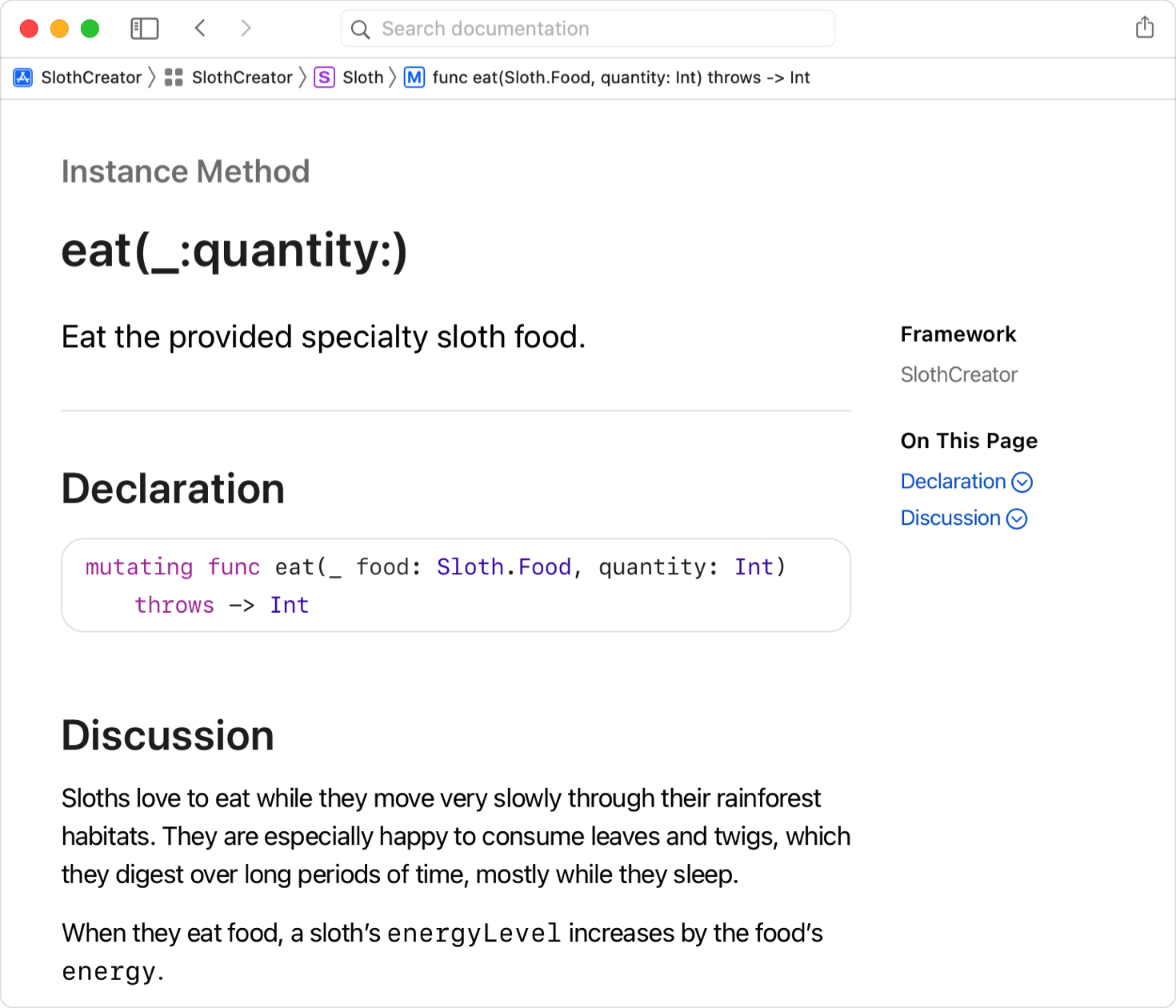
Once the comments and catalog exist, Xcode can generate the docs directly from the Product menu.
This article uses Product > Build Documentation. Xcode builds the docs and opens them in
a new documentation window, where selecting the project from the left sidebar shows the generated result.
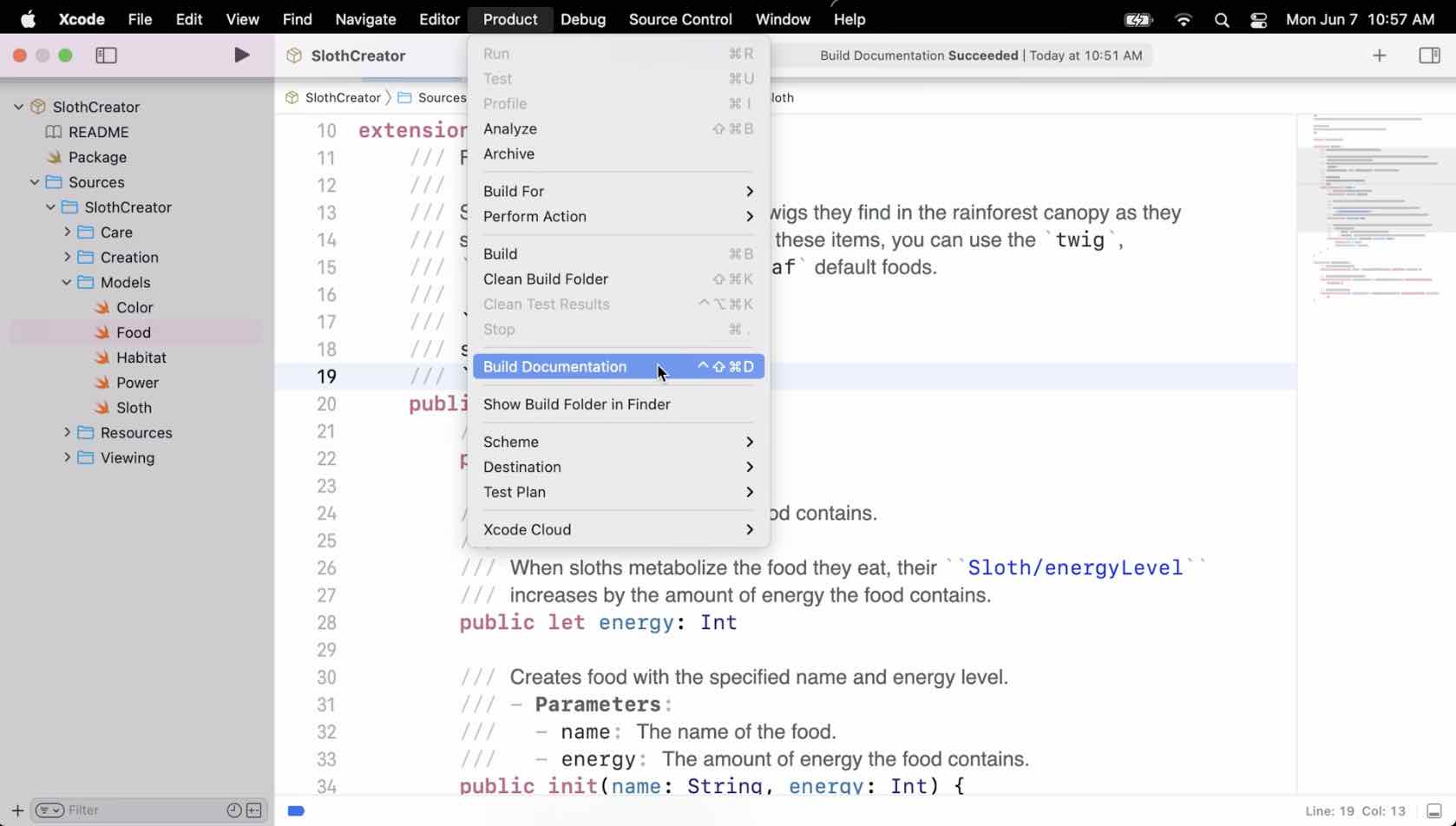
The generated docs are useful by default, but the landing page and extra markdown pages are what make the documentation feel intentional instead of accidental.
The default landing page is built from symbol information, but the article recommends editing the project markdown file to supply a better title and project description:
# ``DocCDemo``

This is a demo for using DocC to provide documentations for your project.
From there, you can add more markdown pages by creating an empty Documentation file inside the
.docc folder. Those pages support regular markdown content, images, and links.
The article calls out DocC's internal link style explicitly:
- <doc:GettingStarted>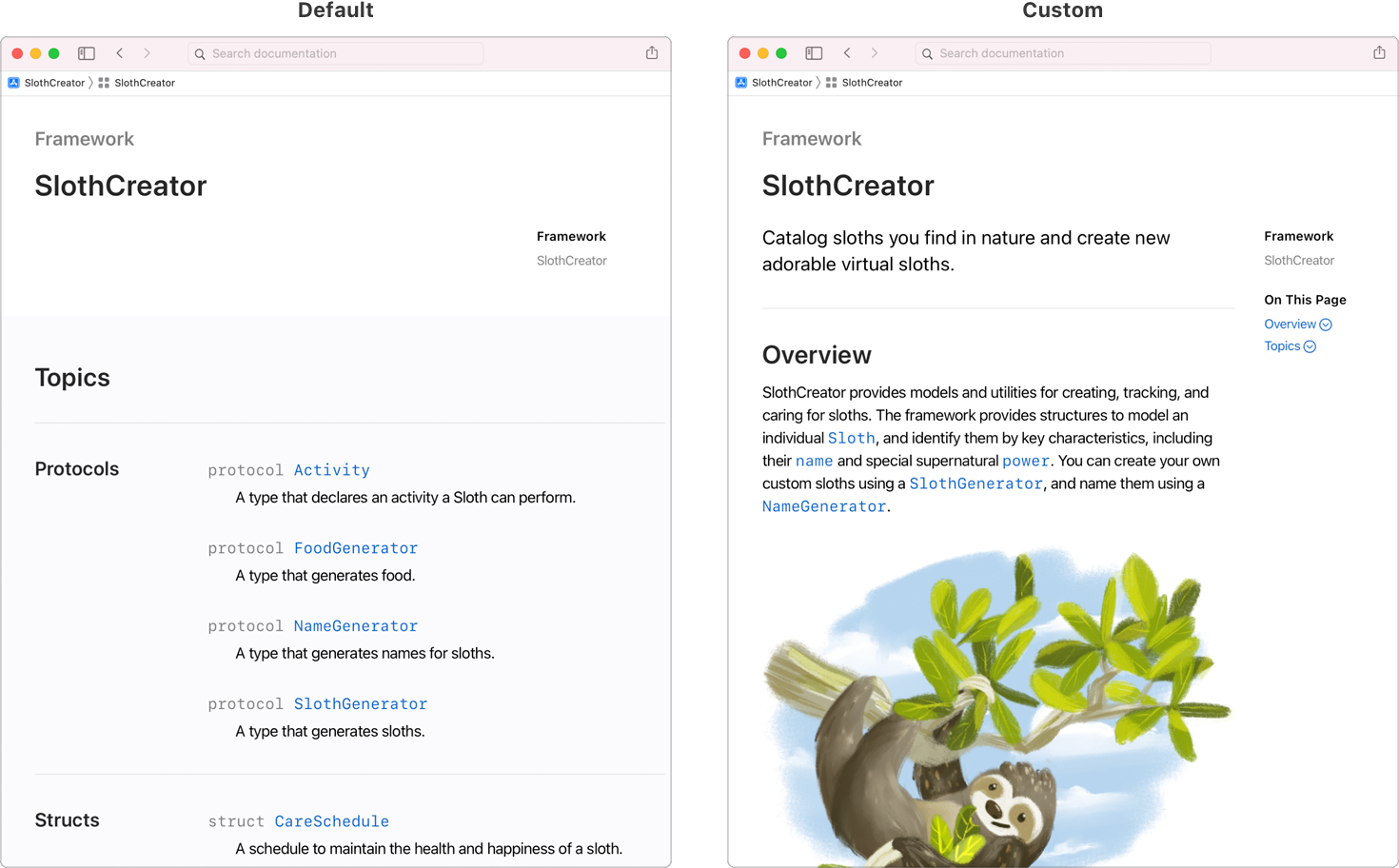
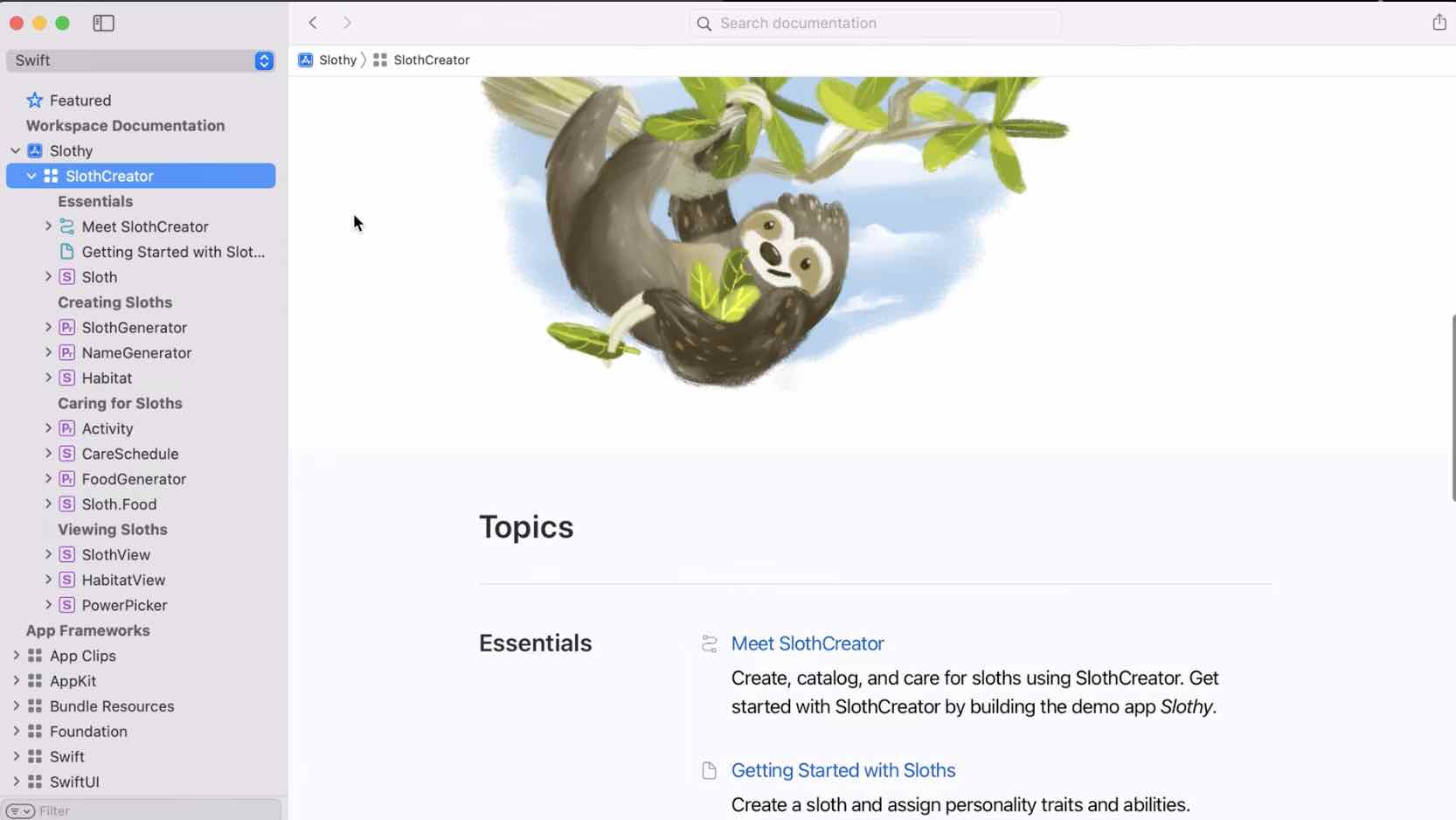
If you only need to hand the docs to another person, exporting the archive is the direct path.
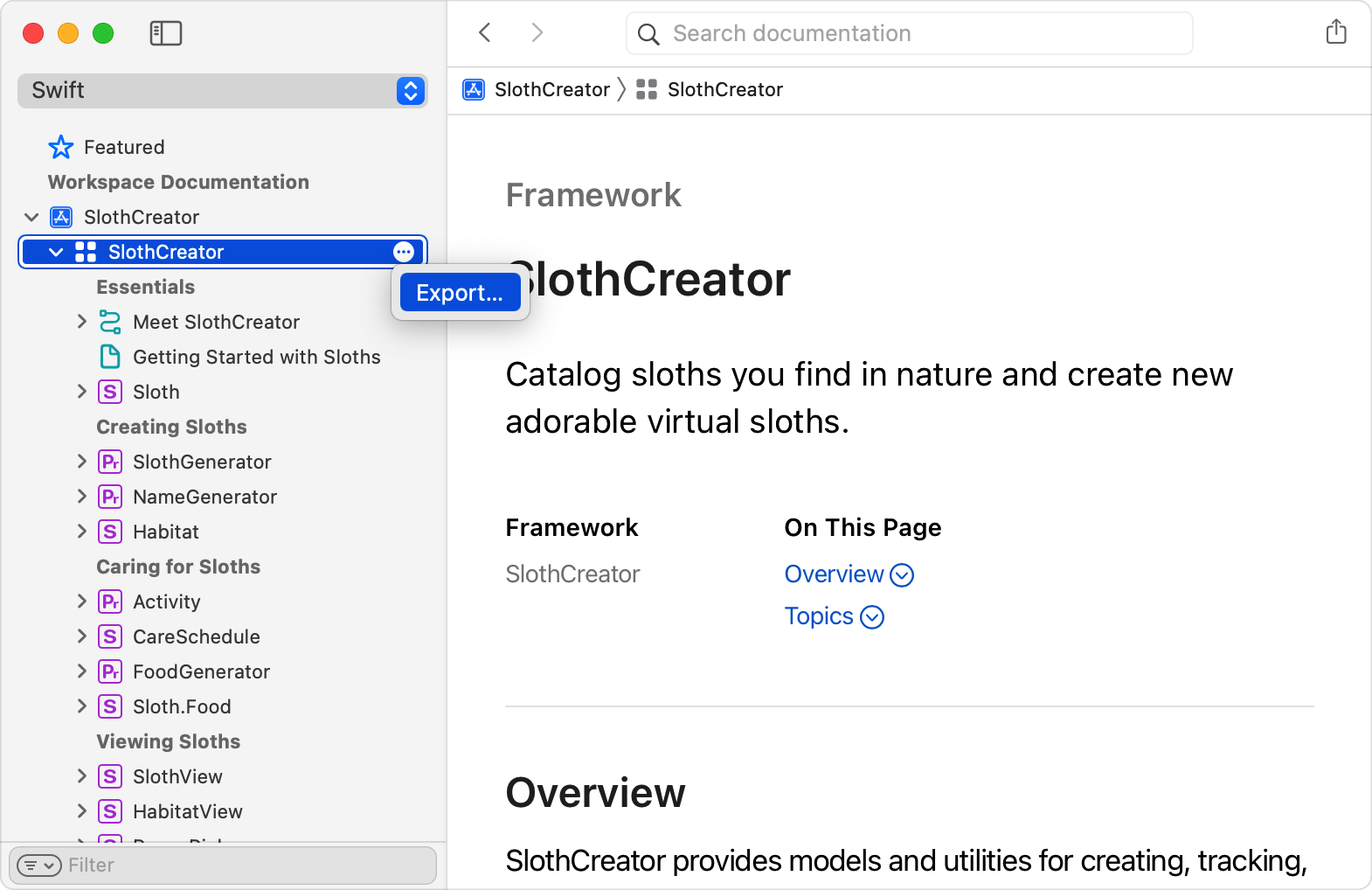
The article shows exporting a .doccarchive by right-clicking the documentation name inside the
Xcode documentation window and choosing Export. That archive can then be shared directly.
Publishing on the web is still static-file hosting, but DocC's generated output expects a few route aliases if you want the pages to resolve cleanly.
The article demonstrates serving the extracted documentation with nginx. After inspecting the exported doc directory:
root@ubuntu-linux-20-04-desktop:/docs# ls
css  data  favicon.ico  favicon.svg  img  index  index.html  js  theme-settings.json
It installs nginx:
sudo apt-get update
sudo apt-get install nginx
Then it configures aliases so DocC's /documentation, /tutorial, asset folders,
and JSON data endpoints resolve against the exported docs directory:
user root;
worker_processes auto;
pid /var/run/nginx.pid;

events {
    worker_connections 1024;
}

http {
    include /etc/nginx/mime.types;

    server {
        listen 80 default_server;
        listen [::]:80 default_server;

        location ~ ^/(documentation|tutorial)/ {
            alias /docs/;
            try_files /index.html =404;
        }

        location = /data/documentation.json {
            alias /docs/data/;
            try_files /documentation.json =404;
        }

        location ~ ^/(css|data|downloads|images|img|index|js|videos)/ {
            alias /docs/;
            try_files $uri =404;
        }

        location ~ ^/(favicon.ico|favicon.svg|theme-settings.json)$ {
            alias /docs/;
            try_files $uri =404;
        }

        location = / {
            return 302 /documentation/;
        }

        location = /documentation {
            return 302 /documentation/;
        }

        location = /tutorial {
            return 302 /tutorial/;
        }
    }
}
Finally, restart or reload nginx:
systemctl restart nginx
# systemctl reload nginxThe key shift with DocC is that code comments, markdown pages, and distribution are all part of one pipeline instead of three separate chores.
That is the practical takeaway from this article. Use public symbol comments to get strong generated
pages quickly, add a .docc catalog when you want a real landing page and extra guides, export a
.doccarchive when you only need to share it, and serve the static output with a few routing rules
when you want a web version.