Capti
Live captions from your screen, readable in PiP.
Screen audio transcription, live translation, and floating Picture in Picture captions.
Capti turns audio from your screen into live captions in a floating PiP window. Follow videos, meetings, livestreams, classes, and calls in real time, then translate captions instantly when you need another language.
Screen audio captions
Floating PiP
20 translation languages
iPhone

 Floating PiP translation
.srt.
Live screen transcription
Stay focused on what you are watching while Capti keeps the spoken words readable.
Capti is built for fast, clear captioning so you can understand more, miss less, and keep up with content across languages without covering the main video, meeting, or call.
Live demo
Workflow
A direct flow from setup to readable captions to translated PiP.
The product story is simple when the interface is shown in order: pick the language, start the live transcription, then switch into translation the moment another language is needed.
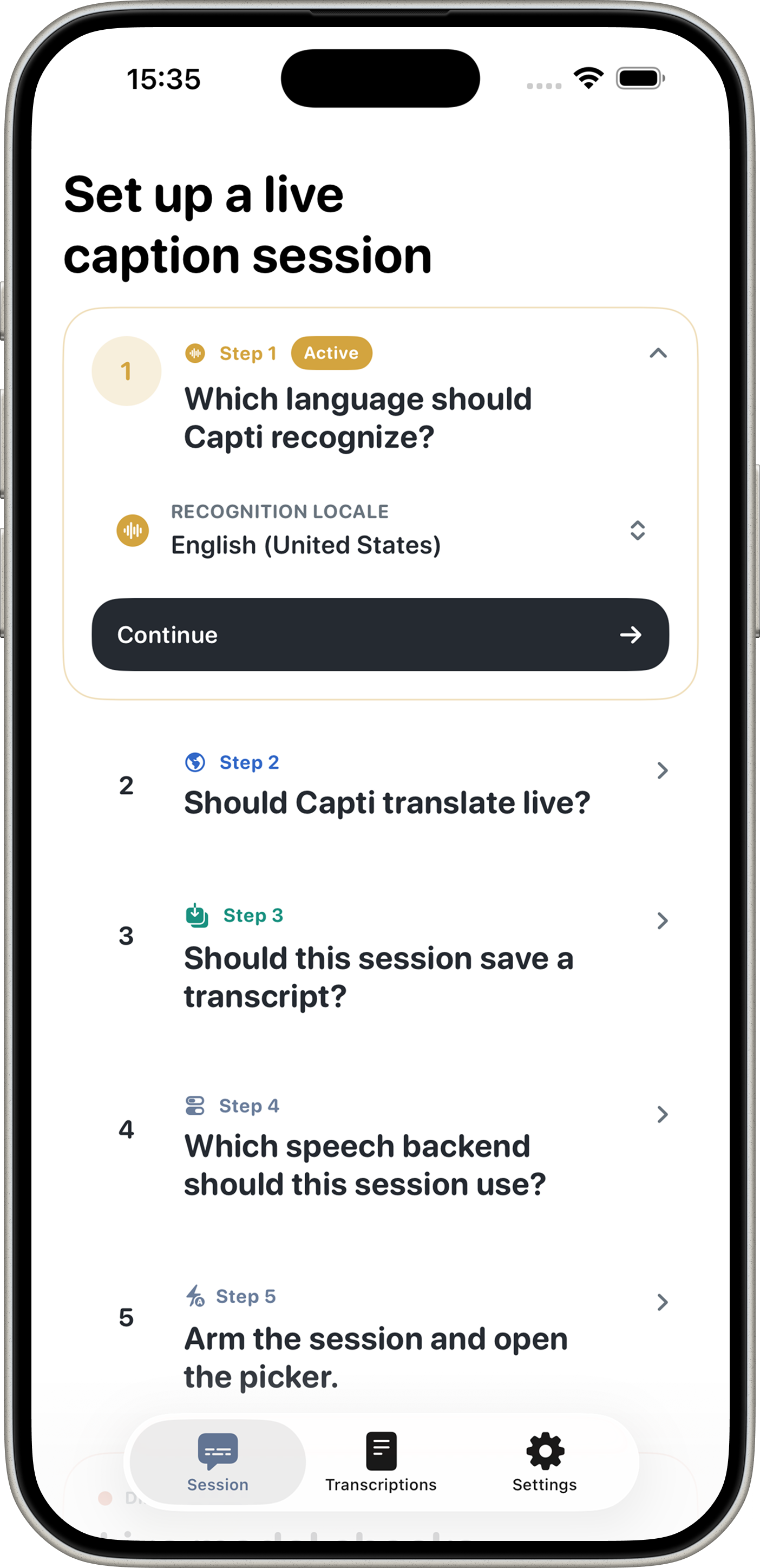
Choose the language and start the screen-audio session.
The first screen keeps the workflow light. Pick the language you want to follow, begin the broadcast, and move straight into live captioning without a heavy setup ritual.
- Start from a focused setup screen instead of a dense utility interface.
- Prepare the app for the language you want before the live audio begins.
- Keep the workflow fast enough for a class, meeting, or livestream that is already in progress.
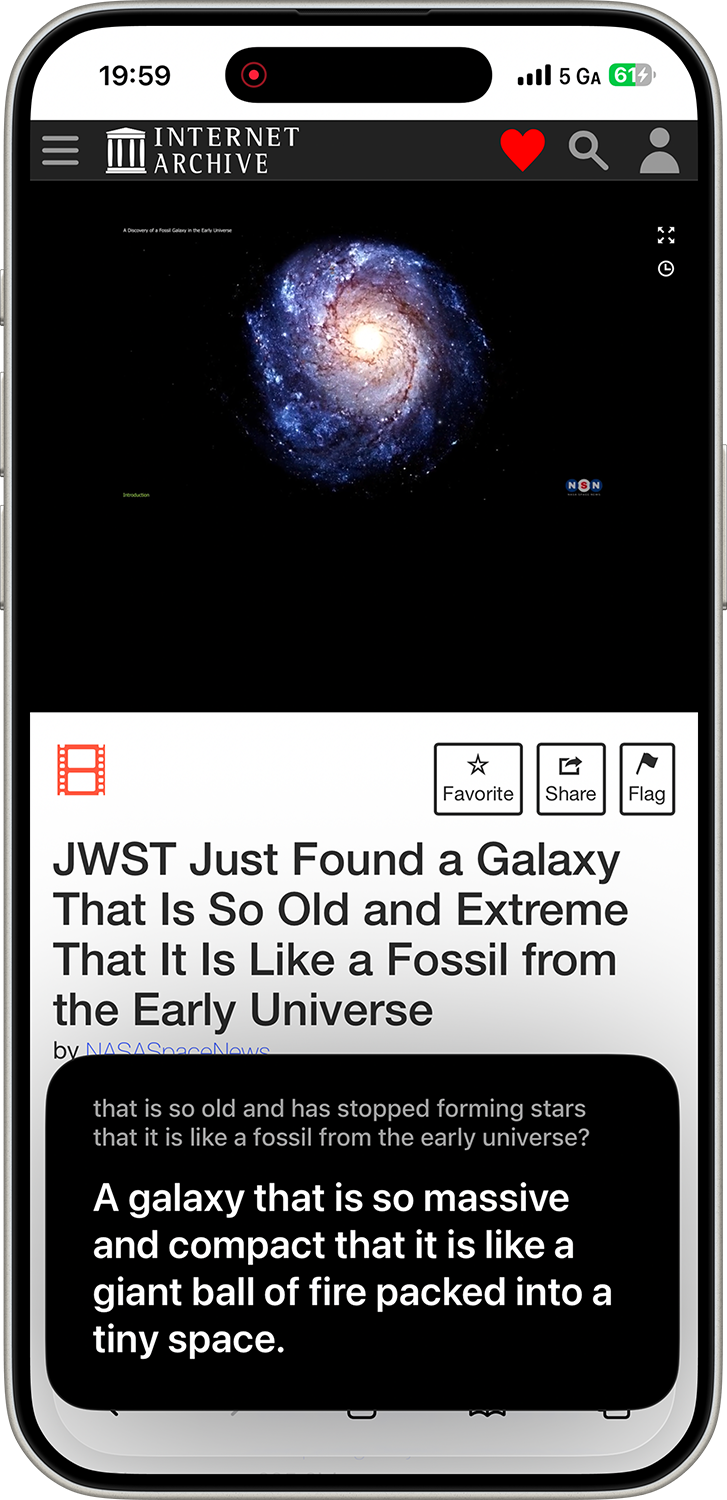
Follow the spoken words as the transcript grows on screen.
Capti keeps the language readable while the main content continues. That makes it useful for fast-moving video, recorded talks, calls, and any spoken content where missing a sentence breaks the rest of the experience.
- Read the words while the original content keeps playing.
- Use a subtitle-style layout that stays easy to scan quickly.
- Keep comprehension high when the speaker moves too fast or the audio is hard to catch.
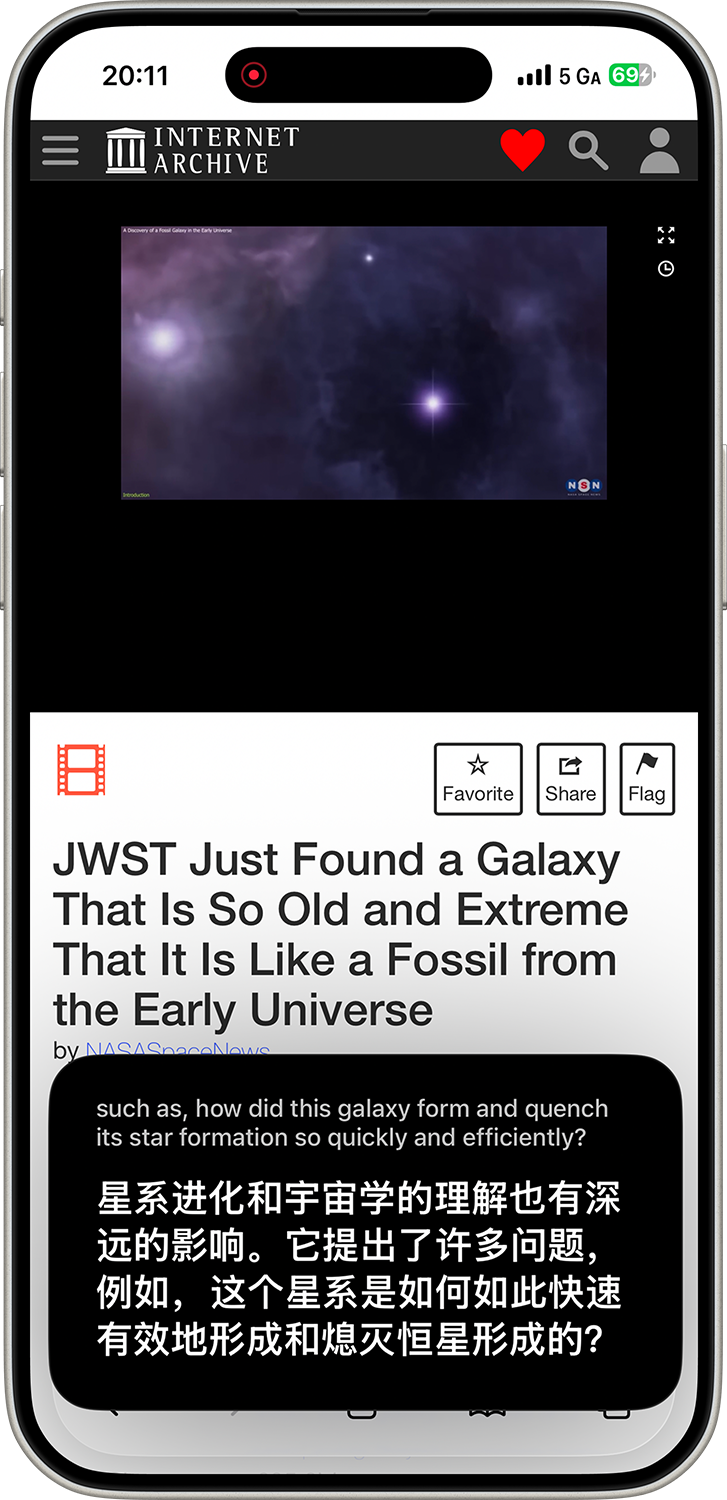
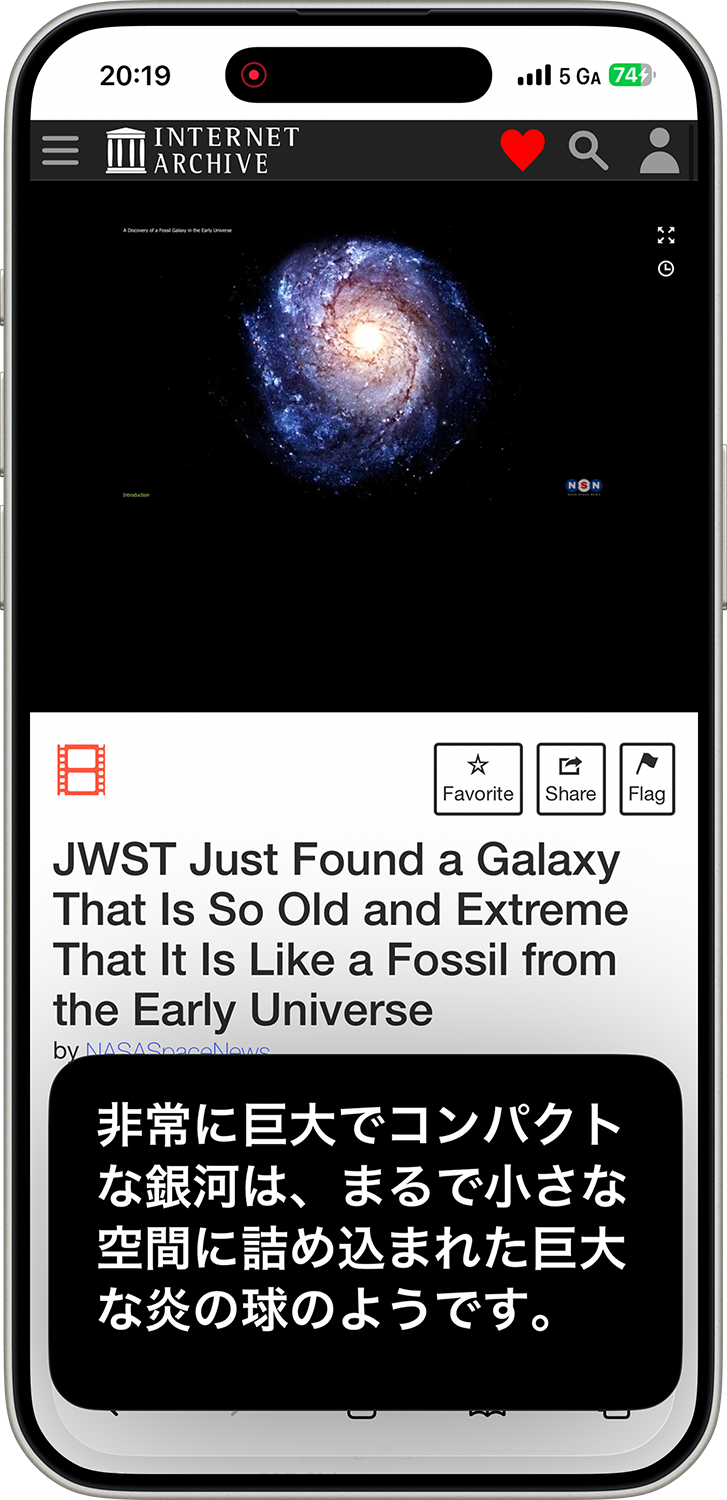
Switch the PiP captions into another language the moment you need it.
Translation stays part of the same live flow instead of feeling like a separate export step. Capti can keep the original speech understandable for viewers who need a different language right now.
- Instant translation is available in 20 supported languages.
- The floating PiP window keeps captions readable without taking over the full screen.
- Language switching works for the same live content across videos, classes, calls, and streams.
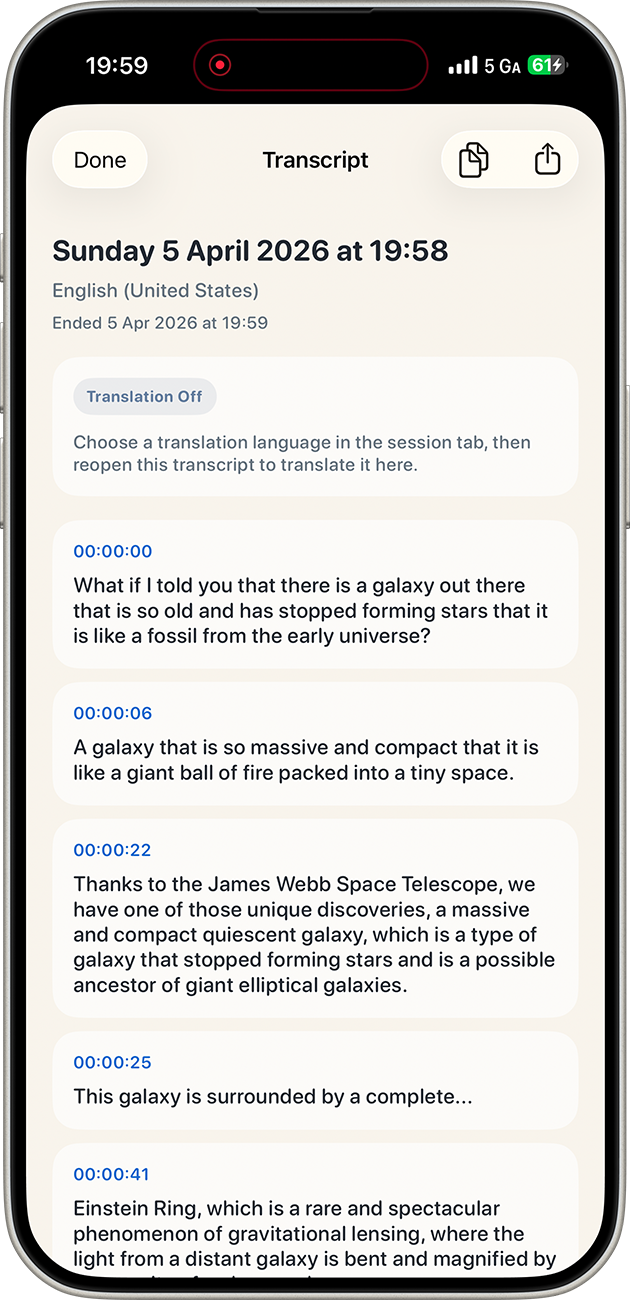
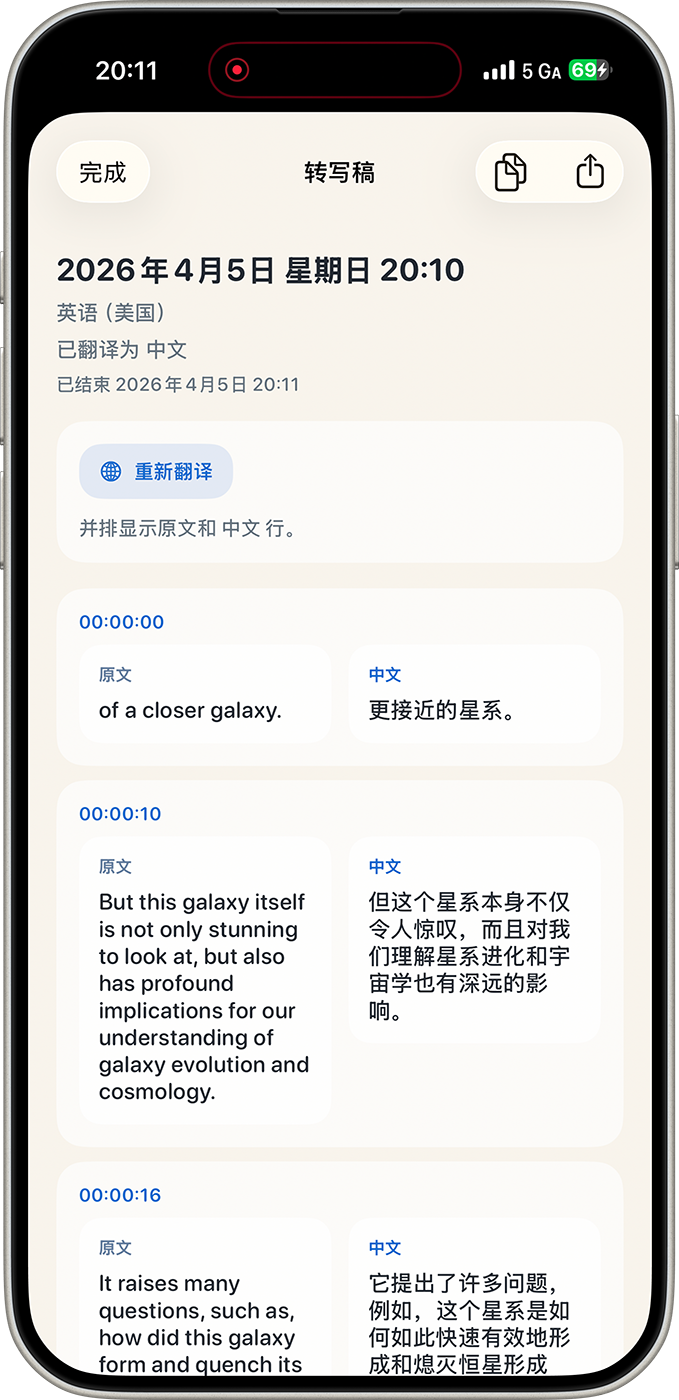
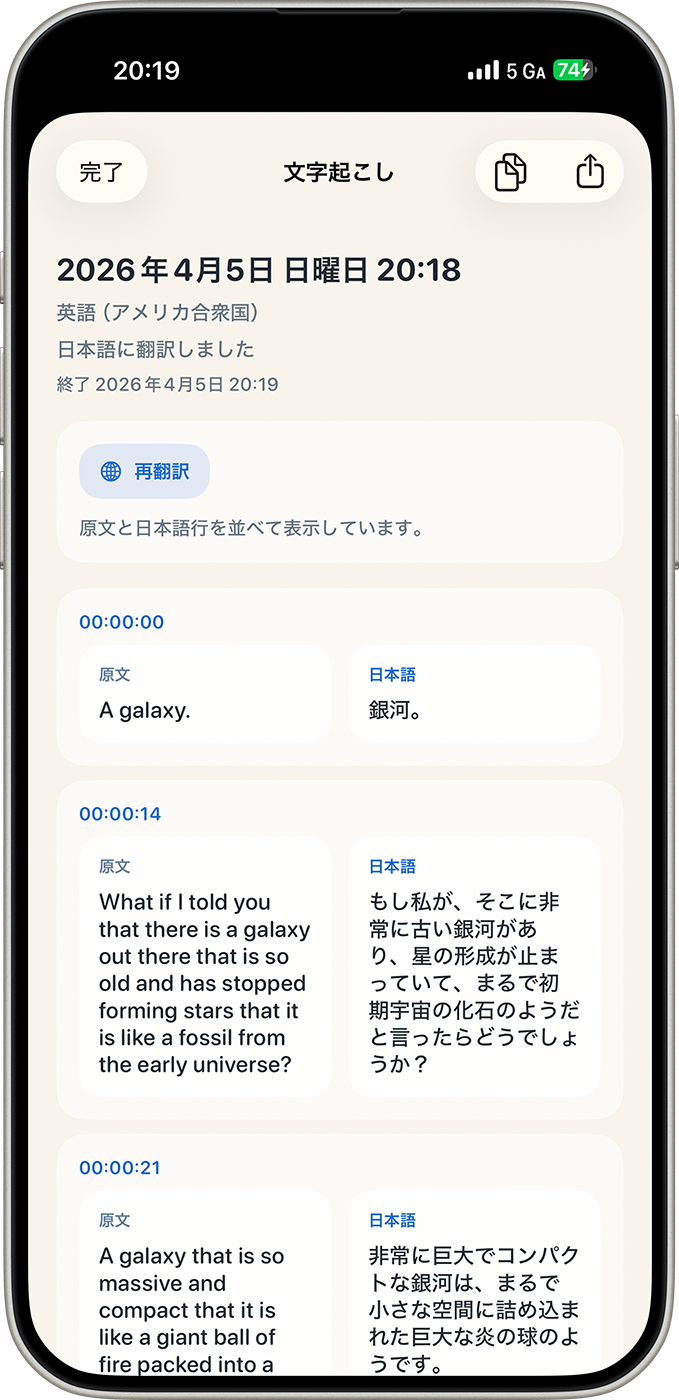
Saved transcripts
Reopen the conversation later with timestamps and translated archives.
Capti Pro keeps more than the live moment. Save transcripts with timestamps, reopen them later, and read the original text beside translated versions when you need to study, review, or reference what was said.
- Save transcripts so important spoken content does not disappear with the live session.
- Review the original transcript alongside translated text in the same archive flow.
- Use the saved view as a readable history for classes, meetings, calls, and long-form videos.
File demo
Capti Pro
Import recorded video, transcribe it, and export subtitles as .srt.
When the content is not live, Capti Pro still keeps the workflow direct. Bring in recorded video, generate the transcript, then export subtitle files for reuse in editing, publishing, or reference workflows.
.srt export
Turn the transcript into subtitle files that are easy to reuse elsewhere.
